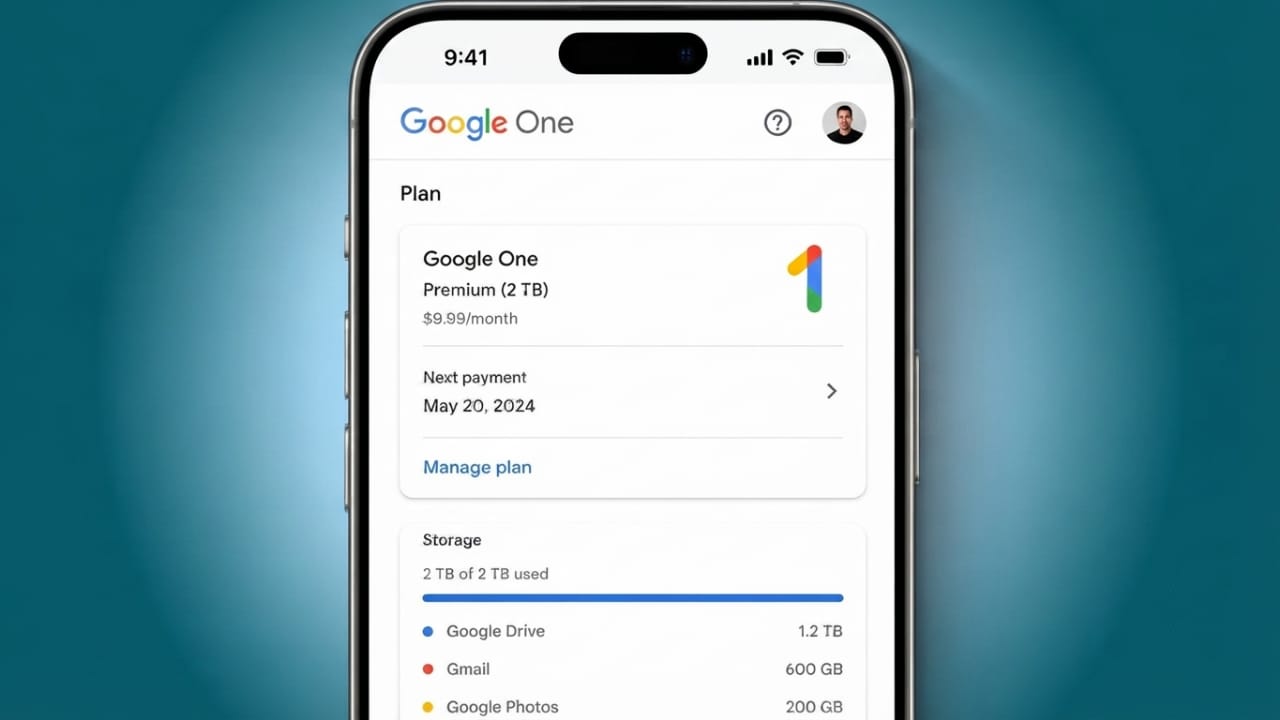
If you no longer need as much cloud storage, you can switch to a lower-cost Google One plan without cancelling your current subscription. Many people don’t realize this option exists because Google usually displays upgrade plans more prominently than cheaper ones.
This guide explains how to find the downgrade option, what happens after you switch, and the important things you should check before choosing a smaller storage plan.
Also read: How to Play Minecraft Multiplayer: A Complete Guide to LAN, Realms, Servers, and Split Screen
Can You Downgrade Google One?
Yes. Google allows you to move to a lower-priced storage plan while keeping your subscription active.
Advertisements
When you choose a cheaper plan, your current subscription continues until the end of the billing period. The new plan becomes active when your next billing cycle starts. Google also sends a confirmation email with the updated subscription details.
How to Downgrade Google One on a Mobile Device
You can change your storage plan directly from the Google One app.
Follow these steps:
- Open the Google One app.
- Go to the Membership section.
- Find your current storage plan.
- Tap Manage.
- Scroll down and select See more plans.
- Browse the available storage options.
- Choose the lower-priced plan that fits your needs.
- Tap Downgrade.
- Confirm your choice by tapping Yes, continue.
- Check your email for Google’s confirmation message.
Your current plan will remain active until the billing period ends.
How to Downgrade Google One on a Computer
If you prefer using a desktop or laptop, the process is just as simple.
Steps to follow:
- Visit the official Google One website.
- Sign in with your Google Account.
- Open your Google One dashboard.
- Go to the Storage or Plans section.
- Select See all plans or See more plans if available.
- Review the available storage options.
- Select the plan you want.
- Click Downgrade or Subscribe.
- Confirm the change and complete the remaining instructions.
The new plan will start after your current billing cycle ends, and you’ll continue receiving your existing benefits until then.
Why Are Cheaper Google One Plans Hard to Find?
Google often highlights larger storage plans and premium features, making upgrade options easier to notice.
Lower-cost plans are usually placed inside additional menus, so they aren’t immediately visible. If you only see upgrade offers, look for options like See more plans or See all plans. These menus usually display the full list of available subscriptions.
Taking a few extra moments to explore these options can help you choose a plan that better matches your storage needs and budget.
Things to Check Before Downgrading
Before switching to a smaller storage plan, check how much storage you’re currently using.
If your data exceeds the limit of your new plan after it becomes active, Google won’t automatically delete your files. However, some services may stop working properly until your storage is reduced.
You may experience the following limitations:
- Google Photos may stop backing up new photos and videos.
- Gmail may not send or receive new emails.
- Google Drive may block new file uploads.
- File syncing may stop.
- You may have trouble creating new files in Google Docs or Google Sheets.
Reviewing your storage usage before making changes can help you avoid these issues.
Free Up Storage Before Switching
Google offers built-in tools that make it easier to identify files taking up unnecessary space.
To clean up your storage:
- Open your Google One dashboard.
- Go to the Storage section.
- Select Clean up space.
- Review Google’s recommendations.
- Check large files in Google Drive.
- Delete emails with large attachments that you no longer need.
- Remove unwanted photos and videos.
- Empty the trash if you’re sure the files are no longer needed.
Always review files carefully before deleting them to avoid removing important data.
Back Up Important Files
Before deleting anything, create a backup of important documents, photos, and other valuable files.
You can save copies:
- On your computer.
- On an external USB drive or hard drive.
- In another trusted cloud storage service.
Keeping more than one backup is a good practice, especially for personal memories, work documents, or other important information.
Also read: How to Fix a Flickering Phone Screen on Android and iPhone
Final Thoughts
Downgrading your Google One subscription is a simple way to reduce your monthly expenses if you no longer need extra storage. Although the option may not be immediately visible, you can find it by exploring all available plans in the Google One app or website.
Before making the change, check your current storage usage, remove unnecessary files if needed, and back up important data. A little preparation will help you switch plans smoothly while keeping your files safe.

Jatin Rajput (Tech Golu) — Tech blogger & YouTuber with 6+ years of experience in WhatsApp, Instagram, Facebook, and mobile guides. Founder of TechGolu.in.