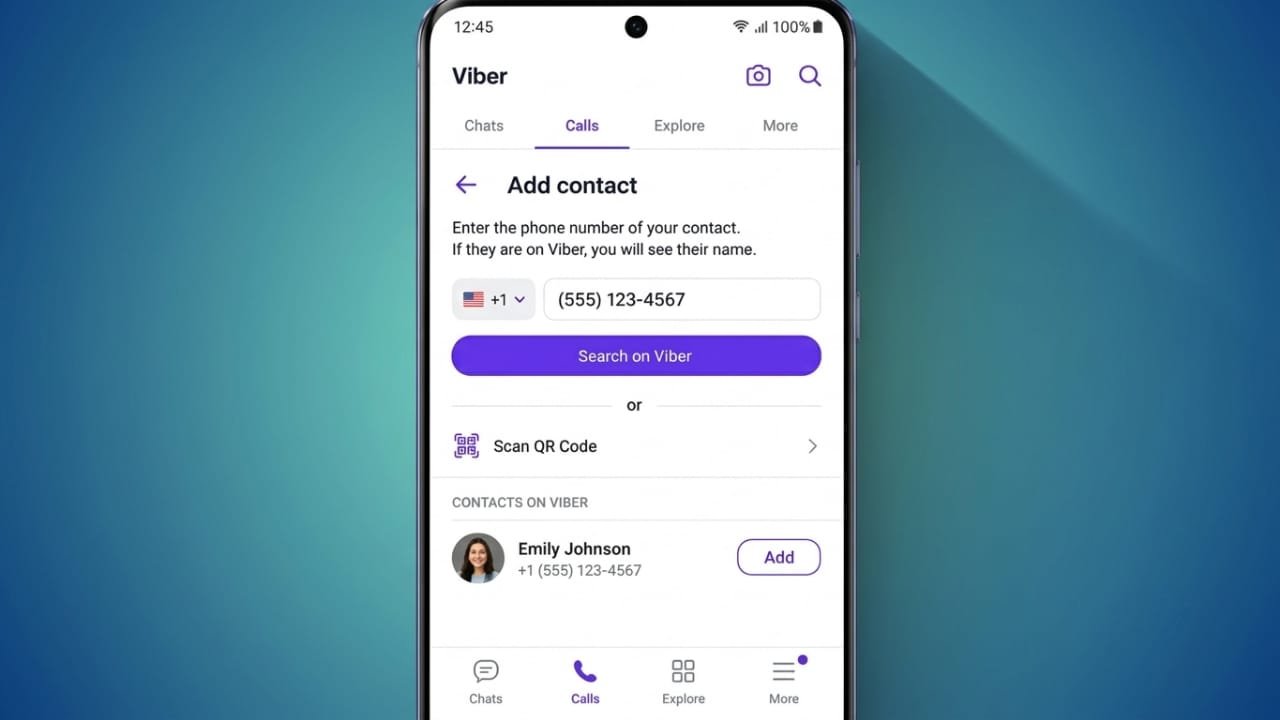
Adding contacts to Viber is quick and easy. In most cases, the app automatically syncs the contacts saved on your phone. However, if someone doesn’t appear in your Viber list, there are several simple ways to add them manually.
This guide explains all the available methods, from using a phone number to scanning a QR code.
Also read: How to Use Stage Manager With an External Display on iPad
1. Add a Contact Using a Phone Number
The easiest way to add someone is by entering their phone number.
Advertisements
Steps:
- Open Viber and tap Calls.
- Tap the Add Contact icon.
- Enter the person’s phone number, including the correct country code if needed.
- Tap Done.
- Viber will check whether the number is linked to a Viber account.
- If found, tap Save.
Once saved, you can start chatting or making Viber calls immediately.
2. Add a Contact from the More Menu
You can also add contacts from the More section of the app.
Here’s how:
- Open Viber.
- Tap More at the bottom of the screen.
- Select Add Contact.
- Enter the phone number.
- Tap Done.
- Save the contact when Viber finds the account.
If you prefer, you can also choose the QR Scanner option from this screen.
3. Invite Someone Who Doesn’t Use Viber
If the person isn’t on Viber yet, you can send them an invitation.
Steps:
- Open Viber and go to Calls.
- Tap Add Contact.
- Enter the phone number and tap Done.
- Save the person’s name.
- Tap Invite.
Viber automatically creates an invitation message that the person can use to join the platform.
4. Invite Contacts from Your Android Phone
Android users can invite people directly from the phone’s Contacts app.
To do this:
- Open the Contacts app.
- Find the contact you want.
- Tap Invite to Viber.
- An invitation SMS will be sent automatically.
After they create a Viber account, they will appear in your contact list.
5. Add Contacts Using a QR Code
QR codes make adding contacts fast and accurate.
Steps:
- Ask your friend to open Viber and display their personal QR code.
- Open the QR Scanner in your Viber app.
- Scan their code.
- Save the contact when prompted.
This method is ideal when meeting someone in person because it eliminates typing errors.
6. Save a Contact from an Existing Chat
If you’ve already received a message from someone, you can save them directly from the conversation.
Steps:
- Open the chat.
- Tap the person’s profile picture or name.
- Select Save.
- Enter or confirm the contact name.
- Tap Save again.
The contact will now be stored in your Viber contacts.
7. Save Shared Contacts
When someone shares another person’s contact through Viber, you can save it instantly.
Here’s how:
- Tap Save Contact on the shared contact.
- Review the name and phone number.
- Edit any details if needed.
- Tap Done.
This is useful when friends or colleagues introduce you to someone.
8. Sync Contacts Automatically
Viber relies on your phone’s contact list. If contacts are missing, syncing may be disabled.
Enable Contact Sync
- Open Viber.
- Tap More > Settings.
- Select Account.
- Turn on Sync Contacts.
After syncing, eligible contacts should appear automatically.
If Contacts Still Don’t Appear
Try these troubleshooting tips:
- Make sure the phone number is saved correctly.
- Check that the person has a Viber account.
- Allow Viber permission to access your contacts.
- Refresh the contact list.
- Update the Viber app.
- Ensure you have a stable internet connection.
- Restart or reinstall Viber if the issue continues.
9. Add International Contacts
Viber supports users worldwide, but international numbers must be entered correctly.
For the best results:
- Include the correct country code.
- Double-check every digit.
- Use the full international number format.
- Refresh your contacts after saving.
Correct formatting helps Viber identify registered users without problems.
10. Can You Add Someone Without Saving Their Number?
Generally, Viber matches users based on the phone numbers saved in your device’s contacts.
If the number isn’t saved, add it to your phone’s contact list first and allow Viber to sync. Once synced, the contact should appear if they use Viber.
11. Move Contacts to a New Phone
Switching to a new phone doesn’t mean losing your contacts.
You can transfer them by using:
- Google account synchronization
- SIM card contacts
- Phone backup and restore tools
After the contacts are transferred, open Viber and let it sync automatically.
12. Block a Contact
If you no longer want to communicate with someone, you can block them.
Steps:
- Open the conversation.
- Tap the person’s name.
- Choose Block Contact.
- Confirm your decision.
Blocked users won’t be able to call or message you through Viber.
13. Call Non-Viber Users with Viber Out
If someone doesn’t use Viber, you can still reach them using Viber Out.
Viber Out is a paid service that allows calls to regular phone numbers. It offers subscription plans and pay-as-you-go credits for international and local calls.
14. Create a Viber Group
After adding contacts, you can easily create group chats.
Steps:
- Open Viber.
- Tap the + icon.
- Select New Group.
- Choose the contacts you want to add.
- Confirm your selection and start chatting.
Group chats are useful for family conversations, work discussions, or planning events.
Also read: How to Free Up Storage on Your Android Phone Without Deleting Important Files
Final Thoughts
Viber offers several convenient ways to add contacts. Whether you use a phone number, QR code, shared contact, or automatic synchronization, the process is straightforward. Keeping your contacts synced and correctly saved ensures you can quickly connect with friends, family, and colleagues whenever you need to.

Jatin Rajput (Tech Golu) — Tech blogger & YouTuber with 6+ years of experience in WhatsApp, Instagram, Facebook, and mobile guides. Founder of TechGolu.in.