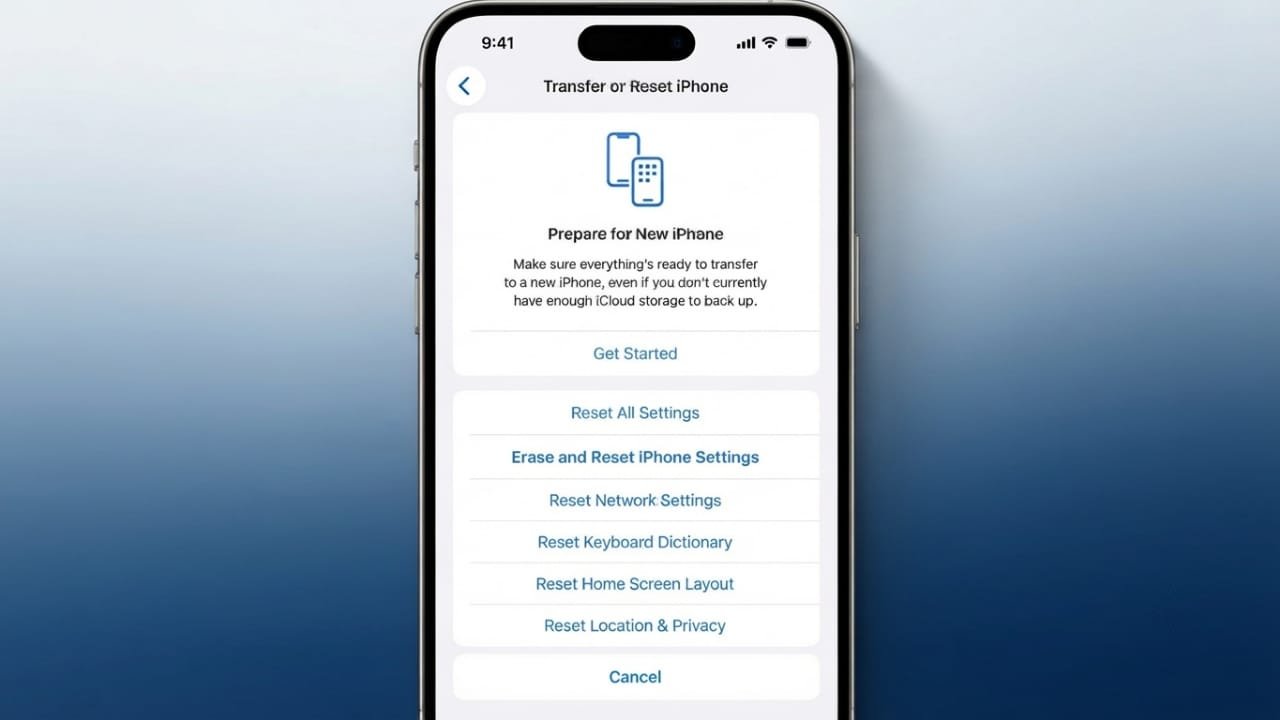
If your iPhone is acting strangely or you’re planning to sell it, resetting or erasing the device can be a good solution. Apple includes several reset options, and each one is designed for a different purpose.
Some resets only restore settings, while others remove all data from your iPhone. Understanding what each option does helps you choose the right one and avoid losing important information.
Also read: Computer Formatting: Meaning, Types, and Why It Matters
Learn the Different Reset Options
Not every reset works the same way. Apple offers multiple choices depending on the problem you want to fix.
Advertisements
For example, some reset options leave your photos, contacts, apps, and other personal files untouched. Others only restore certain settings. The most complete option erases everything and returns the iPhone to its factory state.
Before you begin, it’s a good idea to know what each reset does so you can avoid unnecessary data loss.
Reset All Settings
The Reset All Settings option restores your iPhone’s system settings to their default values without deleting your personal data.
Your photos, videos, contacts, messages, and installed apps remain on the device. Only settings such as Wi-Fi preferences, display options, wallpapers, and other system configurations are reset.
This option is useful if you’ve changed many settings or your iPhone has started behaving unexpectedly.
Steps to Reset All Settings
- Open Settings.
- Tap General.
- Select Transfer or Reset iPhone.
- Tap Reset.
- Choose Reset All Settings.
- Enter your passcode if prompted.
- Confirm the reset.
Your iPhone will restart after the process is complete, and your personal files will still be available.
Reset Network Settings
Network issues can sometimes be caused by incorrect settings. If your Wi-Fi disconnects often, mobile data isn’t working properly, or VPN connections create conflicts, resetting network settings may help.
This reset removes:
- Saved Wi-Fi networks and passwords
- VPN settings
- Cellular network preferences
- Network-related configurations
After the reset, you’ll need to reconnect to your Wi-Fi networks and enter the passwords again.
Steps to Reset Network Settings
- Open Settings.
- Tap General.
- Select Transfer or Reset iPhone.
- Tap Reset.
- Choose Reset Network Settings.
- Enter your passcode.
- Confirm your choice.
Once your iPhone restarts, reconnect to your preferred Wi-Fi network. Your mobile network settings should refresh automatically.
When Should You Reset iPhone Settings?
Resetting settings can solve many common software issues without deleting your personal content.
You may want to reset your iPhone if:
- Wi-Fi keeps disconnecting.
- Mobile data is slow or unreliable.
- Keyboard suggestions become inaccurate.
- System settings behave unexpectedly.
- Privacy permissions stop working correctly.
- Network connections repeatedly fail.
Trying a settings reset first is often easier than performing a full factory reset.
Reset Home Screen Layout
If you’ve moved apps around so much that finding them has become difficult, resetting the Home Screen layout can help.
This option restores Apple’s default app arrangement. Built-in apps return to their original positions, while downloaded apps are placed on the following screens.
Your apps remain installed, and your wallpaper stays unchanged.
Steps to Reset Home Screen Layout
- Open Settings.
- Tap General.
- Select Transfer or Reset iPhone.
- Tap Reset.
- Choose Reset Home Screen Layout.
- Enter your passcode if required.
- Confirm the action.
This makes it easier to organize and locate your apps again.
Reset Location and Privacy Settings
Apps request permission before accessing your location, camera, microphone, contacts, and other personal information. If these permissions stop working as expected, resetting them can help.
This option clears all existing privacy permissions. The next time an app needs access, it will ask for permission again.
Steps to Reset Location and Privacy
- Open Settings.
- Tap General.
- Select Transfer or Reset iPhone.
- Tap Reset.
- Choose Reset Location and Privacy.
- Enter your passcode if prompted.
- Confirm the reset.
This is a useful way to start fresh if permission settings have become confusing or incorrect.
Other Available Reset Options
Apple also provides several other reset choices to help fix specific issues.
These include:
- Reset Keyboard Dictionary
- Reset All Settings
- Reset Network Settings
- Reset Home Screen Layout
- Reset Location and Privacy
Each option serves a different purpose, so choose the one that best matches your situation instead of resetting everything unnecessarily.
Erase Your iPhone Completely
If resetting settings doesn’t solve the problem, or you’re giving away or selling your iPhone, you can erase all content and settings.
This returns the device to its original factory condition by removing your personal data, apps, and settings.
Before you begin, create a backup so you can restore your information later if needed.
Erase iPhone from Settings
You can erase your iPhone directly from the Settings app.
Steps
- Open Settings.
- Tap General.
- Select Transfer or Reset iPhone.
- Tap Erase All Content and Settings.
- Enter your passcode.
- If prompted, enter your Apple Account password.
- Tap Continue.
- Wait for the process to finish.
When the erase is complete, the iPhone will display the initial setup screen.
Decide What to Do with Your eSIM
If your iPhone uses an eSIM, Apple lets you choose whether to keep or remove it during the erase process.
You can:
- Keep the eSIM if you plan to continue using the same mobile plan.
- Remove the eSIM if you’re transferring ownership of the device.
If you’re unsure which option is best, contact your mobile carrier before erasing the device.
Restore Your iPhone Using a Mac or Windows PC
If your iPhone isn’t working properly or won’t reset from the device itself, you can restore it using a computer.
Connect your iPhone with a compatible cable.
- On a Mac, open Finder.
- On Windows, use the Apple Devices app.
- On older systems, iTunes may be required.
Steps
- Connect your iPhone.
- Select it in Finder, Apple Devices, or iTunes.
- Open the General section if needed.
- Click Restore iPhone.
- Confirm by selecting Restore again.
If Find My iPhone is enabled, you’ll need to sign out before the restore can begin.
Also read: How to Fix Screenshots Not Working on Android
Final Thoughts
Apple’s reset options are designed to solve different kinds of problems. In many cases, a simple settings reset is enough to fix software issues without affecting your personal data.
If you’re preparing to sell your iPhone or need a completely fresh start, erasing all content and settings is the best choice. Whatever option you choose, backing up your important files beforehand is the safest way to protect your information.

Jatin Rajput (Tech Golu) — Tech blogger & YouTuber with 6+ years of experience in WhatsApp, Instagram, Facebook, and mobile guides. Founder of TechGolu.in.