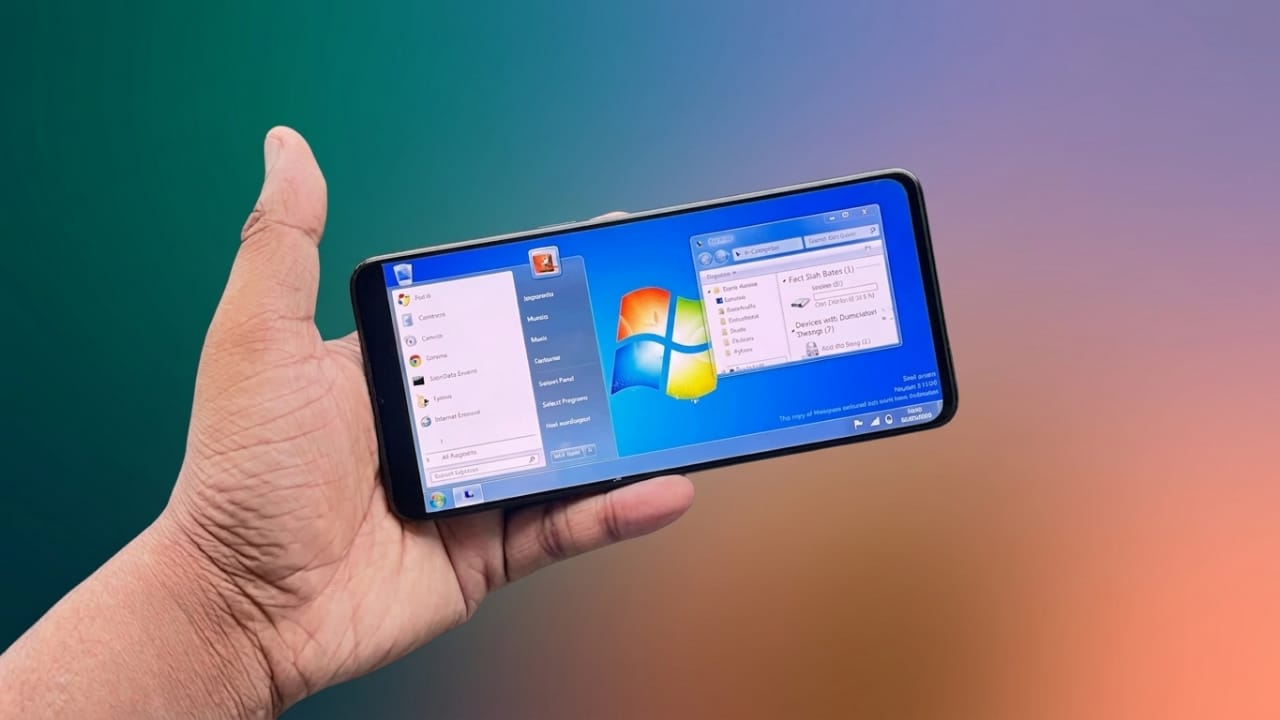
Smartphones have become powerful enough to handle many tasks that were once limited to computers. While a phone cannot fully replace a PC, some apps can make your Android device look and feel more like a desktop computer. One popular option is a Windows-style launcher that brings a familiar desktop appearance to your smartphone.
If you enjoy the classic Windows 7 design, a computer launcher can give your Android device a fresh and unique look. Let’s explore its features, setup process, and advantages.
Also read: Best Lighter Simulator App for Android: Enjoy Virtual Flames and Concert Effects
What Is a Computer Launcher for Android?
A computer launcher is a customization app that changes the appearance of your Android home screen. Instead of the standard Android interface, it displays a desktop-style layout inspired by Windows 7.
The launcher focuses on visual customization and navigation. It does not install the actual Windows operating system on your phone, but it can recreate many of the familiar design elements.
Key Features
Windows-Style Desktop Layout
The launcher transforms your home screen into a desktop-like environment. You may see a taskbar, start menu-style navigation, desktop icons, and other visual elements similar to a traditional computer interface.
Personalization Options
Most computer launchers allow users to customize the appearance of their device. Depending on the launcher, you can:
- Change app icons
- Set custom wallpapers
- Organize folders
- Adjust desktop layouts
- Modify theme settings
These options help create a setup that matches your preferences.
User-Friendly Interface
Many people are already familiar with desktop computer navigation. Because of this, a Windows-inspired launcher can feel comfortable and easy to use. Most launchers are designed to be simple, allowing users to switch between apps and settings without a steep learning curve.
Desktop-Like Widgets and Shortcuts
Some launchers include widgets and shortcuts that resemble desktop tools. Examples may include:
- Clock widgets
- Calendar widgets
- Quick access shortcuts
- Notification panels
These features can help keep important information easily accessible.
How to Use a Computer Launcher on Android
Step 1: Install the Launcher
Download a trusted computer launcher from the Google Play Store. After installation, open the app and follow the setup instructions. You may need to grant certain permissions for the launcher to function properly.
Step 2: Configure the Interface
Once the launcher is active, you can choose your preferred layout and customize various settings. Adjust wallpapers, icons, widgets, and shortcuts to create the desktop-style experience you want.
Step 3: Start Using the Launcher
After setup is complete, your phone will display the new desktop-inspired interface. You can continue using your apps as usual while enjoying a different visual experience.
Benefits of Using a Computer Launcher
Familiar Desktop Appearance
Users who like the classic Windows design may enjoy having a similar look on their Android device.
Greater Customization
Computer launchers provide additional ways to personalize your smartphone beyond the default Android interface.
Organized Layout
Desktop-style navigation can help some users keep apps, folders, and shortcuts neatly arranged.
Things to Consider
Performance on Older Devices
Some launchers may require additional system resources. On older smartphones, this could affect performance or responsiveness.
Limited Desktop Functionality
Although the interface may resemble a computer, it does not provide the full functionality of a Windows PC. The launcher mainly changes the visual appearance and navigation style.

Also read: Designer Tools Pro App: A Handy Tool for Mobile UI Designers
Final Thoughts
A computer launcher is an interesting way to give your Android phone a desktop-inspired makeover. It offers a familiar interface, useful customization options, and a fresh look that can make everyday phone usage more enjoyable.
If you enjoy the appearance of classic desktop systems and want a different smartphone experience, trying a computer launcher can be a fun and practical option. Just remember that it changes the look of your device rather than turning it into a full computer operating system.

Jatin Rajput (Tech Golu) — Tech blogger & YouTuber with 6+ years of experience in WhatsApp, Instagram, Facebook, and mobile guides. Founder of TechGolu.in.