Losing a smartphone is stressful, but the bigger concern can be the personal information stored on it. An unlocked phone may give someone access to messages, photos, email accounts, apps, and other private data.
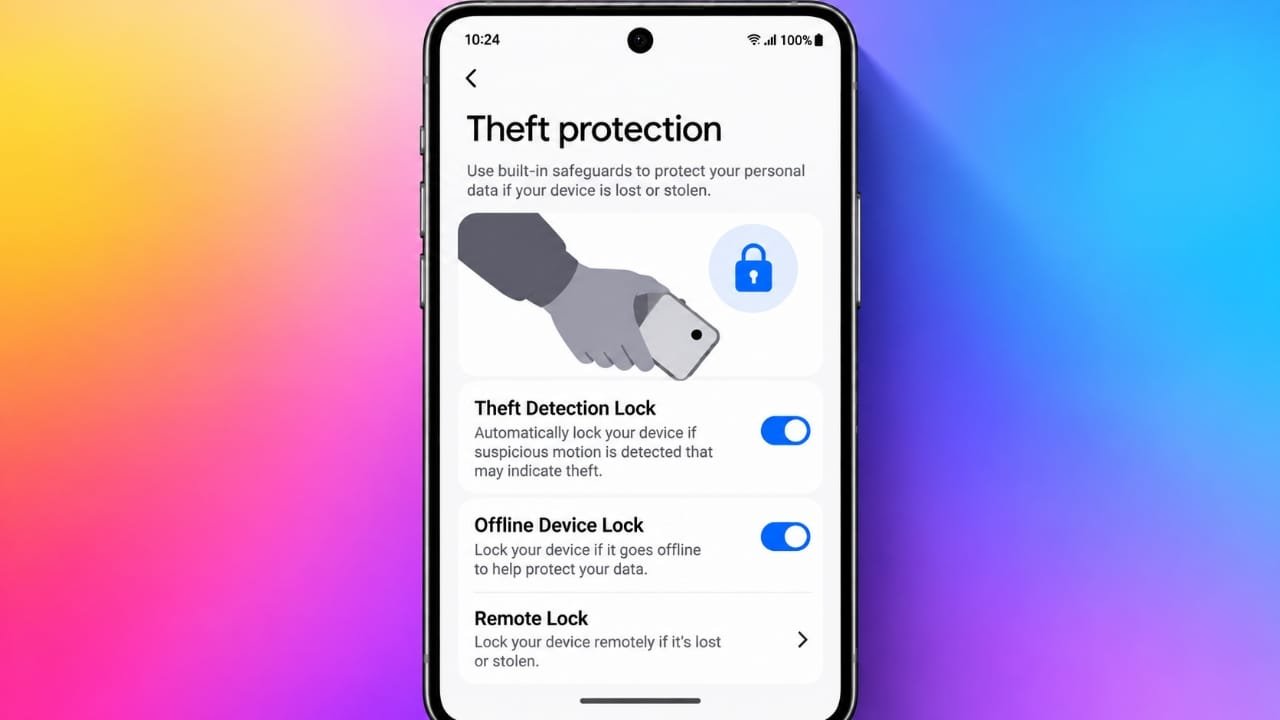
Android includes a Theft Detection Lock feature that can help in this situation. When enabled, it can automatically lock the phone if the device detects movement that may indicate someone has suddenly taken it.
The feature works in the background and is designed to provide an extra layer of protection without requiring you to manually lock the phone every time.
Also read: Samsung Galaxy A08 Launched With 6,000mAh Battery and Six Years of Updates
What Is Theft Detection Lock on Android?
Theft Detection Lock is part of Android’s theft protection features. It is designed to recognize certain movement patterns associated with a phone being taken suddenly.
For example, imagine that you are using your phone and someone quickly grabs it from your hand and runs away. If Android detects movement that matches a suspected theft pattern, it can automatically lock the screen.
Once the phone is locked, the person holding it will need your usual screen-lock method to access the device.
This can be useful because modern smartphones often contain sensitive information such as:
- Personal photos and videos
- Private messages
- Email accounts
- Banking and payment apps
- Social media accounts
- Saved account information
- Personal files and documents
The feature does not physically prevent a phone from being stolen. Instead, its purpose is to reduce the chance of someone continuing to use the device after taking it while it is unlocked.
Does Theft Detection Lock Track Your Location?
No. Theft Detection Lock is not a location-tracking feature.
The feature uses sensors and on-device detection to identify movement that may indicate a theft. It is different from Android’s tools for finding a missing or stolen phone.
If you want to locate a lost phone, Android provides Find Hub, which is designed for finding and managing supported devices.
How to Turn On Theft Detection Lock
The exact location of the setting can vary depending on your phone model, Android version, and manufacturer.
On supported devices, you can generally look for it by following these steps:
- Open Settings on your Android phone.
- Tap Google.
- Select All services.
- Look for Theft protection.
- Tap Theft Detection Lock.
- Turn the feature on.
After enabling it, the feature can work automatically in the background.
If you cannot find the option in this location, check the Security and privacy section of your phone’s Settings. Different manufacturers may organize Android security features differently.
What Other Android Theft Protection Features Are Available?
Theft Detection Lock is not the only security feature available on Android. Depending on your device and software version, you may also see other theft protection options.
Offline Device Lock
Offline Device Lock is designed for situations where a phone becomes disconnected from the internet.
If a device stays offline, the feature can automatically lock it under supported conditions. This provides another layer of protection if connectivity is lost.
Remote Lock
Remote Lock gives you another way to secure your phone after it goes missing.
Instead of waiting for the device to automatically lock, you can use the supported remote-locking service to lock the device from another device.
Find Hub
Find Hub is Google’s service for finding and managing missing Android devices.
Depending on the device and its settings, it can help you locate a missing phone and provide options such as locking or remotely erasing it.
These features serve different purposes, so using the available options together can provide broader protection.
Why Offline Device Lock Can Be Useful
Someone who takes a phone may disconnect it from the internet. For example, the device could lose access to Wi-Fi or mobile data.
When a phone is offline, some remote actions may become more difficult.
Offline Device Lock is designed to provide protection in this type of situation by locking the phone when the required conditions are met.
In simple terms, Theft Detection Lock focuses on suspicious physical movement, while Offline Device Lock adds protection when the device loses connectivity.
How Remote Lock Can Help
Sometimes you may not immediately realize that your phone is missing.
For example, you might leave it somewhere and only notice several minutes later. In such cases, Remote Lock can provide another way to secure the device.
The feature allows supported Android devices to be locked remotely using the available verification method.
This can be useful when automatic theft protection has not already locked the phone.
Theft Protection Does Not Guarantee Phone Recovery
It is important to understand what Android’s theft protection features can and cannot do.
These features are mainly designed to protect your information and make unauthorized access more difficult. They cannot physically stop someone from taking your phone, and they do not guarantee that a stolen device will be recovered.
You can think of the available tools as different layers of protection:
- Theft Detection Lock: Can automatically lock the phone after suspected theft.
- Offline Device Lock: Can provide protection when the device remains offline.
- Remote Lock: Gives you an option to lock a missing phone remotely.
- Find Hub: Helps with locating and managing a missing device.
The availability and behavior of these features can vary by device.
Your Normal Screen Lock Is Still Important
Theft Detection Lock should not be treated as a replacement for your normal screen lock.
You should continue using a strong PIN, password, or supported biometric security method.
The automatic lock feature is an additional layer of protection. It can be particularly useful when a phone is being used while unlocked and is suddenly taken.
For example, if you are checking your phone outside and someone grabs it from your hand, an automatic locking feature may give you additional protection by locking the screen.
Why Can’t You Find Theft Detection Lock?
Not every Android phone will necessarily show the same theft protection options.
Availability can depend on factors such as:
- Android version
- Phone manufacturer
- Device model
- Region
- Google Play services
- Software updates
Even having a newer Android version does not always mean that every security feature will be available on every device.
Feature availability can also change as Google and phone manufacturers release updates.
What to Do If the Setting Is Missing
If you cannot find Theft Detection Lock, try checking your device for updates first.
You can try the following:
- Install any available Android system updates.
- Update Google Play services if an update is available.
- Restart your phone.
- Make sure you are signed in to your Google account.
- Go to Settings > Google > All services and check again.
- Look under Security and privacy for theft protection settings.
If the option still does not appear, your particular device may not currently support the feature.
There is no need to assume that something is wrong with your phone simply because another Android device has the setting.
How to Turn Off Theft Detection Lock
If you decide that you no longer want to use the feature, you can usually disable it from the same section where you enabled it.
Go to:
Settings > Google > All services > Theft protection > Theft Detection Lock
Then switch the feature off.
The menu may look different on some Android phones, so you may need to check Security and privacy instead.
Does Theft Detection Lock Replace Find Hub?
No. The two features have different purposes.
Theft Detection Lock is primarily focused on automatically protecting the screen when Android detects a possible theft.
Find Hub is designed to help you find and manage a missing device. Depending on the device and its configuration, it can provide options for locating, locking, or remotely erasing the phone.
For that reason, using both where available can provide more complete protection.
Can Android Theft Protection Recover a Stolen Phone?
Android’s theft protection features are primarily security tools. They do not guarantee that a stolen phone will be recovered.
Find Hub may help you locate a missing device when the necessary requirements are met, but the result can depend on factors such as the phone’s settings, connectivity, and other device conditions.
It is therefore better to configure these security features before the phone goes missing rather than waiting until afterward.
Android Theft Protection Checklist
You can take a few minutes now to review your phone’s security settings.
Here is a simple checklist:
- Turn on Theft Detection Lock if it is available.
- Enable Offline Device Lock if supported.
- Set up Remote Lock.
- Keep Find Hub enabled.
- Use a strong screen lock.
- Install Android security and system updates.
- Keep Google Play services updated.
- Make sure you can access your Google account when needed.
These steps do not guarantee that a lost or stolen phone will be recovered. However, they can give you additional tools for protecting your information and managing the device if it goes missing.
Also read: Android System Update Stuck? How to Fix It
Final Thoughts
Theft Detection Lock is designed to add another layer of security to supported Android phones. When Android detects movement that may indicate a sudden theft, the feature can automatically lock the device.
It does not track your location, and it does not replace tools such as Find Hub. Instead, it works alongside Android’s other security features to help protect your phone and the information stored on it.
If the feature is available on your device, it is worth checking the theft protection settings and configuring the options before you actually need them.

Jatin Rajput (Tech Golu) — Tech blogger & YouTuber with 6+ years of experience in WhatsApp, Instagram, Facebook, and mobile guides. Founder of TechGolu.in.