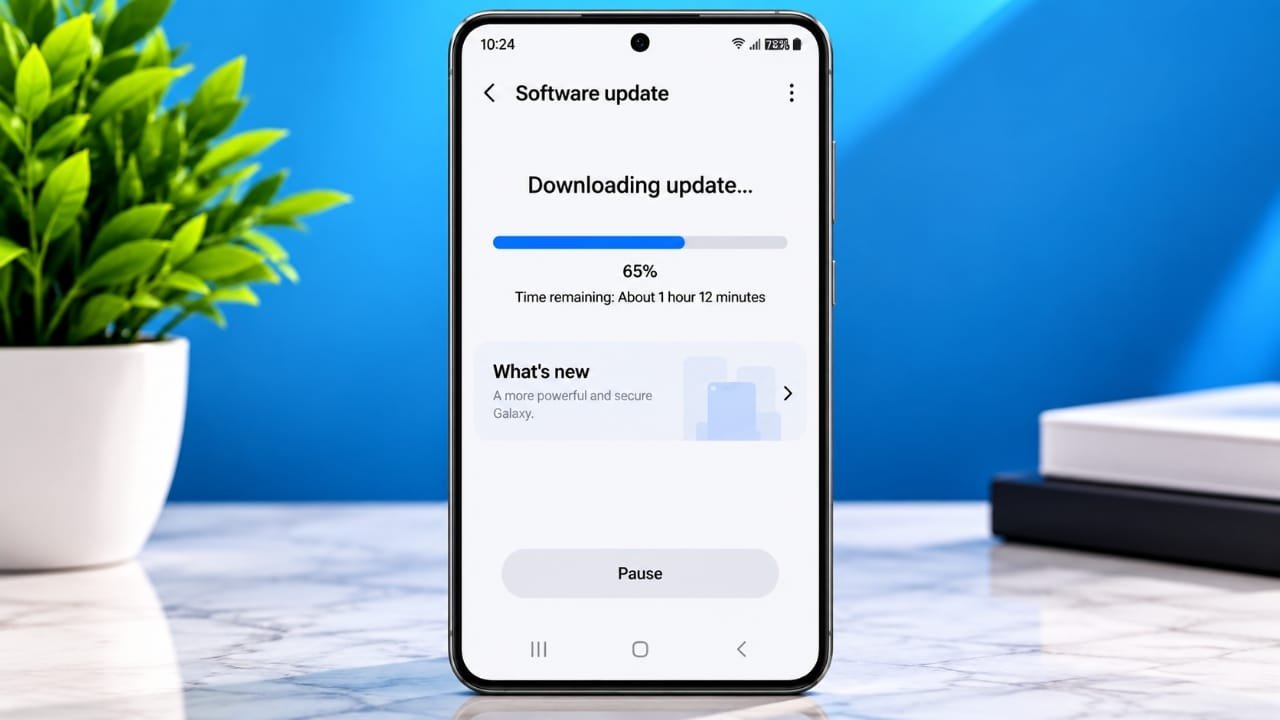
Is your Android phone stuck while checking, downloading, verifying, or installing a system update? This can happen for several reasons, including limited storage, an unreliable internet connection, software conflicts, or an update that is not yet available for your particular phone.
The good news is that many update problems can be resolved without a factory reset or complicated software flashing. The safest approach is to identify where the update is failing and then work through the basic checks first.
Also read: How to Set Up and Use Face ID on iPhone
Find Out What Is Actually Failing
Android phones receive different types of software updates. A major Android version, security patch, Google Play system update, and app update are not the same thing.
Before trying a fix, open Settings > About phone or Settings > Software information and note:
- Android version
- Security update date
- Google Play system update date
- Phone model number
- Build number
- Current software version
- Target update version, if shown
- Carrier or region information
- Any error message displayed
This information can help you avoid troubleshooting the wrong component.
Check Where the Update Gets Stuck
Pay attention to the exact stage where the problem occurs.
Checking for an update: The software may not have been released for your device yet.
Downloading: Your Wi-Fi connection or available storage could be causing the problem.
Verifying: The downloaded update may not have completed correctly.
Installing: The phone may not have enough free space, or another software issue could be interfering.
Restarting: The device may still be completing the installation process.
Boot loop: Repeated restarts can indicate a more serious software or hardware problem.
Also remember that updates are often released gradually. Your phone may not receive an update at the same time as another device of the same brand. Region, carrier, model variant, and rollout schedules can all affect availability.
Make Sure Your Phone Supports the Update
Check the complete model number rather than relying only on the phone’s marketing name. Different versions of the same phone can have different hardware, carrier software, or regional firmware.
Use your manufacturer’s official support page to check whether the update is intended for your exact model. If your phone uses carrier-specific software, check the carrier’s official information as well.
Avoid trying to force an update by:
- Changing the phone’s region
- Using another carrier’s SIM card
- Installing software made for another model
- Downloading firmware from an unknown website
- Using unofficial update utilities
These methods can create additional problems and may make recovery more difficult.
Check Whether the Phone Is Managed
Workplaces and schools can manage Android devices using administrator controls. Such devices may have specific update schedules or software restrictions.
If the phone belongs to an organization, contact the administrator before changing management settings. Do not factory-reset the device simply to bypass an update restriction.
Phones running custom ROMs, rooted software, or modified bootloaders also require extra care. These changes can affect how official updates are delivered and installed. Beta software can have similar issues.
If your phone has been modified, use the recovery or update instructions provided by the relevant manufacturer or software project.
Back Up Important Data First
Before attempting major troubleshooting, make sure your important information is backed up.
Consider checking:
- Photos and videos
- Contacts
- Important documents
- Downloaded files
- Voice recordings
- Important app information
- Locally stored media
- Account and authentication recovery information
Cloud synchronization does not necessarily include every file stored on a phone. Check important files individually if they are not replaceable.
A recent backup is especially important if you eventually need professional support or a factory reset.
Charge Your Phone
Keep the battery sufficiently charged before starting a system update. Following the battery requirement shown by your phone is the safest option.
Connect the device to a reliable charger when appropriate, and avoid beginning an update if the phone has obvious battery or charging problems.
If the phone becomes unusually hot during an update, stop and allow it to cool. A swollen battery, liquid exposure, damaged charging port, unusual smell, or other physical damage should be handled by a qualified service professional rather than through software troubleshooting.
Use Reliable Wi-Fi
A system update can be a large download, so an unstable connection may interrupt the process.
Try a trusted Wi-Fi network and avoid networks that require a browser sign-in page. If a download repeatedly fails, reconnect to the network and try the official update process again.
If possible, testing another trusted Wi-Fi connection can help determine whether the original network is causing the problem.
Do not disable security features or install unknown certificates simply to make an update download.
Free Up Storage Space
Insufficient storage is a common reason an update cannot finish.
Open Settings > Storage and check how much space is available. Your phone may require additional temporary space beyond the size of the update itself.
You can safely create room by removing files you have already backed up and uninstalling applications you no longer use.
Do not manually delete system files, recovery files, or application data unless you know exactly what they contain.
Before deleting anything, make sure you are not removing your only copy of an important photo, document, or recording.
Check Date and Time Settings
Incorrect date or time settings can interfere with some online services.
Open your phone’s date and time settings and normally keep automatic date and time enabled. Automatic time-zone settings should also remain enabled unless your organization or device configuration requires something different.
Restart the Phone Normally
A normal restart can clear temporary software problems.
Use the regular restart option provided by Android. Avoid forcing the phone to shut down while an update is actively being installed.
If the installation screen is still progressing, give the device time to finish. Interrupting an active installation unnecessarily can create additional problems.
Try the Official Update Again
Once your phone has enough storage, sufficient battery, and a reliable connection, try the update again.
On many Android phones, the option can be found under:
Settings > System > Software update
The exact menu name and location depend on the manufacturer.
Follow the instructions displayed on the phone. If another error appears, save the complete message or take a screenshot. This information can be useful if you later contact the manufacturer or carrier.
Give Failed Downloads Some Time
An incomplete update download does not always mean that the phone needs to be reset.
Depending on the device and update system, Android may retry the download later or display the update notification again.
Keep the phone connected to reliable power and continue using the official update mechanism.
Avoid repeatedly clearing updater information or resetting system components without a specific reason. Doing so can remove useful information and create additional complications.
Do Not Interrupt the Installation
Different Android manufacturers handle updates differently.
Some devices download an update in the background and apply it after a restart. Other phones restart automatically and display an installation screen.
Follow the instructions provided by your phone and avoid manually restarting it while an installation is in progress.
After an update, the phone may also spend some time optimizing applications. Temporary performance changes can occur during this process.
However, excessive heat, a burning smell, battery swelling, or other unusual physical symptoms should not be ignored. Stop using the device and seek professional assistance when necessary.
Try Safe Mode if an App May Be Causing the Problem
Third-party applications can occasionally interfere with normal system behavior. Safe Mode starts the phone with most third-party apps disabled, which can help identify whether an installed application is involved.
The method for entering Safe Mode differs between manufacturers. On some phones, you can open the power menu and press and hold the Power off option until the Safe Mode prompt appears.
If the update behaves differently in Safe Mode, recently installed or updated applications may deserve attention.
Remove problematic apps only when appropriate, then restart the phone normally and test the update again.
Use Official Computer Tools When Available
Some manufacturers provide official desktop software for supported phones. For example, certain Samsung Galaxy devices can use Samsung’s official Smart Switch software for supported update and recovery functions.
Do not assume that a computer tool will work with every Android phone.
Before using one, confirm:
- Your exact phone model is supported
- The software comes from the official manufacturer
- The computer application is up to date
- You have a reliable USB cable
- The phone is connected directly to the computer
- The connection will remain stable during the process
- You record any error codes that appear
Carrier-specific models may have additional restrictions, so follow the instructions for your exact device and region.
Avoid Risky Shortcuts
An update problem does not normally require advanced flashing or modification.
Don’t Factory Reset Immediately
A factory reset removes locally stored data from the phone. It can also require you to sign in again with an account previously associated with the device.
Treat a factory reset as a later troubleshooting option rather than the first step.
Before considering one, make sure your important data is backed up and that you can access the necessary account credentials.
If the manufacturer or carrier recommends a reset, follow its instructions carefully.
Avoid Random Firmware
Do not download firmware simply because a website claims it can fix your phone.
Firmware intended for a different model, region, or carrier may not be compatible with your device.
Avoid unlocking the bootloader, flashing recovery images, or using ADB commands for a normal update problem unless you are following official instructions specifically intended for your device.
Be Careful With Repair Applications
Unknown applications that promise to repair every Android update problem should be treated cautiously.
Do not give unfamiliar software your account passwords or unnecessary accessibility or administrator permissions.
There is no universal repair method that works identically across all Android manufacturers.
When You Should Contact Support
If the basic troubleshooting steps do not solve the problem, contact the phone manufacturer’s official support team. Your carrier may also need to help if the update is controlled by the carrier.
Have the following information ready:
- Exact model number
- Current software version
- Build number
- Target update version, if available
- Type of update
- Complete error message
- Stage where the update stops
- Available storage
- Wi-Fi connections you tested
- Any official computer tools you tried
- Screenshots of the error
Providing complete information can make it easier for support staff to identify the problem.
When Hardware Service May Be Needed
Not every update problem is caused by software.
Professional inspection may be appropriate if the phone:
- Repeatedly loses power
- Continuously restarts
- Has charging problems
- Shows signs of liquid damage
- Has physical impact damage
- Becomes abnormally hot
- Shows signs of battery damage
- Remains stuck in a boot loop after official troubleshooting
Avoid repeatedly flashing software when the phone may have a hardware problem. That can make troubleshooting more complicated.
Also read: How to Fix iPhone Battery Draining Fast After iOS 26 Update
Final Thoughts
When an Android system update gets stuck, start with the simple checks. Identify the exact update, determine where the process stops, and confirm that your phone is eligible for it.
Then check your storage, battery, Wi-Fi connection, date and time settings, and backup status. Retry the update through the phone’s built-in updater before considering advanced options.
Most importantly, avoid random firmware, unofficial repair tools, unnecessary factory resets, and unsupported flashing methods. If the problem continues after the safe steps, the manufacturer’s or carrier’s support team can help determine what needs to be done next.

Jatin Rajput (Tech Golu) — Tech blogger & YouTuber with 6+ years of experience in WhatsApp, Instagram, Facebook, and mobile guides. Founder of TechGolu.in.