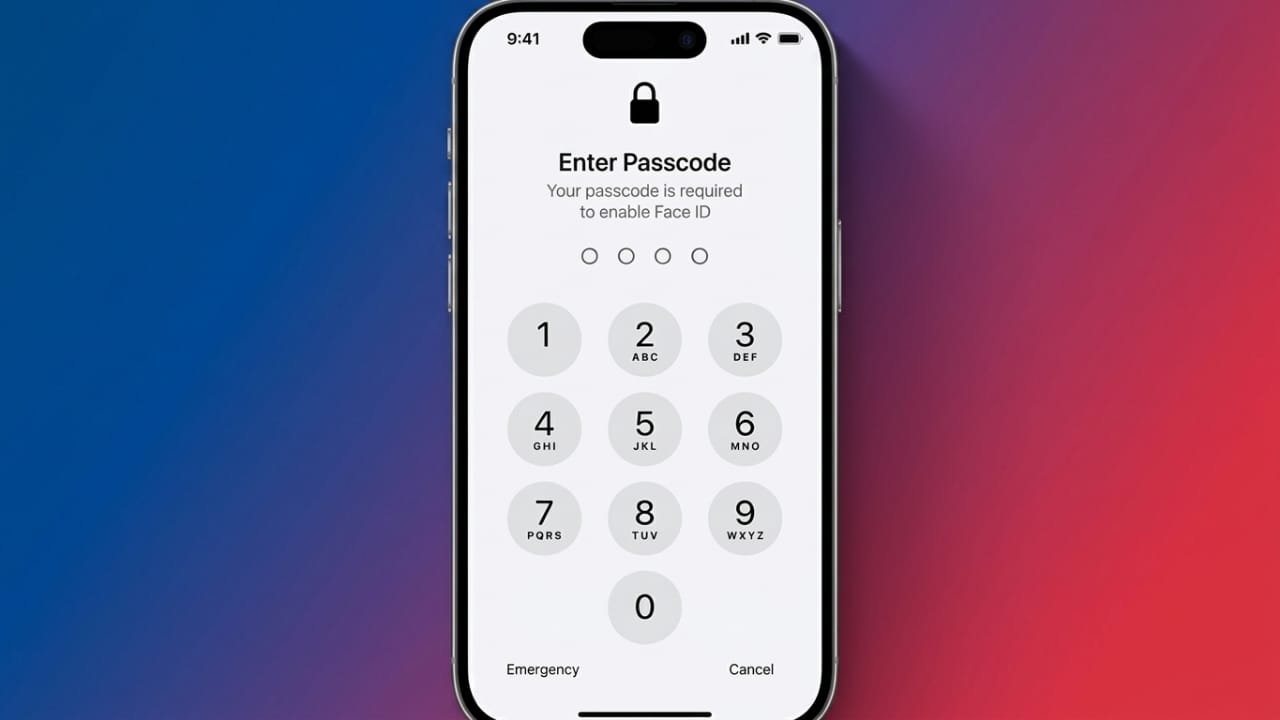
Your iPhone passcode helps keep your personal information secure. Even so, some people prefer to turn it off for quicker access to their device. While this can make unlocking your phone faster, it also removes an important layer of protection.
Before disabling your passcode, it’s a good idea to understand how it affects your privacy and security.
Also read: How to Use Google Drive Offline on Any Device
How to Disable the Passcode on an iPhone
If you know your current passcode, removing it only takes a few minutes. During the process, your iPhone may also ask for your Apple ID password to confirm your identity.
Advertisements
Follow These Steps
- Open the Settings app.
- Tap Face ID & Passcode.
- If your iPhone uses Touch ID, choose Touch ID & Passcode instead.
- On some older models, you’ll simply see Passcode.
- Enter your current passcode.
- Scroll down and tap Turn Passcode Off.
- Read the warning message displayed on the screen.
- If prompted, enter your Apple ID password.
- Confirm by tapping Turn Off.
- Enter your passcode once more to complete the process.
When the passcode has been removed successfully, the option in Settings will change to Turn Passcode On, indicating that your device no longer requires a passcode.
Why the Menu Looks Different on Some iPhones
The security settings may look slightly different depending on your iPhone model.
- Newer iPhones usually display Face ID & Passcode.
- Older models often show Touch ID & Passcode.
- Some devices only display Passcode.
Although the menu name may vary, the steps are almost identical.
What Changes After You Turn Off the Passcode?
Without a passcode, anyone who has your iPhone can unlock it and access the information stored on it.
Disabling the passcode also affects several Apple security features, including:
- Face ID stops working.
- Touch ID becomes unavailable.
- Apple Pay cannot be used.
- Wallet security features are disabled.
Your photos, messages, contacts, and apps remain on the device, but they are no longer protected by a lock screen.
Is It Safe to Remove the Passcode?
Turning off the passcode makes your iPhone less secure. If your phone is lost or left unattended, someone else could access your personal information.
Possible risks include:
- Easy access to your private files.
- Messages and photos becoming visible.
- Saved accounts remaining signed in.
- Banking or financial apps being easier to access.
- Loss of Face ID, Touch ID, and Apple Pay functionality.
For most users, keeping a passcode enabled is the safer option. If you disable it temporarily, you can always turn it back on later.
Can’t Find the “Turn Passcode Off” Option?
Sometimes the option is unavailable because another setting or security policy is preventing the change.
Check Screen Time Restrictions
Screen Time can block certain security settings.
To check:
- Open Settings.
- Tap Screen Time.
- Select Content & Privacy Restrictions.
- See if restrictions are enabled.
- Turn them off temporarily if needed.
- Return to the passcode settings and check again.
If you disabled the restrictions, you can re-enable them after making your changes.
Check Device Management Settings
If your iPhone belongs to your workplace or school, it may be managed by an organization.
To check:
- Open Settings.
- Tap General.
- Select VPN & Device Management.
If you see a management profile, your organization may require a passcode for security reasons. In that case, you’ll need to contact your IT administrator before making any changes.
Restart Your iPhone
A simple restart can sometimes resolve temporary issues.
After restarting:
- Open Settings again.
- Return to the passcode section.
- See if the option to turn off the passcode is now available.
If it still isn’t visible, another restriction is likely preventing the change.
Why Some iPhones Don’t Allow Passcode Removal
Phones managed by businesses, schools, or other organizations often have security policies that cannot be changed by the user.
These policies help protect sensitive data and may require a passcode at all times. If your device is managed, ask your administrator before attempting to remove any security settings.
Will Turning Off the Passcode Delete My Data?
No. Disabling the passcode does not erase your photos, contacts, apps, messages, or other personal files.
However, you’ll need to enter your current passcode during the process, and in some cases, your Apple ID password as well.
What If You Forgot Your Passcode?
If you don’t remember your current passcode, you won’t be able to turn it off through Settings.
In many cases, the only solution is to reset the iPhone. Depending on your backup status, this may erase the data stored on the device.
Before resetting your iPhone, check whether you have a recent backup in iCloud or on a computer so your data can be restored afterward.
Should You Turn Off Your iPhone Passcode?
Think about where and how you use your phone before making this decision.
For most people, leaving the passcode enabled provides much better protection. Since Face ID and Touch ID make unlocking fast and convenient, there’s usually little need to remove the passcode completely.
If you decide to disable it for a short time, remember that you can easily enable it again by going back to the passcode settings and selecting Turn Passcode On.
Once the passcode is restored, Face ID, Touch ID, Apple Pay, and other security features will work again.
Also read: How to Add Contacts to Viber: Simple and Effective Ways
Final Thoughts
Turning off your iPhone passcode is a simple process, but it also reduces your device’s security. Before making the change, consider whether the extra convenience is worth the potential privacy risks.
If the option isn’t available, check for Screen Time restrictions or device management policies that may be preventing it. For everyday use, keeping a passcode enabled remains the safest way to protect your personal information.

Jatin Rajput (Tech Golu) — Tech blogger & YouTuber with 6+ years of experience in WhatsApp, Instagram, Facebook, and mobile guides. Founder of TechGolu.in.