Managing several open applications can quickly make your desktop feel crowded. Fortunately, Windows 10 provides several simple ways to minimize windows without closing them.
You can use the buttons on a window, the taskbar, keyboard shortcuts, or the desktop controls. Each method works a little differently, so you can choose the one that fits your workflow.
Also read: How to Fix Microsoft.directx.directinput.dll Errors on Windows
Minimize a Window Using the Title Bar
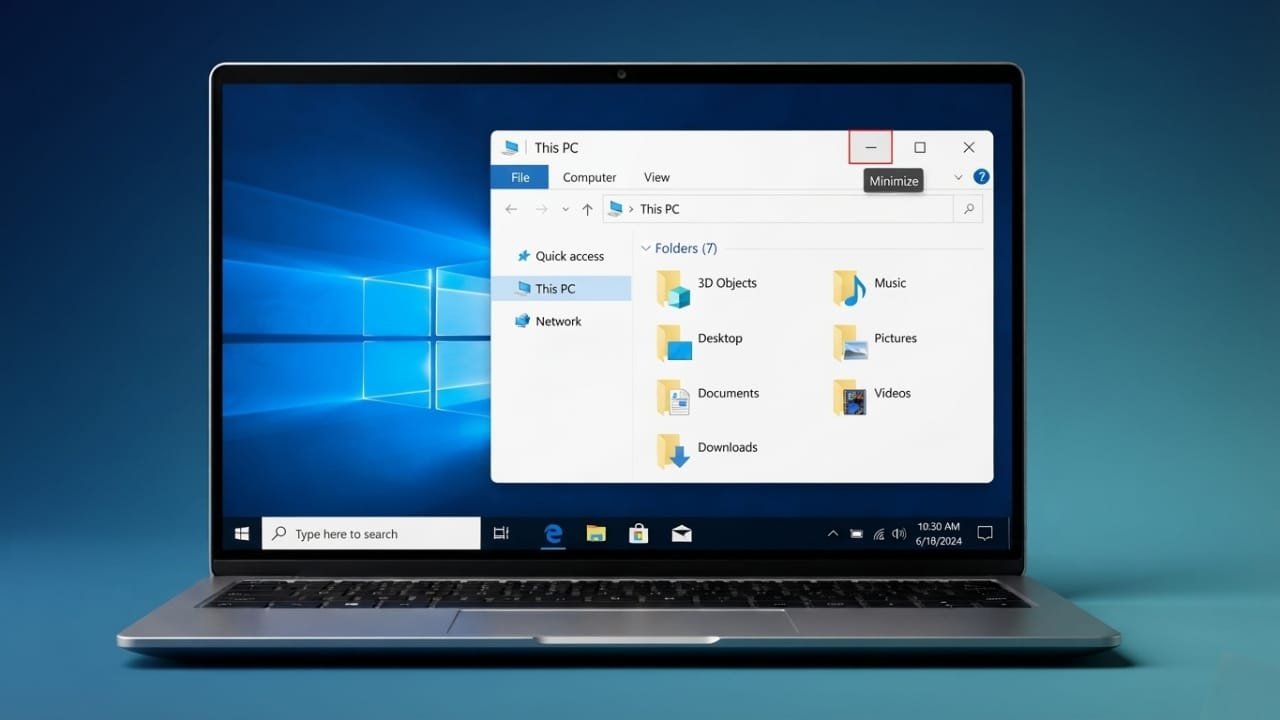
The title bar is located at the top of an open application window. On the right side, you will usually see three buttons: Minimize, Maximize or Restore Down, and Close.
Advertisements
The Minimize button looks like a small horizontal line. Click it, and the current window will disappear from the desktop while the application continues running.
You can bring the window back by clicking its icon on the taskbar.
Use the Title Bar Menu
You can also minimize a window through its title bar menu:
- Move your mouse to the top of the application window.
- Right-click the title bar.
- Select Minimize from the menu.
The window will move out of view while remaining open.
Be careful not to select the Close (X) button if you only want to hide the window. Closing an application is different from minimizing it.
Minimize Windows From the Taskbar
The Windows taskbar provides another convenient way to manage open applications.
Find the application’s icon on the taskbar and right-click it. Depending on the application and its current state, Windows may display several window-management options.
When multiple windows are open for the same application, you may also see thumbnail previews. Moving your pointer over an application’s taskbar icon can display these previews.
From the available controls, you may be able to restore, maximize, minimize, or close a particular window.
The exact options can vary depending on the application and the current window state.
Use Keyboard Shortcuts
Keyboard shortcuts are often the fastest way to manage windows. They are especially useful when you are working with several applications.
Windows + D
Press Windows + D to quickly show the desktop. Pressing the same combination again brings the previously visible windows back.
This is useful when you need to access a file, folder, shortcut, or other item on the desktop without manually minimizing each application.
Windows + M
Press Windows + M to minimize open windows.
If you want to restore windows minimized with this shortcut, press Windows + Shift + M.
Windows + Home
Press Windows + Home to minimize all windows except the currently active one.
This can be helpful when you want to concentrate on one application while temporarily hiding other open windows.
Windows + Down Arrow
The Windows + Down Arrow shortcut changes the state of the active window. If the window is maximized, pressing the shortcut can restore it to a smaller size. Pressing it again can minimize the window.
To maximize or restore the active window, you can use Windows + Up Arrow when appropriate.
Alt + Space
Press Alt + Space to open the active window’s system menu.
This menu contains commands such as moving, resizing, minimizing, maximizing, and closing the window. Use the arrow keys to select Minimize, then press Enter.
On systems where the relevant menu accelerator is available, Alt + Space, followed by N, can also select the Minimize command.
Show the Desktop Without Closing Applications
Windows 10 includes a Show Desktop area at the far right of the taskbar, near the notification area.
Clicking this area hides the currently visible windows and displays the desktop. The applications are not closed; they remain available on the taskbar.
Click the same area again to return to your previous workspace.
Use Peek at Desktop
Windows 10 also includes a feature called Peek at desktop.
When enabled, moving the pointer over the Show Desktop area can temporarily display the desktop while your open windows remain in place.
If you do not want to use this feature, you can manage it from the taskbar’s available settings and menu options.
Resize a Window Instead of Minimizing It
Minimizing is not always necessary. If you need to keep an application visible while working with another program, resizing the window may be a better choice.
When a window is maximized, click the Restore Down button near the top-right corner. The window will return to a smaller size.
You can then drag its edges or corners to adjust its dimensions.
This approach is useful when comparing two applications, reading information while typing, or keeping several windows visible at the same time.
Use a Third-Party Shortcut Tool
Some third-party Windows utilities offer additional shortcut and automation features. One example is PDNob Windows Shortcut, which is designed to provide customizable shortcuts for repetitive tasks.
If you decide to use a third-party utility, download it only from a trustworthy source and review the application’s permissions and settings before installing it.
Depending on the version and available features, such a tool may provide desktop-related shortcuts or customizable commands.
For basic window management, however, Windows 10’s built-in controls and keyboard shortcuts are usually enough.
Windows Shortcuts Worth Remembering
Here is a quick reference for some useful Windows 10 shortcuts:
| Shortcut | Main function |
|---|---|
| Windows + D | Show or restore the desktop |
| Windows + M | Minimize open windows |
| Windows + Shift + M | Restore minimized windows |
| Windows + Home | Minimize other windows while keeping the active one |
| Windows + Down Arrow | Restore or minimize the active window depending on its current state |
| Windows + Up Arrow | Maximize or restore the active window |
| Alt + Space | Open the active window’s system menu |
| Windows + X | Open the Power User menu |
Don’t Confuse Windows + X With a Minimize Shortcut
Windows + X does not minimize your open applications.
Instead, it opens the Windows Power User menu, which provides quick access to various system and administrative tools.
If your goal is simply to show the desktop, Windows + D is the more appropriate shortcut.
Which Method Should You Use?
There is no single best method for everyone.
- For occasional use: Click the Minimize button.
- For quick desktop access: Use Windows + D.
- For keyboard-based work: Use the relevant Windows shortcuts.
- For keeping multiple applications visible: Resize the windows instead.
- For managing several open applications: Use the taskbar and its window previews.
Also read: How to Schedule Messages on Instagram: A Simple Guide
Final Thoughts
Windows 10 gives you several straightforward ways to minimize and manage open windows. You can use the title-bar button, taskbar controls, keyboard shortcuts, or the Show Desktop feature.
If you regularly work with many applications, learning a few shortcuts such as Windows + D and Windows + M can make everyday window management much quicker.
Choose the method that feels most comfortable for your workflow, and remember that minimizing a window does not close the application—it simply removes the window from your immediate view.

Jatin Rajput (Tech Golu) — Tech blogger & YouTuber with 6+ years of experience in WhatsApp, Instagram, Facebook, and mobile guides. Founder of TechGolu.in.