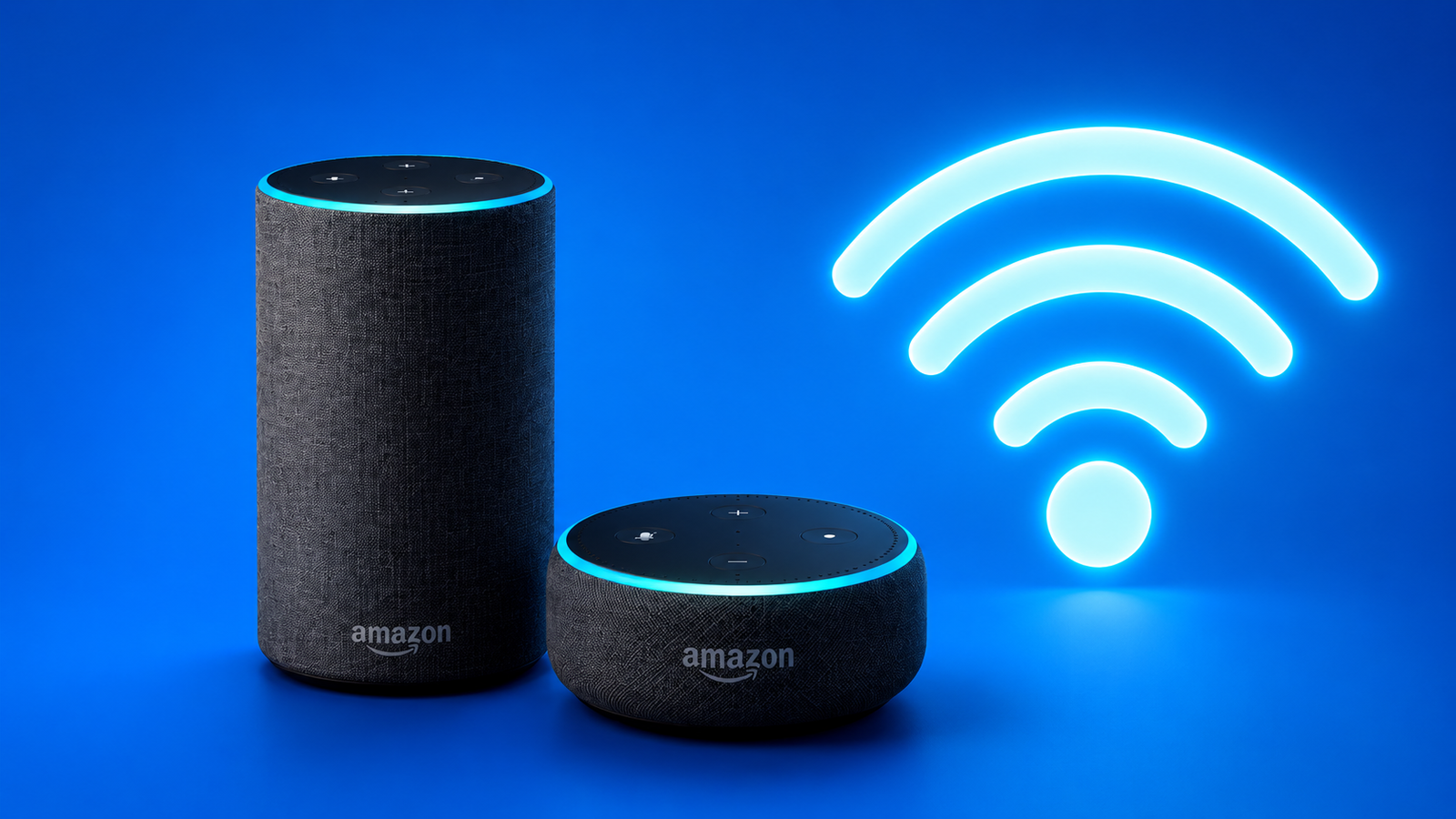
Setting up your Echo device is quick once you know the right steps. Whether you’re using Alexa for the first time or connecting it to a new Wi-Fi network, this guide will walk you through the process in clear and simple language.
Also read: Computer Formatting: Meaning, Types, and Why It Matters
What You Need Before You Start
Before you begin, make sure you have the following:
- Your Wi-Fi network name (SSID)
- Your Wi-Fi password
- A smartphone or tablet
- The latest version of the Amazon Alexa app
- Your Amazon account login details
- An Echo or Alexa-enabled device connected to power
If you haven’t installed the Alexa app yet, download it from the Google Play Store for Android or the App Store for iPhone. Using the latest version helps avoid setup issues.
Advertisements
Sign In to the Alexa App
Open the Alexa app and sign in with your Amazon account.
If this is your first time using the app, follow the on-screen instructions to complete the initial setup. The app may ask for permission to access contacts or send notifications. These permissions are optional, so you can allow or skip them based on your preference.
Add Your Echo Device
Once you’re signed in:
- Open the Alexa app.
- Go to Devices.
- Tap the + (Add Device) button.
- Select Amazon Echo.
- Choose the model you own, such as Echo Dot, Echo Show, Echo, or Echo Studio.
Selecting the correct model ensures the setup process runs smoothly.
Put the Device Into Setup Mode
Plug your Echo device into a power outlet.
Most new devices automatically enter setup mode, and you’ll see an orange light ring. If your device doesn’t show the orange light, press and hold the Action button for about 15 seconds until the light changes to orange.
Return to the Alexa app and continue with the setup.
Connect Your Phone to the Echo
During setup, the app may ask you to connect your phone to the Echo’s temporary Wi-Fi network.
Follow the instructions shown on your screen. After your phone connects to the device, the app will automatically move to the next step.
Connect Alexa to Your Home Wi-Fi
The Alexa app will display available Wi-Fi networks.
Choose your home network, enter the correct password, and tap Connect.
Wait a few moments while Alexa completes the setup. Once finished, you’ll receive a confirmation message, and your Echo device will be ready to use.
How to Change Wi-Fi on an Existing Echo Device
If you’ve changed your router or updated your Wi-Fi password, you’ll need to reconnect your Echo.
Here’s how:
- Open the Alexa app.
- Go to Devices.
- Select your Echo device.
- Open Device Settings.
- Find Wi-Fi Network and tap Change.
- Put the device into setup mode if prompted.
- Select your new Wi-Fi network and enter the password.
After a short wait, your Echo should reconnect successfully.
Can You Set Up Alexa Without the Mobile App?
In some situations, you may be able to use the Alexa setup page through a supported web browser by signing in with your Amazon account.
However, for most users and newer Echo devices, the Alexa mobile app provides the easiest and most reliable setup experience.
Common Connection Problems and Their Solutions
If Alexa doesn’t connect to Wi-Fi, try these simple fixes.
Restart Your Devices
Turn off your Echo device, router, and modem. Wait about 30 seconds before turning them back on.
Double-Check the Wi-Fi Password
A small typing mistake can prevent the connection. Make sure the password is entered exactly as it appears.
Move the Echo Closer to the Router
A stronger Wi-Fi signal improves connection speed and reliability.
Reduce Wireless Interference
Keep your Echo away from devices that may affect wireless signals, such as cordless phones, baby monitors, or other electronic equipment.
Update Your Router
Installing the latest firmware can improve your router’s performance and fix connection problems.
Keep the Alexa App Updated
Always use the newest version of the Alexa app to ensure compatibility with your device.
Reset the Echo Device
If nothing else works, resetting the device may help.
Depending on your Echo model, you can reset it through the Alexa app or by holding the Action button until the device returns to factory settings. After resetting, repeat the setup process.
Can Alexa Work Without Wi-Fi?
Alexa depends on an internet connection for most voice commands, smart home controls, music streaming, and online services.
Without Wi-Fi, many features won’t work. However, you can still use your Echo as a Bluetooth speaker after pairing it with your phone.
Using Echo as a Bluetooth Speaker
To play audio through Bluetooth:
- Turn on Bluetooth on your phone.
- Say, “Alexa, pair.”
- Open your phone’s Bluetooth settings.
- Select your Echo device from the list.
Once connected, you can play music or other audio directly from your phone.
Tips for a Better Alexa Experience
- Keep your router software up to date.
- Update the Alexa app regularly.
- Use a stable Wi-Fi connection.
- Place your Echo within good range of your router.
- Verify your Wi-Fi password before connecting.
- Restart your router and Echo if you experience connection issues.
Also read: Erase and Reset iPhone Settings: A Simple Guide to Every Reset Option
Final Thoughts
Connecting your Echo or Alexa device to Wi-Fi is usually a straightforward process. With the correct network details and the Alexa app, setup only takes a few minutes.
If you run into any problems, the troubleshooting steps above can solve most common issues. Once connected, your Echo device is ready to help with music, reminders, smart home controls, and much more.

Jatin Rajput (Tech Golu) — Tech blogger & YouTuber with 6+ years of experience in WhatsApp, Instagram, Facebook, and mobile guides. Founder of TechGolu.in.