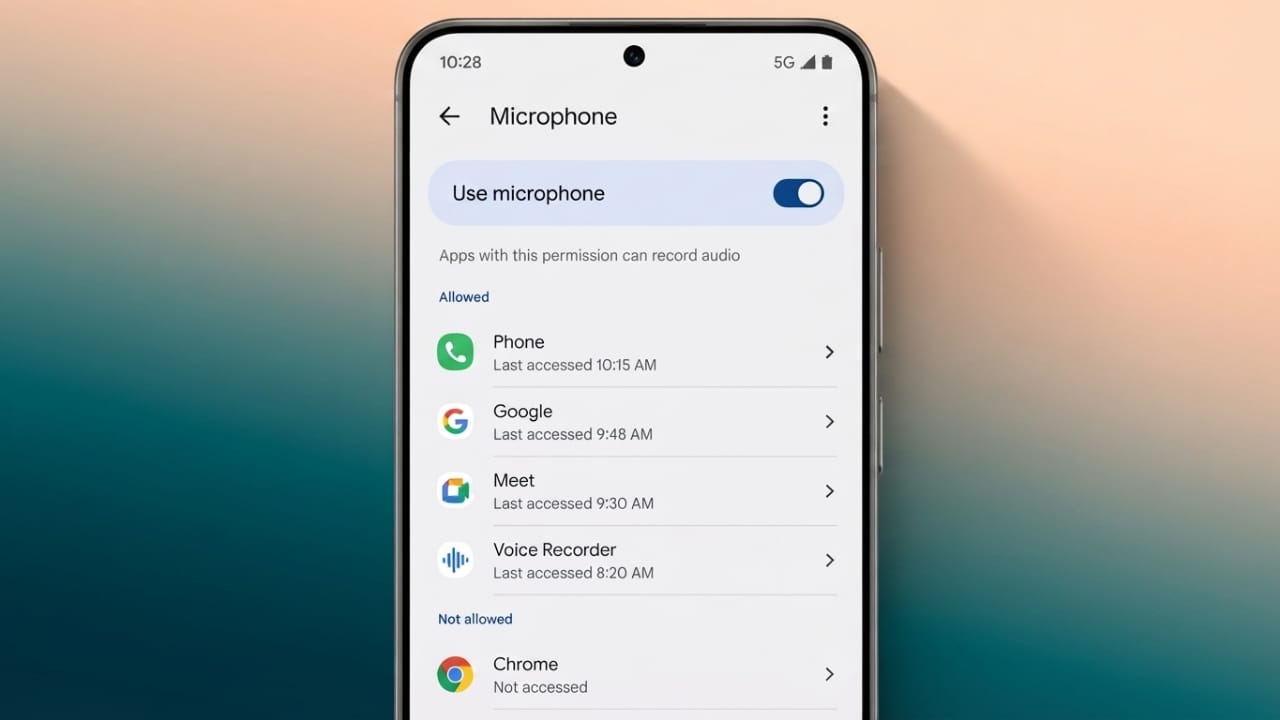
The microphone is one of the most important features on an Android phone. It is required for voice calls, voice recordings, video chats, voice assistants, and many other apps. If the microphone is disabled or an app does not have permission to use it, some features may not work properly.
This guide explains how to enable microphone access, manage permissions, and fix common microphone issues on Android devices.
Also read: How to Use Roku Without the Internet: Offline Features You Can Still Enjoy
Enable Microphone Access from Settings
Android allows you to control which apps can use your microphone. You can change these permissions at any time.
Advertisements
Follow these steps:
- Open the Settings app.
- Tap Privacy or Security & Privacy.
- Select Permission Manager or App Permissions.
- Tap Microphone.
- Choose the app you want to manage.
- Select Allow only while using the app or another permission option that suits your needs.
The menu names may vary depending on your phone brand and Android version, but the process is generally similar.
Turn the Phone’s Microphone Access On
Android also includes a system-wide microphone switch. If this option is turned off, apps cannot use the microphone.
To check it:
- Open Settings.
- Go to Privacy.
- Find Microphone Access.
- Turn the switch On.
Some devices also include a Sensors Off shortcut. When enabled, it may temporarily disable the microphone along with other sensors.
Understand Microphone Permissions
Most apps ask for microphone permission when you first use a feature that requires voice input. Android gives you different permission choices so you can decide how much access an app should have.
Common permission options include:
- Allow only while using the app
- Ask every time
- Don’t allow
Choosing limited access helps protect your privacy while still allowing trusted apps to work when needed.
Enable the Microphone for a Specific App
If the microphone works in some apps but not others, the problem is often related to app permissions.
To check:
- Open Settings.
- Tap Apps.
- Select the app with the issue.
- Open Permissions.
- Tap Microphone.
- Choose the permission you want.
You can return later and change or remove permission whenever necessary.
Check Which Apps Recently Used the Microphone
Android provides a way to review recent microphone activity. This helps you understand which apps have accessed your microphone.
To view it:
- Open Settings.
- Go to Security & Privacy.
- Open Recent Permission Activity.
- Select Microphone.
If you notice an app you no longer trust, you can remove its microphone permission.
Know When the Microphone Is Being Used
Newer Android versions display a small microphone indicator when an app is actively using the microphone. This lets you know when voice recording or voice input is taking place.
Voice assistants may also access the microphone for voice commands. If you do not use this feature, you can disable voice activation from your assistant settings for additional privacy.
Fix Common Microphone Problems
If your microphone is still not working, try these simple solutions.
Check the Microphone Opening
Locate the microphone on your phone. It is usually found near the charging port or along the bottom edge.
Keep these tips in mind:
- Avoid covering the microphone while speaking.
- Remove dust carefully with a soft, dry tool.
- Do not insert sharp objects into the microphone opening.
Try Basic Software Fixes
Software settings can also affect microphone performance.
You can try the following:
- Restart your phone.
- Confirm that microphone permission is enabled.
- Install the latest Android software updates.
- Reset app permissions if needed.
- Reinstall the app that is having problems.
If nothing works and you suspect a software issue, a factory reset may help. Make sure you back up your important files before resetting your device.
Extra Tips
If people cannot hear you clearly during a call, first make sure the call is not muted.
Some Android phones also include a Microphone Access tile in Quick Settings.
To add it:
- Swipe down from the top of the screen.
- Tap Edit or the pencil icon.
- Find Microphone Access.
- Drag it into your Quick Settings panel.
- Save the changes.
This shortcut makes it easier to enable or disable microphone access whenever you need it.
If the microphone still does not work after trying these steps, the issue could be hardware-related. In that case, it is best to have the device inspected by an authorized service center.
Also read: Samsung Galaxy Unpacked July 2026: Key Announcements from Samsung’s Biggest Event
Conclusion
Enabling the microphone on Android is usually quick and only requires adjusting a few settings. Making sure your apps have the correct permissions allows voice calls, recordings, and voice commands to work properly.
Checking microphone permissions regularly also improves your privacy and helps you stay in control of which apps can access your microphone.

Jatin Rajput (Tech Golu) — Tech blogger & YouTuber with 6+ years of experience in WhatsApp, Instagram, Facebook, and mobile guides. Founder of TechGolu.in.