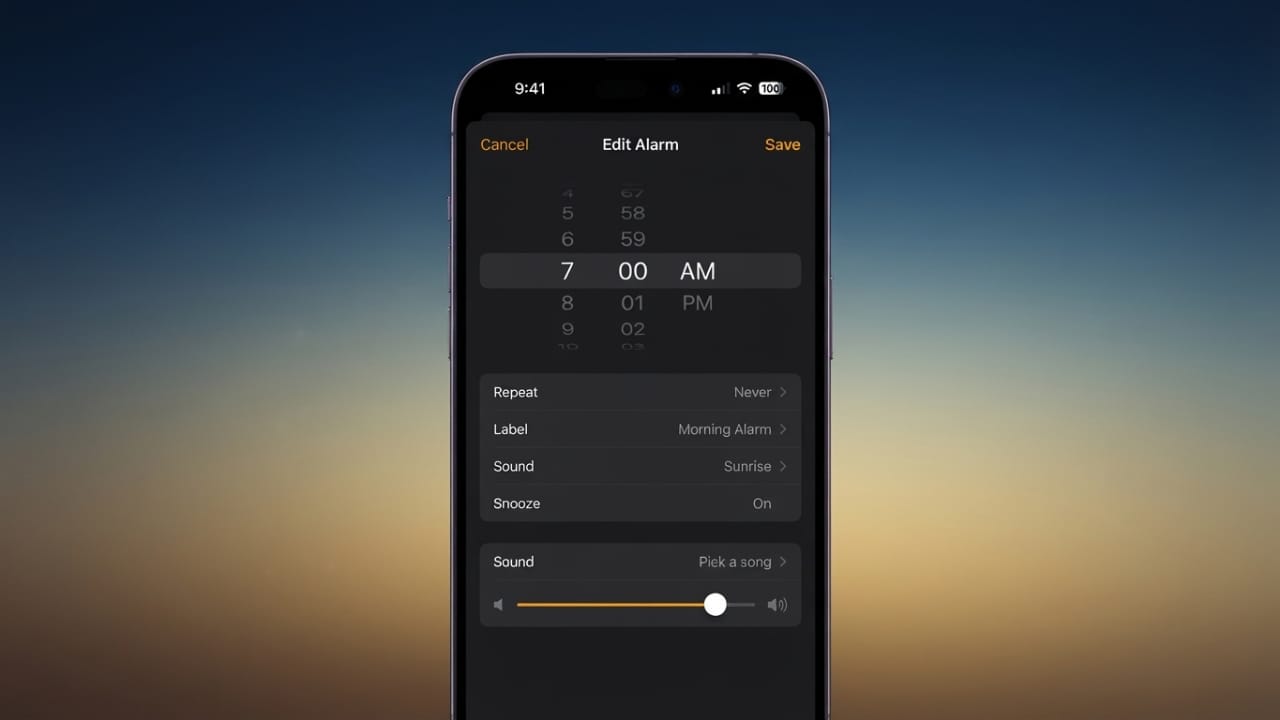
Waking up to your favorite song can make mornings feel much more pleasant than using the default alarm tone. If you use an iPhone, you can easily set a song from your music library as your alarm sound. The Clock app also includes useful features like repeating alarms, snooze options, and a sleep timer that automatically stops music before bedtime.
Also read: How to Fix Yahoo Mail Login Problems: Simple Solutions for Easy Account Access
Set a Song as Your Alarm on iPhone
Adding a custom song to your alarm only takes a few moments.
- Open the Clock app on your iPhone.
- Tap the Alarm tab at the bottom.
- To create a new alarm, tap the + button. To edit an existing alarm, tap Edit and select the alarm you want to change.
- Tap Sound.
- Under the Songs section, choose Pick a Song.
- Browse your music library and select the song you want.
- Tap Back, then tap Save.
Your selected song will now play whenever that alarm goes off.
Advertisements
Customize Your Alarm
While setting up your alarm, you can also adjust other useful options to match your daily routine.
- Set the exact wake-up time.
- Choose the days you want the alarm to repeat.
- Turn Snooze on or off.
- Add a label to identify the alarm easily.
- Save your changes before exiting.
These settings help keep your schedule organized and make alarms easier to manage.
Which Songs Can You Use?
Your iPhone alarm can only use songs that are available in the Music app.
This includes:
- Downloaded Apple Music songs.
- Music purchased from iTunes.
- Songs synced from your computer.
- Custom ringtones created or added to your device.
Streaming apps such as Spotify and Pandora cannot be used directly as the default alarm sound in the iPhone Clock app unless the music has been saved in a compatible way within Apple’s supported music system.
Can You Use Spotify as an Alarm?
The iPhone Clock app does not support Spotify songs as default alarm sounds.
If you prefer Spotify, some third-party alarm apps allow you to wake up with Spotify music. These apps often require a Spotify Premium subscription and have their own alarm settings instead of using Apple’s built-in Clock app.
The general process is simple:
- Install a compatible alarm app.
- Sign in to your Spotify account.
- Create a new alarm.
- Select a song or playlist.
- Save the alarm settings.
Because these apps work independently, the experience may differ from the standard iPhone alarm.
Android Supports More Streaming Options
Many Android phones provide broader support for music streaming services when setting alarms.
For example, some Samsung devices allow you to choose Spotify as your alarm sound directly from the Clock app. Google Pixel phones may also support services like Spotify, YouTube Music, and other compatible music apps, depending on the device and software version.
Automatically Stop Music Before Sleeping
If you enjoy listening to music before bed, the iPhone includes a built-in timer that can stop playback automatically.
Follow these steps:
- Open the Clock app.
- Tap Timer.
- Choose how long you want the music to play.
- Tap When Timer Ends.
- Scroll to the bottom and select Stop Playing.
- Tap Set.
- Start playing music in your preferred app.
- Return to the Timer screen and tap Start.
When the timer finishes, your music will stop automatically.
If you later want your timer to play a normal alert sound again, remember to change When Timer Ends back to a ringtone.
Music Alarms on Smart Speakers
If you use a smart speaker, you can also wake up with music instead of a standard alarm tone.
Amazon Alexa
Alexa supports alarms that play music from supported streaming services, including:
- Amazon Music
- Spotify
- Pandora
- TuneIn
- SiriusXM
- iHeartRadio
Simply ask Alexa to create a music alarm using your voice or manage alarms through the Alexa app.
Google Assistant
Google Nest speakers also support music alarms.
After choosing your preferred music service in the Google Home app, you can ask Google Assistant to wake you up with a specific song, artist, playlist, or genre.
Supported services may include:
- YouTube Music
- Spotify
- Apple Music
- Pandora
- Amazon Music
- Deezer
- iHeartRadio
Available services may vary depending on your region and account settings.
Apple HomePod
HomePod users can also create personalized music alarms.
Open the Home app, select your HomePod, and create or edit an alarm. You can choose music, playlists, radio stations, or ambient sounds, and adjust options such as volume, repeat, or shuffle before saving.
Also read: How to Unblock Someone on Snapchat and What Happens Next
Final Thoughts
Using a favorite song as your iPhone alarm is a simple way to make mornings more enjoyable. The built-in Clock app makes it easy to personalize alarms, while the sleep timer helps stop music automatically at bedtime. Whether you use your iPhone or a compatible smart speaker, these features can help create a more comfortable daily routine.

Jatin Rajput (Tech Golu) — Tech blogger & YouTuber with 6+ years of experience in WhatsApp, Instagram, Facebook, and mobile guides. Founder of TechGolu.in.