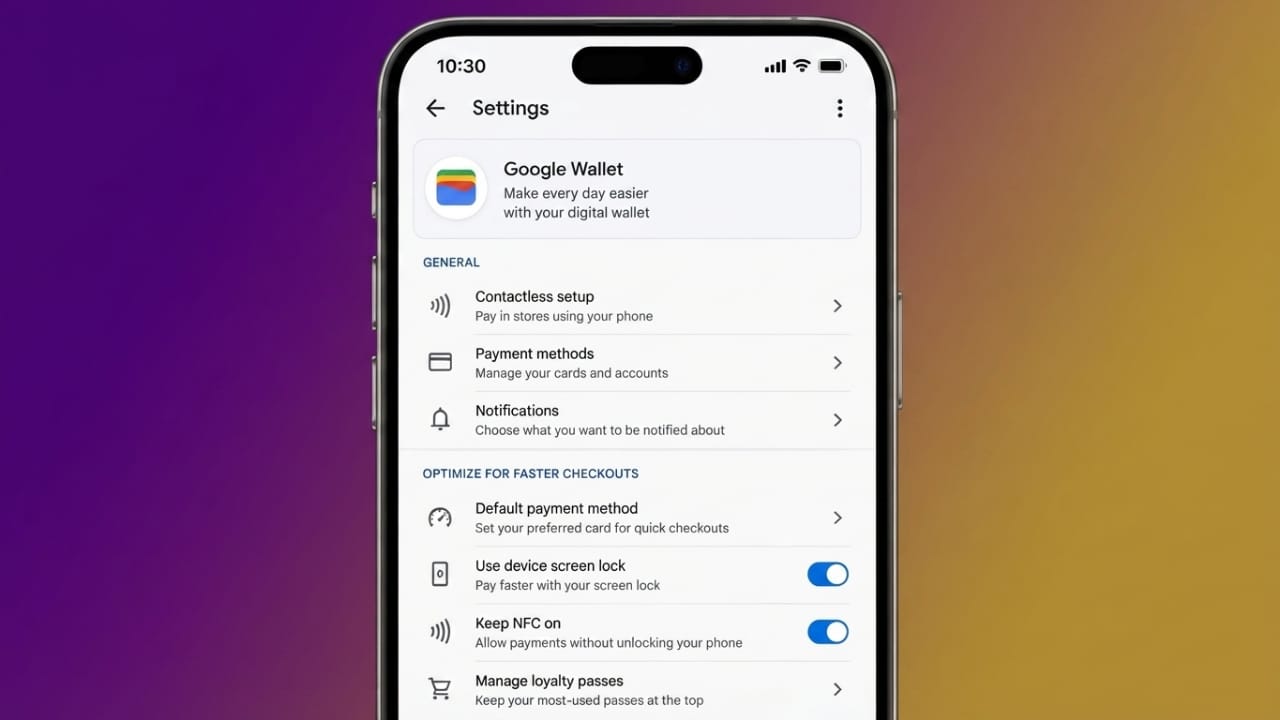
Google Wallet makes contactless payments quick and convenient. However, if your wallet is filled with old cards, expired passes, and unused tickets, finding the right item can take longer than expected.
A few small changes can make your wallet easier to use. By organizing your cards and enabling useful shortcuts, you can speed up payments and enjoy a smoother checkout experience.
Also read: How to Set a Song as Your iPhone Alarm
Remove Unused Cards and Passes
Over time, Google Wallet collects payment cards, event tickets, travel passes, and loyalty cards that you may no longer need. Removing these items helps keep everything organized.
Advertisements
Delete Old Payment Cards
Expired or replaced debit and credit cards can make it harder to find the card you actually use.
To remove an old payment card:
- Open Google Wallet.
- Select the payment card you no longer need.
- Tap the three-dot menu.
- Choose Remove payment method.
- Repeat the process for any other outdated cards.
Keeping only active payment methods makes your wallet cleaner and easier to navigate.
Remove Expired Passes and Tickets
Digital tickets and travel passes often remain in your wallet even after they are no longer useful. Deleting them helps reduce clutter.
To remove a pass:
- Open the pass in Google Wallet.
- Tap the three-dot menu.
- Select Remove.
Regularly cleaning your wallet keeps important items easy to find.
Benefits of Keeping Google Wallet Organized
A well-organized wallet offers several advantages:
- Faster access to your favorite payment card.
- Less scrolling while making payments.
- A cleaner and more organized interface.
- A quicker checkout experience.
Arrange Your Most-Used Cards First
After removing unnecessary items, place your most frequently used payment card at the top of your wallet. This saves time whenever you make a purchase.
Change the Order of Payment Cards
You can rearrange your payment cards in Google Wallet.
To do this:
- Open Google Wallet.
- Find the option to edit the card order.
- Press and hold the card you use most often.
- Drag it to the top.
- Keep backup cards below it.
This simple adjustment helps you access your preferred payment method instantly.
Organize Digital Passes
You can also arrange digital passes according to how often you use them.
For example:
- Keep public transport passes near the top.
- Place frequently used loyalty cards next.
- Move rarely used passes lower in the list.
A logical order makes everything easier to locate.
Add Membership and Loyalty Cards
Instead of carrying multiple physical cards, you can store many membership and rewards cards in Google Wallet.
Add Membership Cards
If your membership card has a barcode or QR code, you can scan it and save it digitally.
In general:
- Open Google Wallet.
- Choose the option to add a pass.
- Scan the barcode or QR code.
- Review the details and save the pass.
Some cards with multiple barcodes may not be supported.
Save Loyalty Cards
Many retailers allow loyalty cards to be stored in Google Wallet.
Simply:
- Open the loyalty card section.
- Select your rewards program if available.
- Scan the barcode or enter the membership number manually.
- Save the card to your wallet.
This makes earning rewards more convenient during purchases.
Common cards you can store include:
- Gym memberships
- Public transport passes
- Grocery store loyalty cards
- Retail rewards cards
- Club membership cards
Take Advantage of Helpful Features
Google Wallet includes several features that can make daily use even more convenient.
Enable Live Updates
For supported passes, Google Wallet can provide timely information such as travel updates or appointment details, helping you access important information more quickly.
Add a Lock Screen Shortcut
Many Android phones allow you to open Google Wallet directly from the lock screen.
If your device supports this feature, adding a shortcut can reduce the time needed to access the app while keeping your information protected.
Use Quick Access
Some Android devices include Quick Access options for Google Wallet through Quick Settings, lock screen shortcuts, or other built-in features.
Using these shortcuts allows you to open the app with fewer taps.
Samsung Edge Panel
Samsung Galaxy users can add Google Wallet to the Edge Panel for even faster access.
Once added, you can open the wallet with a simple swipe from the side of the screen.
Pay with a Samsung Galaxy Watch
If you own a compatible Samsung Galaxy Watch, you can also make contactless payments without taking out your phone.
After installing Google Wallet and completing the setup:
- Add your payment cards.
- Enable NFC on the watch.
- Assign Google Wallet to a shortcut button if available.
This lets you pay quickly by opening Wallet directly from your smartwatch.
Also read: How to Fix Yahoo Mail Login Problems: Simple Solutions for Easy Account Access
Final Thoughts
Keeping Google Wallet organized can make everyday payments faster and more convenient. Removing outdated cards, arranging your most-used payment methods, storing digital passes, and using built-in shortcuts all help reduce unnecessary steps during checkout.
A few minutes of organization can improve your overall payment experience and make Google Wallet easier to use every day.

Jatin Rajput (Tech Golu) — Tech blogger & YouTuber with 6+ years of experience in WhatsApp, Instagram, Facebook, and mobile guides. Founder of TechGolu.in.