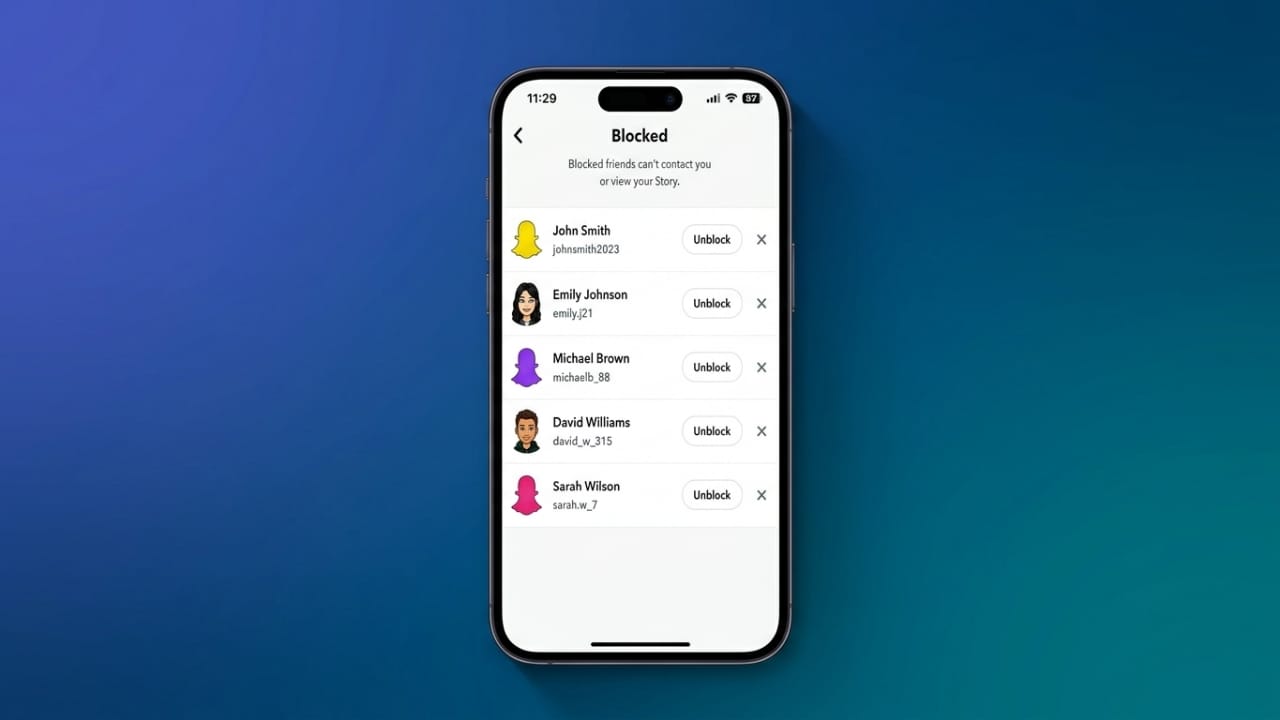
Blocking someone on Snapchat is a common way to protect your privacy or avoid unwanted conversations. Sometimes, however, you may decide to reconnect with that person. Thankfully, Snapchat allows you to unblock users in just a few steps.
This guide explains how to unblock someone, what changes after unblocking, and a few useful privacy features you should know about.
Also read: How to Back Up Your iPhone to a MacBook (Finder, Wi-Fi, and iTunes Guide)
How to Unblock Someone on Snapchat
When you block a user, Snapchat removes them from your visible contacts and hides their account from normal search. To unblock them, you’ll need to access your blocked list through the app settings.
Advertisements
Step 1: Open Your Profile
Launch Snapchat and tap your Bitmoji or profile icon in the top-left corner of the screen.
Step 2: Go to Settings
On your profile page, tap the gear icon in the top-right corner to open the Settings menu.
Step 3: Open the Blocked List
Scroll down until you find the Blocked option under the account settings section. Tap it to view everyone you’ve blocked.
Step 4: Unblock the User
Locate the username you want to unblock and tap the X next to it. Confirm your choice when Snapchat asks for confirmation.
Once the username disappears from the list, the person has been successfully unblocked.
What Changes After Unblocking?
Unblocking someone removes the block, but it does not restore everything automatically.
You Won’t Become Friends Again
If the person was removed from your friends list when you blocked them, you’ll need to send a new friend request. They must accept your request before you can chat or share snaps again.
How to Add the Person Again
Follow these steps:
- Open Snapchat Search.
- Type the person’s username.
- Open their profile.
- Tap Add Friend.
- Wait for them to accept your request.
Private accounts require approval, while public profiles may appear immediately.
Temporary Limits on Friend Requests
If you’ve recently blocked and unblocked someone, Snapchat may temporarily limit repeated friend requests. In some cases, you may need to wait up to 24 hours before trying again.
Does Snapchat Tell Someone You Unblocked Them?
No. Snapchat does not send notifications when you block or unblock a user.
However, the other person may notice changes if:
- Your profile becomes visible again.
- They receive a new friend request from you.
- Your stories appear after becoming friends again.
What Happens When You Block Someone?
Blocking immediately stops almost all interaction between both accounts.
Messages and Snaps Stop
The blocked person cannot send you messages or snaps, and they cannot start a new conversation with you.
Your Stories Are Hidden
Once blocked, your stories are no longer visible to that user.
Snap Map Access Is Removed
If you share your location, blocked users will no longer be able to see it on Snap Map.
Older Chats May Still Exist
In some situations, previous conversations may remain visible until they are cleared. Saved messages and screenshots also remain available to the people who saved them.
Common Reasons People Block Someone
People use the block feature for different personal reasons, including:
- Stopping unwanted messages
- Protecting personal privacy
- Creating distance after a breakup
- Avoiding online arguments
- Preventing certain people from viewing stories
- Making their Snapchat experience more comfortable
Blocking is a personal choice, and everyone should use it whenever it helps them feel safer online.
Safety Tips Before Blocking
If someone is sending abusive, threatening, or inappropriate messages, consider saving important conversations or screenshots before blocking them. If the behavior is serious, you can also report the account through Snapchat’s reporting tools.
An Alternative to Blocking: Silent Notifications
If you don’t want to block someone but also don’t want constant notifications, you can mute message alerts instead.
How to Silence Notifications
- Open the friend’s profile.
- Tap the three-dot menu.
- Select Message Notifications.
- Choose Silent.
This keeps the friendship active while reducing interruptions.
Benefits of Silent Notifications
- No need to remove the friend.
- Messages still arrive normally.
- Fewer notification distractions.
- Easy to enable or disable whenever you want.
Different Ways to Block Someone on Snapchat
You can block users from several places in the app.
From Their Profile
- Open their profile.
- Tap the three-dot menu.
- Select Block.
- Confirm your choice.
From a Chat
- Open the conversation.
- Press and hold the person’s name.
- Tap More.
- Select Block.
- Confirm the action.
From a Story
- Open their story.
- Press and hold the story preview.
- Tap More.
- Choose Block.
- Confirm the decision.
Why Does Snapchat Show “Pending”?
A pending message usually means Snapchat couldn’t deliver your message. Common reasons include:
- Your friend request hasn’t been accepted.
- The other person removed you as a friend.
- You’ve been blocked.
- There’s a temporary internet connection issue.
- Snapchat is experiencing a delivery problem.
Refreshing the app and checking your internet connection may resolve temporary issues.
How to Enable Dark Mode
On iPhone
- Open Snapchat Settings.
- Tap App Appearance.
- Select Always Dark.
On Android
Some Android devices allow dark mode through system settings or developer options. Availability depends on your phone model and Android version.
Also read: How to Use Low Power Mode on iPhone to Make Your Battery Last Longer
Final Thoughts
Unblocking someone on Snapchat is a simple process that takes only a few minutes. Keep in mind that unblocking does not automatically restore your friendship. You’ll need to send a new friend request if you want to reconnect.
Understanding how blocking, unblocking, privacy settings, and notification controls work can help you manage your Snapchat account more confidently while keeping your experience safe and comfortable.

Jatin Rajput (Tech Golu) — Tech blogger & YouTuber with 6+ years of experience in WhatsApp, Instagram, Facebook, and mobile guides. Founder of TechGolu.in.