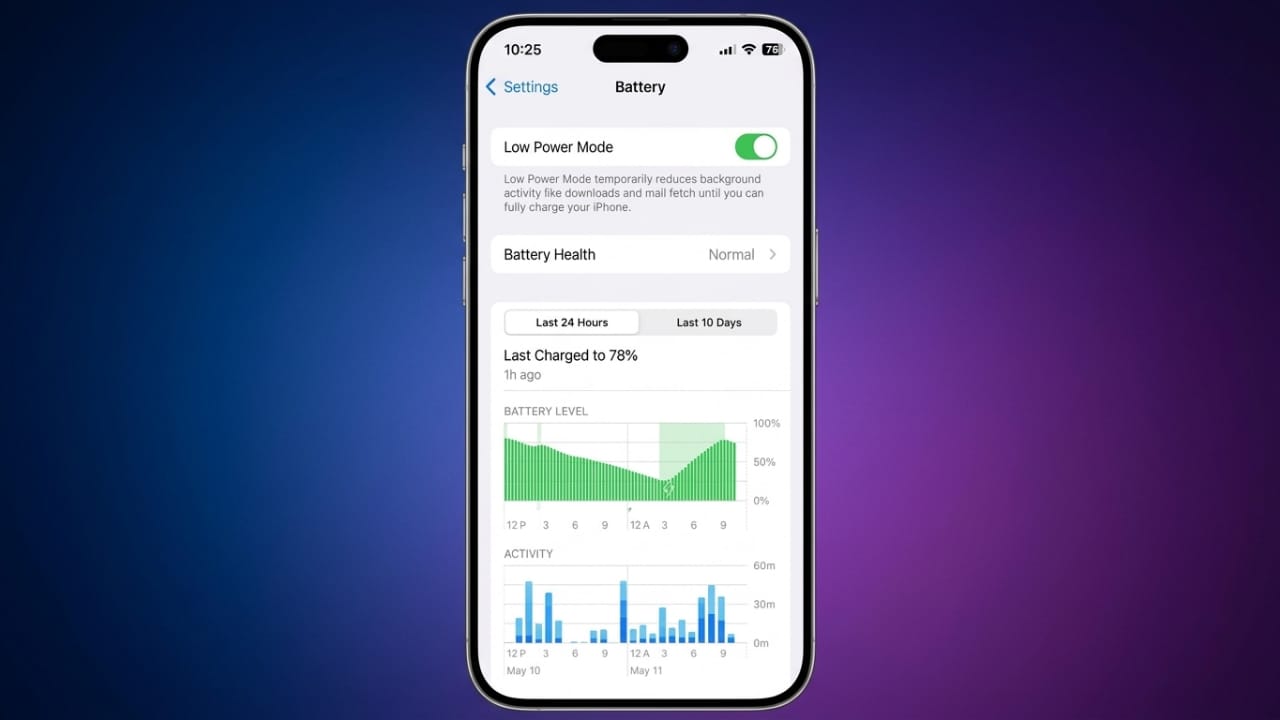
Running out of battery when you are away from a charger can be frustrating. Thankfully, every modern iPhone includes a built-in feature called Low Power Mode that helps reduce battery usage and keeps your phone running for longer.
This guide explains what Low Power Mode is, how to turn it on, and what changes you can expect while using it.
Also read: How to Cut Down Screen Time on Android and Sleep Better
What Is Low Power Mode?
Low Power Mode is a battery-saving feature available on iPhones running iOS 9 and later. When enabled, it reduces power consumption by temporarily limiting certain background activities and system features.
Advertisements
Your iPhone may automatically suggest turning on Low Power Mode when the battery level drops to 20% and again at 10%. Once enabled, the battery icon changes from green to yellow, making it easy to see that the feature is active.
This feature is especially useful during travel, long workdays, or anytime you cannot charge your phone immediately.
Benefits of Low Power Mode
Using Low Power Mode offers several advantages:
- Helps your iPhone battery last longer.
- Reduces unnecessary background power usage.
- Can be turned on or off in seconds.
- Available on supported iPhone models.
- Useful when charging is not available.
How to Turn On Low Power Mode
There are multiple ways to enable this feature.
1. Use Siri
The quickest method is to ask Siri.
Simply say:
- “Turn on Low Power Mode.”
To switch it off later, say:
- “Turn off Low Power Mode.”
2. Enable It from Settings
You can also activate it manually.
- Open Settings.
- Tap Battery.
- Turn on Low Power Mode.
To disable it later, return to the same menu and switch it off.
3. Add It to Control Center
If you use Low Power Mode often, adding it to Control Center makes it easier to access.
Follow these steps:
- Open Settings.
- Tap Control Center.
- Find Low Power Mode.
- Tap the + button to add it.
After adding it:
- On newer iPhones, swipe down from the top-right corner.
- On older models, swipe up from the bottom of the screen.
Tap the battery icon whenever you want to enable or disable the feature.
What Changes When Low Power Mode Is Enabled?
To save battery, your iPhone temporarily reduces or pauses some features.
Reduced Performance
The processor uses less power, so demanding apps and games may not perform as smoothly as usual.
Background App Refresh Is Paused
Apps stop updating content in the background. They refresh only when you open them.
Screen Locks Faster
Your iPhone automatically locks after about 30 seconds of inactivity to reduce screen power usage.
Automatic Email Fetch Is Disabled
The Mail app stops checking for new emails automatically. You can still refresh your inbox manually whenever needed.
Automatic Downloads Pause
Automatic app updates, music downloads, and similar background downloads are temporarily paused.
Fewer Visual Effects
Some animations and visual effects are reduced to help conserve battery.
“Hey Siri” Listening Is Limited
Your iPhone stops continuously listening for the “Hey Siri” voice command, although Siri can still be activated manually.
iCloud Photos Sync Is Paused
Photo uploads and syncing with iCloud may pause until Low Power Mode is turned off.
Some Location Services May Be Reduced
Certain location-related activities may run less frequently to save additional power.
How Much Battery Can You Save?
The amount of extra battery life depends on how you use your iPhone. If you mainly browse the web, send messages, or make calls, you may notice a significant improvement. Heavy gaming or video editing will still consume more power, even with Low Power Mode enabled.
Can You Leave Low Power Mode On All the Time?
Yes. Using Low Power Mode regularly does not harm your iPhone.
However, because some features remain limited, many people choose to enable it only when they need longer battery life.
You may notice:
- Slightly slower performance.
- Background App Refresh remains off.
- Automatic downloads stay paused.
- Some animations are reduced.
When Does Low Power Mode Turn Off?
In most cases, Low Power Mode automatically switches off after your iPhone is charged to around 80% or higher. You can also disable it manually whenever you want.
How to Check Battery Percentage
Knowing your battery level helps you decide when to enable Low Power Mode.
- On newer iPhones, open Control Center to view the battery percentage.
- On some older models, you can enable battery percentage from the Battery settings.
What About iPad and Mac?
Not all Apple devices work the same way.
Many iPads use other battery-saving methods, such as reducing screen brightness, turning off Bluetooth or Wi-Fi when not needed, and closing power-hungry apps.
Mac computers also include a Low Power Mode option that can be enabled through battery settings to improve battery life.
Also read: 3D Photo Live Wallpaper: Create Amazing 3D Cube Wallpapers with Your Favorite Photo
Final Thoughts
Low Power Mode is one of the easiest ways to extend your iPhone’s battery life. It only takes a few seconds to enable and can be especially helpful when you’re away from a charger.
Whether you activate it through Siri, Settings, or Control Center, this built-in feature offers a simple and reliable way to make your iPhone last longer throughout the day.

Jatin Rajput (Tech Golu) — Tech blogger & YouTuber with 6+ years of experience in WhatsApp, Instagram, Facebook, and mobile guides. Founder of TechGolu.in.