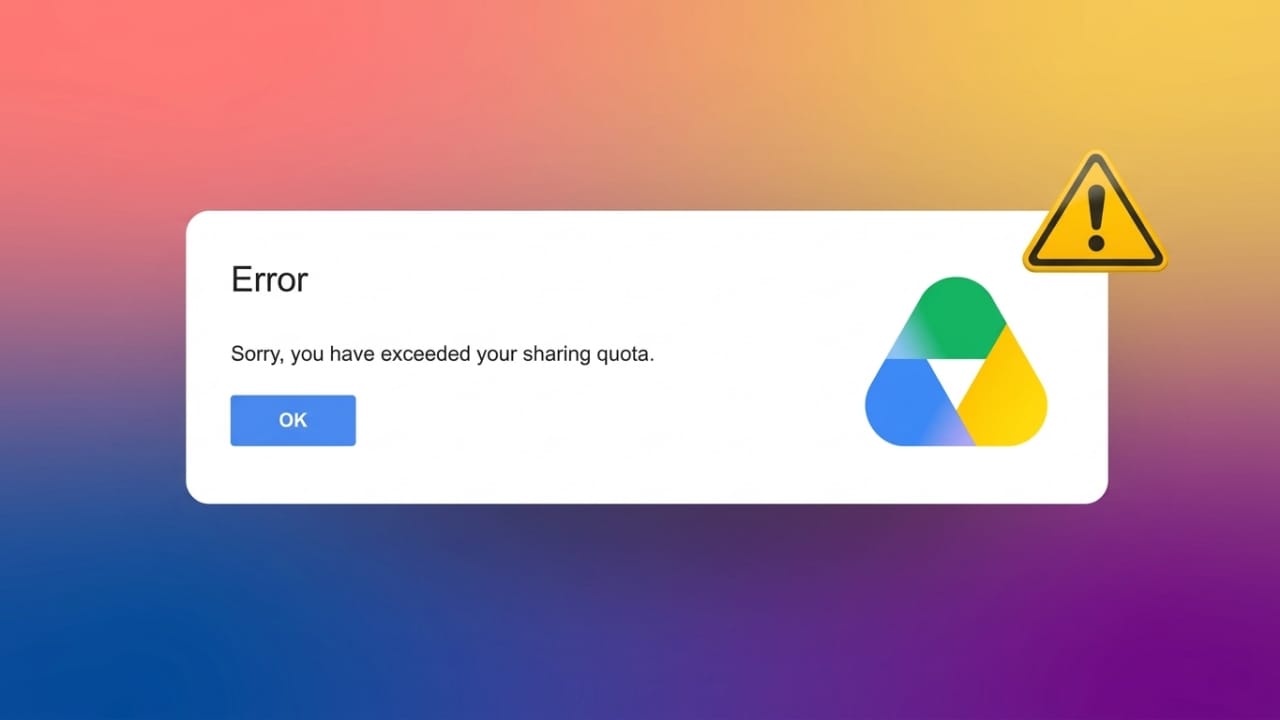
Google Drive is one of the most popular cloud storage services for saving, sharing, and accessing files online. However, users sometimes encounter the “Exceeded Quota” error, which can prevent downloads, file sharing, or normal account activity.
The good news is that this issue is usually temporary and can often be resolved with a few simple steps. In this guide, you’ll learn why the error appears and how to fix it safely.
Also read: How to Clear Incognito Activity and Improve Your Online Privacy
What Does the Google Drive Exceeded Quota Error Mean?
Google applies usage limits to keep its services stable and secure for everyone. When a file receives too many downloads or an account reaches certain usage thresholds, Google may temporarily restrict access.
As a result, you may see messages indicating that a file cannot be downloaded at the moment or that a sharing limit has been reached.
This issue is common with files that are shared publicly and receive a large number of download requests in a short period.
Common Reasons Behind the Error
Several factors can trigger quota-related restrictions in Google Drive:
- A shared file has reached its download limit.
- Your Google account storage is full.
- Too many files have been shared within a short period.
- Connected third-party apps are using account resources.
- Unused files, photos, or emails are taking up storage space.
- Hidden or unorganized files are consuming storage without your knowledge.
Understanding the cause can help you choose the right solution.
How Google Drive Storage Works
Every Google account includes a limited amount of free storage that is shared across multiple Google services, including:
- Google Drive
- Gmail
- Google Photos
When the available storage becomes full, you may experience difficulties uploading, syncing, or managing files. Regular storage maintenance can help prevent these problems.
Fix Download Restrictions on Shared Files
If you’re unable to download a file because of quota limits, the following method may help.
Step 1: Edit the Shared Link
Open the file’s shared link in your browser.
In the URL, look for the word:
uc
Replace it with:
open
After making the change, press Enter to load the updated page.
This step may not immediately remove the restriction, but it prepares the file for the next workaround.
Step 2: Add the File to Your Drive
On the file page, click the Google Drive icon and create a shortcut to the file.
Choose a folder in your Drive or create a new one. Once selected, add the shortcut to that location.
The file shortcut should now appear in your Google Drive account.
Step 3: Download from Your Drive
Open Google Drive and locate the folder containing the shortcut.
Right-click the folder or file and select Download.
Google Drive will prepare the file and may compress it into a ZIP archive before downloading. Depending on the file size, this process can take a few minutes.
Free Up Storage Space
If your account is running low on storage, cleaning unnecessary data can often resolve quota-related issues.
Empty the Trash
Deleting files does not immediately free storage because they remain in the Trash folder.
To reclaim space:
- Open Google Drive.
- Go to Trash.
- Review the files.
- Select Empty Trash.
Once removed permanently, the storage space becomes available again.
Remove Large Unused Files
Large files consume the most storage. Review your Drive and delete videos, backups, archives, or documents that are no longer needed.
This simple cleanup can quickly free a significant amount of space.
Find Hidden or Unorganized Files
Some files may not belong to any folder but still occupy storage.
Use the Google Drive search bar and enter:
type is:unorganized owner:me
Google Drive will display files that are not properly organized. Delete any unnecessary items and then clear the Trash folder again.
Fix File Sharing Limit Issues
Google also places limits on how much data can be shared within a specific period.
Understand Sharing Restrictions
Accounts that share large amounts of data may temporarily reach Google’s sharing limits. When this happens, file sharing may be restricted until the limit resets.
In most cases, the restriction is temporary and access returns automatically after some time.
Review Connected Applications
Many users connect third-party apps to Google Drive. Some of these applications may continue using storage or account resources even when they are no longer needed.
Periodically review connected apps and remove those you no longer use. This helps keep your account organized and reduces unnecessary activity.
Optimize Google Photos Storage
Photos and videos can quickly consume available storage.
Check your Google Photos settings and review storage-saving options available for your account. Optimizing photo storage can help create additional free space and reduce future storage issues.
Clean Up Gmail Storage
Since Gmail shares the same storage pool as Google Drive, old emails can contribute to storage problems.
Consider removing:
- Spam emails
- Junk messages
- Emails with large attachments
- Unneeded conversations
Regular mailbox maintenance can help free valuable storage.
Backup Important Emails Before Deleting
Before removing old emails, consider backing up any important information you may need later.
This allows you to free storage space while keeping important records safe and accessible.
Also read: ChatGPT vs Claude vs Gemini: Which AI Platform Is Best for Businesses in 2026?
Final Thoughts
The Google Drive Exceeded Quota Error is usually caused by download limits, sharing restrictions, or insufficient storage space. By cleaning up your account, managing storage wisely, and using the correct download methods, you can often restore normal access without difficulty.
Regular maintenance of Google Drive, Gmail, and Google Photos can also help prevent quota-related problems in the future and keep your account running smoothly.

Jatin Rajput (Tech Golu) — Tech blogger & YouTuber with 6+ years of experience in WhatsApp, Instagram, Facebook, and mobile guides. Founder of TechGolu.in.