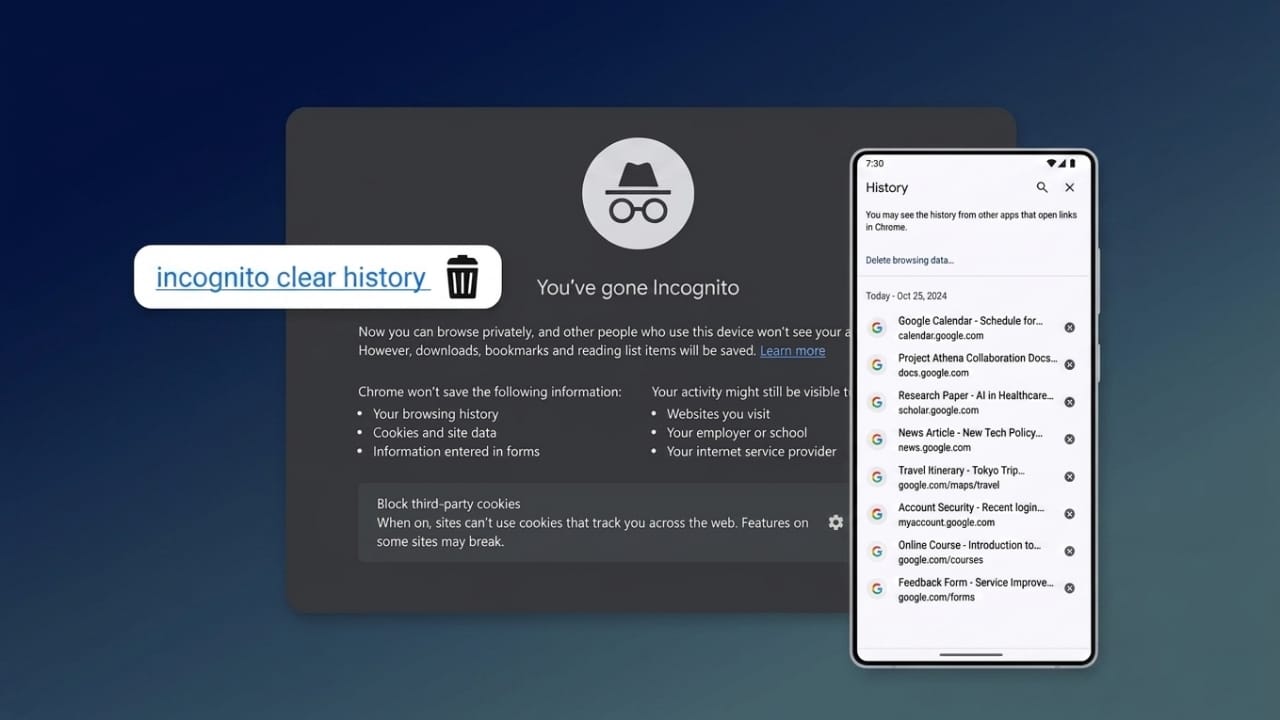
Many people use Incognito Mode thinking it completely hides everything they do online. While private browsing can prevent your browser from saving history, cookies, and form data on your device, it does not make you invisible on the internet.
Understanding what Incognito Mode does—and what it does not do—can help you take better steps to protect your privacy.
Also read: ChatGPT vs Claude vs Gemini: Which AI Platform Is Best for Businesses in 2026?
What Is Incognito Mode?
Incognito Mode is a private browsing feature available in most web browsers. When you browse in this mode, the browser does not save your browsing history, cookies, site data, or search information after the session ends.
This can be useful when using a shared computer or device because other users cannot easily see the websites you visited.
However, private browsing only offers limited privacy.
What Incognito Mode Protects
Private browsing helps keep certain information from being stored on your device. It can:
- Prevent browsing history from appearing in the browser.
- Remove cookies after the session ends.
- Stop search terms from being saved locally.
- Avoid storing temporary login information.
- Help maintain privacy on shared devices.
These features are useful for temporary browsing sessions, but they do not hide all online activity.
What Incognito Mode Does Not Hide
Many users believe Incognito Mode makes their internet activity completely private. In reality, several parties may still be able to see your browsing activity.
For example:
- Internet service providers (ISPs) can still see the websites you visit.
- Employers or schools may monitor activity on their networks.
- Public Wi-Fi operators may keep network logs.
- Websites can still collect information about your visit.
- Operating systems may store temporary records such as DNS cache entries.
Because of these limitations, clearing leftover data can provide an extra layer of privacy.
Why Clearing Incognito Traces Can Be Helpful
Even after an Incognito session ends, certain temporary records may remain on a device. These records can sometimes include website addresses or cached data stored by the operating system.
Regularly removing temporary files and cached records can help reduce the amount of browsing information left behind.
Additional Tools for Better Privacy
Private browsing is only one part of online privacy. You can improve protection by using additional privacy-focused tools and settings.
Some helpful options include:
- VPN services that encrypt internet traffic.
- Browsers designed with privacy features.
- Tracker-blocking extensions.
- Secure DNS services.
- Disabling unnecessary browser prediction and preloading features.
Using a combination of these tools can provide stronger privacy than Incognito Mode alone.
Clearing Browser Data on Windows
If you want to remove stored browser information on a Windows computer:
- Open your browser settings.
- Go to the Privacy or History section.
- Select the option to clear browsing data.
- Choose All Time if available.
- Select the data categories you want to remove.
- Confirm the cleanup process.
This removes information saved by the browser itself.
Clearing DNS Cache on Windows
Windows stores temporary DNS records to speed up website loading. Removing these records can clear cached website addresses.
To do this:
- Open Command Prompt with administrator privileges.
- Enter the command:
ipconfig /flushdns - Press Enter.
Windows will clear the stored DNS cache.
Removing Temporary Files in Windows
Temporary files may accumulate over time and can be safely removed.
Steps:
- Press Windows + R.
- Type %temp% and press Enter.
- Delete unnecessary temporary files.
- Restart the computer if desired.
This helps keep the system clean and organized.
Clearing Browsing Data on Mac
Mac users can also remove browser-related information.
Simply:
- Open your browser settings.
- Navigate to the privacy or history section.
- Select the option to clear browsing data.
- Choose the longest available time range.
- Confirm the deletion.
Clearing DNS Cache on Mac
macOS stores DNS information as well. The exact command may vary depending on the macOS version being used.
Generally, users can:
- Open the Terminal application.
- Run the DNS cache clearing command recommended for their macOS version.
- Restart the Mac if necessary.
Checking official Apple documentation is recommended for version-specific instructions.
Clearing Browser Data on Android
Android users can remove browsing information from their mobile browsers.
For Chrome:
- Open Chrome.
- Tap the three-dot menu.
- Select History.
- Choose Clear Browsing Data.
- Select the desired time range.
- Confirm the deletion.
This removes locally stored browsing information.
Clearing Browser Data on iPhone
iPhone users can clear browsing data through browser settings.
For Safari:
- Open the Settings app.
- Scroll down and tap Safari.
- Select Clear History and Website Data.
- Confirm the action.
Other browsers on iPhone offer similar options within their own settings menus.
Understanding Monitoring Tools
Some monitoring and parental control applications can record browsing activity, including activity that takes place during private browsing sessions.
These tools are often used by parents or organizations to supervise device usage. Depending on their settings and permissions, they may collect browsing-related information.
Users should understand how such applications work and review their privacy implications before installing them.
Tips for Better Online Privacy
If privacy is important to you, consider following these best practices:
- Keep browsers updated.
- Regularly clear browsing data.
- Use strong passwords and two-factor authentication.
- Avoid entering sensitive information on public Wi-Fi.
- Use trusted VPN services when appropriate.
- Review browser privacy settings periodically.
Also read: WT Hub – Web Scanner App Review: Features, Usage Guide, and Important Details
Final Thoughts
Incognito Mode is useful for preventing local browser history from being saved, but it does not provide complete anonymity online. Network providers, websites, and certain system records may still retain some information about browsing activity.
By regularly clearing stored data, managing privacy settings, and using trusted privacy tools, you can maintain better control over your online footprint and browse with greater confidence.

Jatin Rajput (Tech Golu) — Tech blogger & YouTuber with 6+ years of experience in WhatsApp, Instagram, Facebook, and mobile guides. Founder of TechGolu.in.