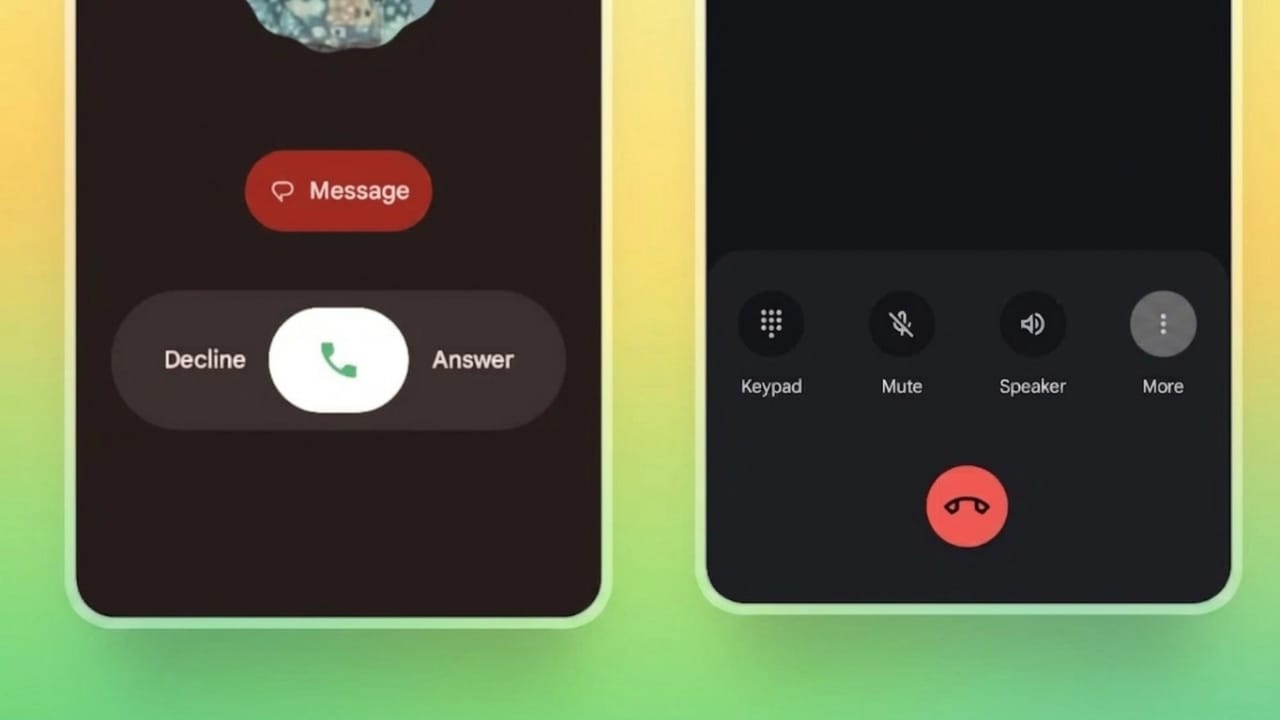
Many Android users were not happy when Google changed the design of its Phone app. The updated layout may look modern, but for some people it feels harder to use. Buttons may appear in different places, gestures may feel unfamiliar, and everyday tasks like answering calls or opening contacts can take extra effort.
If you prefer the older Google Dialer design, there are a few practical ways to try restoring a more familiar experience. Here’s a simple guide.
Also read: OpenAI May Be Moving Closer to a Public Stock Market Listing
Why Some Users Prefer the Older Dialer Interface
The old Google Dialer layout was simple, clean, and easy to understand. Many users had already built muscle memory from using it for years.
With the redesign, some common frustrations include:
- Buttons moved to different positions
- Navigation feels less familiar
- Some actions require extra taps
- Swipe gestures may feel confusing
- Beginners or older users may find the layout less intuitive
A calling app is something people use daily, so even small interface changes can affect comfort and speed.
Method 1: Remove Google Dialer Updates from Play Store
One of the easiest ways to try returning to an older version is by uninstalling updates from the Google Phone app.
Since Google Phone is often a pre-installed system app, removing updates usually restores the version that originally came with your device.
Steps to Remove Updates
- Open Google Play Store
- Search for Phone by Google
- Open the official app page
- Tap Uninstall
- Confirm the action
This usually removes recent updates, not the full app.
- Restart your phone
After rebooting, your device may load the earlier version of the dialer interface if your phone supports it.
Important: The exact result depends on your device manufacturer and Android version.
Method 2: Turn Off Auto Updates (Optional)
If the older version returns, Play Store may update the app again later.
To reduce unexpected interface changes, you can disable automatic app updates.
Steps
- Open Google Play Store
- Tap your profile icon
- Go to Settings
- Open Network Preferences
- Tap Auto-update apps
- Select Don’t auto-update apps
This can stop apps from updating automatically.
Things to Keep in Mind
Disabling updates may also delay:
- Security improvements
- Bug fixes
- Performance updates
A safer approach is checking for updates manually from time to time.
Method 3: Clear Cache if the App Behaves Oddly
If the dialer looks broken or doesn’t load properly after removing updates, clearing cache may help.
Steps
- Open Settings
- Tap Apps
- Select Phone
- Open Storage
- Tap Clear Cache
You can also clear app data if needed, but remember this may reset app preferences.
Method 4: Use a Different Dialer App
If you do not like Google’s current design, using another dialer app may be a better long-term option.
Many Android phones support alternative calling apps that can become the default phone application.
Benefits of using another dialer:
- Different layout choices
- Cleaner design
- Easier navigation
- No need to remove app updates repeatedly
Always choose trusted apps from reliable developers.
How to Change Default Phone App on Android
If you install another dialer, you can make it your main calling app.
Steps
- Install your preferred dialer app
- Open Settings
- Go to Apps or Default Apps
- Open Phone App settings
- Select your preferred dialer
Now calls should open using the selected app.
Why Familiar Interfaces Matter
Phone apps should be quick, clear, and easy to use. People rely on them for daily communication, and sudden layout changes can interrupt habits.
A familiar design often helps users:
- Answer calls faster
- Avoid accidental taps
- Navigate comfortably
- Reduce confusion during urgent calls
That’s why many Android users prefer stable, predictable interfaces.
Also read: How to Create a Close Friends List on Instagram for Private Sharing
Final Thoughts
If you want to switch back to the old Google Dialer UI, removing updates may help on supported devices. If that does not work, clearing cache or choosing another trusted dialer app can provide a better experience.
Before making any app-related changes, it is a good idea to back up important contacts and review your device settings carefully. Android gives users flexibility, so you can choose the setup that feels most comfortable and reliable for your daily use.

Jatin Rajput (Tech Golu) — Tech blogger & YouTuber with 6+ years of experience in WhatsApp, Instagram, Facebook, and mobile guides. Founder of TechGolu.in.