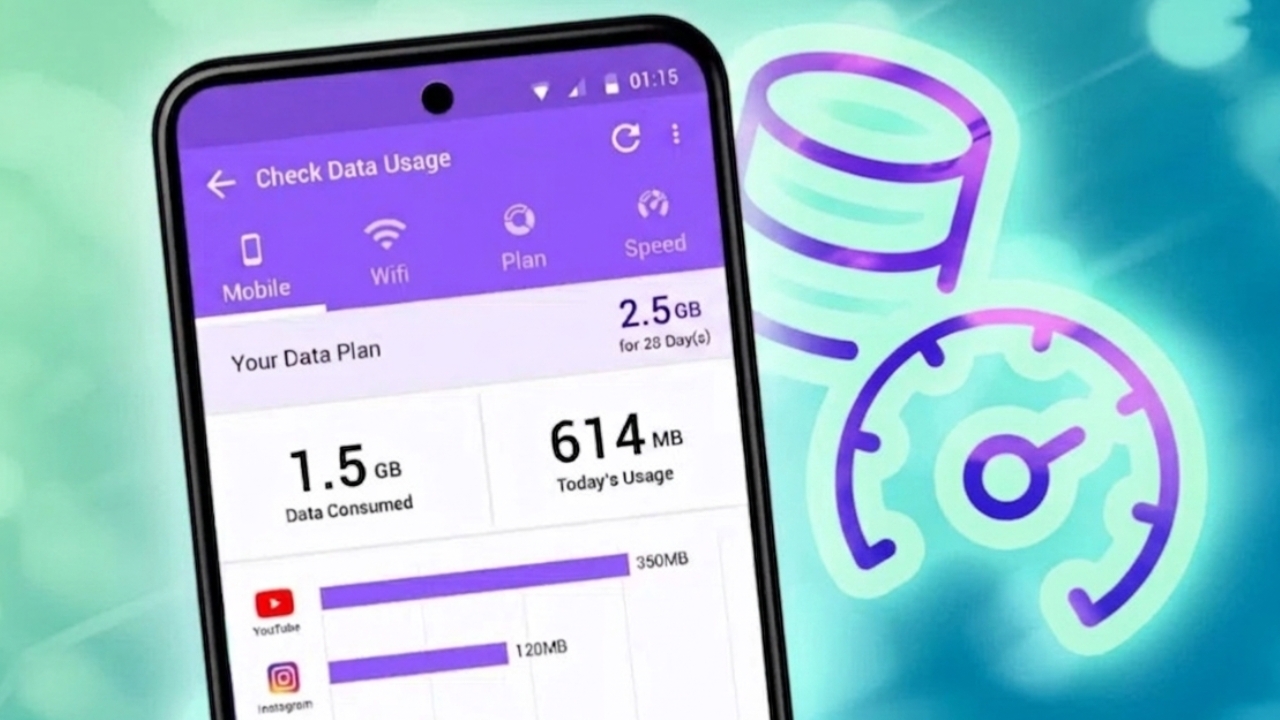
Mobile data is useful, but many plans come with limits or speed reductions after heavy use. If you do not monitor your usage, you may face slow internet or extra charges.
The good news is that Android phones include built-in tools to help you track mobile data easily. You can view daily usage, monthly usage, and see which apps use the most data.
This guide explains how to check data usage on Android, set limits, and reduce unnecessary usage.
Also read: How to Stop Browsers From Updating Automatically in 2026
Check Data Usage on Android Using Phone Settings
Most Android devices have a data usage section inside Settings. The exact menu may look different depending on the brand.
On Standard Android Phones
Follow these steps:
- Open Settings
- Tap Network & Internet
- Select SIM cards or Mobile Network
- Tap App data usage
- View total data used for the current period
You can also change the date range to check older records. This section usually shows which apps used the most data.
On Xiaomi Phones
Xiaomi devices may use a different layout.
- Open Settings
- Tap More connectivity options
- Select Data usage
- Scroll to see current usage
- Choose another date range if available
You may also see app-wise usage details.
On Samsung Galaxy Phones
Samsung devices have their own settings design.
- Open Settings
- Tap Connections
- Select Data usage
- Tap Mobile data usage
- View usage by app
You can also change the billing period to check previous data history.
What You Can See in Data Usage
The Android data section usually shows:
- Total data used during the billing cycle
- Data used by each app
- Foreground and background usage
- Apps using the highest amount of data
- Past usage records on some devices
This helps you understand where your data is going.
How to Check Wi-Fi Data Usage
Android can also track internet used over Wi-Fi. This is useful if your Wi-Fi connection has limits.
Steps to Check Wi-Fi Usage
- Open Settings
- Go to Network or Connections
- Tap Data usage
- Select Wi-Fi data usage
- View app-wise usage
Some phones may store limited Wi-Fi history.
Why Wi-Fi Tracking Matters
Checking Wi-Fi usage can help you:
- Find apps using too much internet
- Save bandwidth on limited plans
- Reduce background activity
- Improve network speed
Set Data Warning on Android
A data warning alerts you before reaching your monthly limit.
Steps to Enable Warning
- Open Settings
- Tap Data usage or Connections
- Open Billing cycle
- Turn on Set data warning
- Choose your preferred warning amount
- Save settings
Your phone will notify you when you are close to the limit.
Set a Data Limit
Many Android phones also let you stop mobile data automatically after reaching a set amount.
How to Enable
- Open Billing cycle
- Turn on Set data limit
- Enter your maximum allowed data
This can help avoid unexpected charges.
Adjust Billing Cycle for Better Accuracy
To track data correctly, match your phone’s billing cycle with your mobile provider.
Steps:
- Open Billing cycle settings
- Change the start date
- Set the same date used by your carrier
This gives more accurate monthly tracking.
What Uses the Most Mobile Data?
Different activities consume different amounts of data.
High Usage
- Video streaming
- Video calls
- Large app downloads
- Social media with videos
Medium Usage
- Music streaming
- Web browsing
- Photo uploads
Low Usage
- Messaging apps
- Emails
- Text-based browsing
Knowing this helps you use data more wisely.
Benefits of Tracking Data Usage
Regular monitoring can help you:
- Avoid extra charges
- Choose the right mobile plan
- Find heavy data apps
- Reduce background usage
- Improve battery performance
- Maintain faster internet speed
Fix Data Usage Not Showing on Android
Sometimes usage details may not appear correctly. Try these simple fixes.
Turn On Mobile Data
Enable mobile data from Quick Settings and check again later.
Restart Your Phone
A restart can fix temporary glitches.
Reopen Settings App
Close the Settings app completely and open it again.
Contact Your Network Provider
If the issue continues, confirm your data plan is active.
Wait for Updates
Usage stats may take a few minutes to refresh.
Phone Settings vs Carrier App
You can also check usage through your mobile provider’s app.
Android Settings
- Fast updates
- App-wise usage details
- Easy access anytime
Carrier App
- Billing cycle accuracy
- Remaining balance details
- Plan information
Best Option
Use both methods for better control.
Also read: WhatsApp May Introduce Chat Bubbles for Easier Replies While Using Other Apps
Final Words
Checking data usage on Android is one of the easiest ways to manage your internet properly. It helps prevent extra charges, avoids slow speeds, and gives you better control over your phone.
A quick check every few days can make a big difference.

Jatin Rajput (Tech Golu) — Tech blogger & YouTuber with 6+ years of experience in WhatsApp, Instagram, Facebook, and mobile guides. Founder of TechGolu.in.