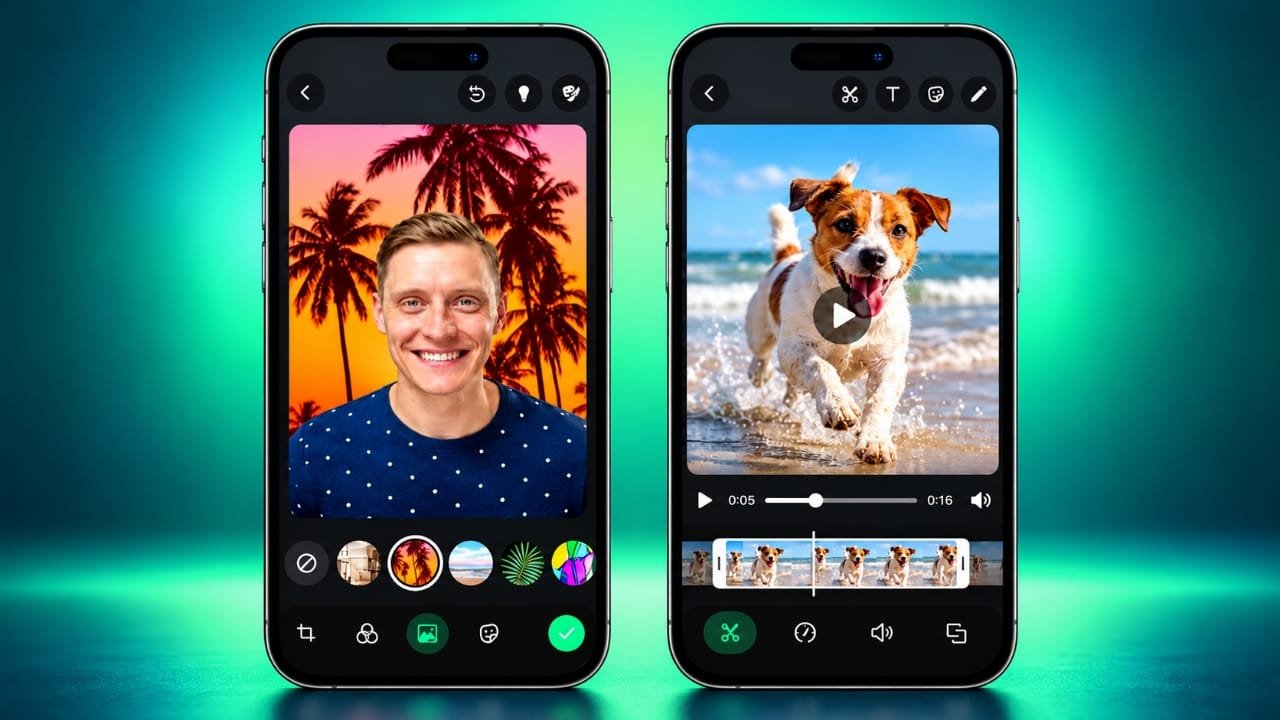
WhatsApp allows you to make quick changes to photos and videos before sharing them with friends, family, or groups. You do not need to download another editing app for basic tasks. The built-in editor includes options for cropping images, trimming videos, adding filters, inserting text, using stickers, drawing, and adjusting media quality.
You can also use available privacy tools to hide certain details in photos before sharing them. Although the editing options may vary slightly depending on your phone and WhatsApp version, the basic process is similar on Android and iPhone.
Here is how to use WhatsApp’s editing features step by step.
Also read: How to Generate Images in Cursor AI: Built-in Features and MCP Setup Guide
How to Open the WhatsApp Photo and Video Editor
Before making changes, open the media editor from a WhatsApp chat.
- Open WhatsApp and select an individual or group conversation.
- Tap the camera icon if you want to capture a new photo or record a video.
- To select an existing file, tap the attachment icon on Android and choose Gallery. On iPhone, tap the plus (+) icon and select Photo & Video Library.
- Choose the photo or video you want to share.
- The editing screen will appear, allowing you to make changes before sending the file.
Note for iPhone users: If you want to edit a photo within WhatsApp, select it directly from a WhatsApp conversation rather than sharing it through another app’s sharing menu.
How to Edit Photos and Videos on WhatsApp
1. Select the Photo or Video Quality
WhatsApp provides an HD option for eligible photos and videos. It is useful when you want to preserve more visual detail.
Tap the HD icon on the editing screen and select the available quality option.
- Standard quality: Suitable for everyday sharing, especially when you want to reduce data usage.
- HD quality: Better when image clarity and fine details are important, although the file may be larger.
The available options can vary depending on the type of media and where you are sharing it. HD options may not be available for profile pictures or Status updates.
2. Crop or Rotate a Photo
Cropping helps remove unwanted edges, while rotating corrects the orientation of an image.
To make these changes:
- Open the photo in WhatsApp’s editor.
- Tap the crop or rotate tool.
- Adjust the image boundaries by dragging the corner handles.
- Use the rotate option to change the image’s direction.
- Select Done when you are satisfied with the result.
Some versions also provide preset aspect ratios, making it easier to choose a suitable image shape. If you make a mistake, use the available reset or cancel option to return to the previous state.
3. Trim or Mute a Video
You can shorten a video before sharing it on WhatsApp. This is useful when you only want to send a particular moment instead of the entire recording.
Follow these steps:
- Select a video from a chat.
- Find the timeline or trimming slider near the top of the editor.
- Drag the handles to choose the beginning and end of the clip.
- Tap Play to check the selected portion.
- If you do not want to include the original sound, tap the speaker or mute icon.
- Review the video before sending it.
Trimming helps remove unnecessary footage and makes the shared clip more focused.
4. Apply Filters to Photos and Videos
Filters can change the appearance of your media without requiring advanced editing skills.
To apply one, open the editor and swipe up on the photo or video if the filter panel is available. Select a filter to preview its effect, then return to the editing screen.
Choose a filter that suits the lighting and subject. A subtle effect often works well when you want the image to look natural.
5. Add Stickers and Emojis
Stickers and emojis can make your photos and videos more expressive. They are useful for highlighting a particular object, adding a reaction, or creating a fun message.
Here is how to use them:
- Tap the sticker icon in the editor.
- Select a sticker or switch to the emoji section.
- Tap the item you want to add.
- Drag it to the desired position.
- Pinch to resize it or rotate it using your fingers.
If you want to remove an item, select it and drag it toward the trash icon when that option is available.
6. Insert Text and Change Its Style
Adding text is a convenient way to label an image, share a short message, or explain something in a screenshot.
To insert text:
- Tap the text icon.
- Enter your message.
- Confirm the text to place it on the media.
- Use the available colour controls to change its appearance.
- Select a font style if the option is available.
- Drag the text to reposition it and use your fingers to adjust its size or angle.
For better readability, use a text colour that contrasts with the background. Keep the message short enough that it does not cover important parts of the image.
7. Draw or Highlight Details
WhatsApp’s drawing tool lets you mark specific areas of a photo or video. You can use it to point out an object, underline information, or add simple handwritten notes.
Open the editor and tap the pencil icon. Choose a colour from the available palette, then draw directly on the media with your finger.
Depending on the version, you may also be able to adjust the line thickness. Use the undo option to remove the most recent mark if needed.
Once the drawing is complete, review the result before moving on to the next step.
8. Blur Sensitive Information in Photos
Before sharing a screenshot or picture, you may want to hide private information such as phone numbers, addresses, or identifying details.
If the blur tool is available in your WhatsApp photo editor, you can use it as follows:
- Open the photo you want to share.
- Tap the drawing or annotation tool.
- Select the blur option.
- Move your finger over the area you want to obscure.
- Check the image carefully to make sure the sensitive information is no longer readable.
- Tap Done when finished.
The availability of blur can depend on your device and WhatsApp version. If the option is missing, use a trusted photo editor before sharing the image.
Privacy tip: Always inspect the edited photo at full size. Make sure the information you intended to hide cannot still be read around the blurred area.
9. Add a Caption and Send the Media
After editing, you can add a caption to explain what you are sharing.
Look for the caption field at the bottom of the screen and type your message if needed. Review the photo or video, check the selected quality, and tap the Send button when you are ready.
If you are not satisfied with the result, go back and make the necessary changes before sending it.
WhatsApp Editing Tools at a Glance
| Editing tool | Main purpose |
|---|---|
| HD quality | Shares supported media with greater visual detail |
| Crop and rotate | Removes unwanted edges and corrects orientation |
| Trim and mute | Shortens a video and removes its sound |
| Filters | Changes the overall appearance of media |
| Stickers and emojis | Adds visual elements and reactions |
| Text | Places labels, captions, or short messages on media |
| Drawing | Highlights details with freehand marks |
| Blur | Helps conceal sensitive details in supported photos |
Tips for Getting Better Results
A few simple habits can help you prepare better photos and videos before sharing them.
- Protect personal information: Check screenshots and group photos for private details before sending them.
- Choose the right quality: Standard quality is useful for routine sharing, while HD is preferable when image detail matters.
- Keep text readable: Use clear wording and colours that stand out from the background.
- Preview videos before sending: Check the trimmed section and confirm whether the sound should remain.
- Avoid excessive editing: Too many stickers, drawings, or filters can make the original subject difficult to see.
- Keep WhatsApp updated: If an editing option is unavailable, check whether a newer version is available through the official app store.
On iPhones, Live Photos contain a still image and a short motion component. Depending on the available options, you may be able to share the image as a still instead of including its motion.
Frequently Asked Questions
Can I edit a photo on WhatsApp after sending it?
WhatsApp’s media editor is designed for changes made before sending. If you want to share a corrected version of a photo that has already been sent, edit the original image and send the updated copy. Deleting the earlier message may be an option, subject to WhatsApp’s available deletion rules.
How can I blur part of a photo on WhatsApp?
Open the photo in the editor and look for the blur tool under the drawing or annotation options. If it is available, move your finger over the information you want to conceal and review the result before sending. If your version does not include this feature, use a separate image editor.
Is it possible to trim a video before sending it?
Yes. Select the video and use the timeline controls to adjust its starting and ending points. Preview the selected section to make sure it contains the footage you want to share.
Why can’t I edit a photo shared directly from another app on my iPhone?
The editing options available through iOS sharing menus can differ from those inside WhatsApp. To access WhatsApp’s own media editor, open the conversation and select the photo from within the app.
Do I need another app to edit WhatsApp photos?
Not for basic edits. WhatsApp offers several built-in tools for adjusting photos and videos before sharing them. A separate editor may still be useful if you need more advanced controls or a feature that is not available in your version.
Does sending a photo in HD always preserve its original quality?
No. HD generally provides more detail than the standard option, but it does not necessarily preserve every aspect of the original file. The final quality can depend on the media, the selected settings, and WhatsApp’s processing.
Also read: WhatsApp Tests Instagram Reels Sharing Shortcut and Scheduled Messages on Android
Final Thoughts
WhatsApp makes it easy to prepare photos and videos before sharing them. You can crop images, rotate them, trim clips, apply filters, add text, use stickers, draw highlights, and select a suitable media quality without opening a separate editing app.
For the best results, choose the media from inside your WhatsApp conversation, make only the changes you need, and preview the final version before sending it. If you are sharing screenshots or pictures containing private information, take a moment to check that sensitive details are properly hidden.
These simple steps can make everyday media sharing clearer, more convenient, and more privacy-conscious.

Jatin Rajput (Tech Golu) — Tech blogger & YouTuber with 6+ years of experience in WhatsApp, Instagram, Facebook, and mobile guides. Founder of TechGolu.in.