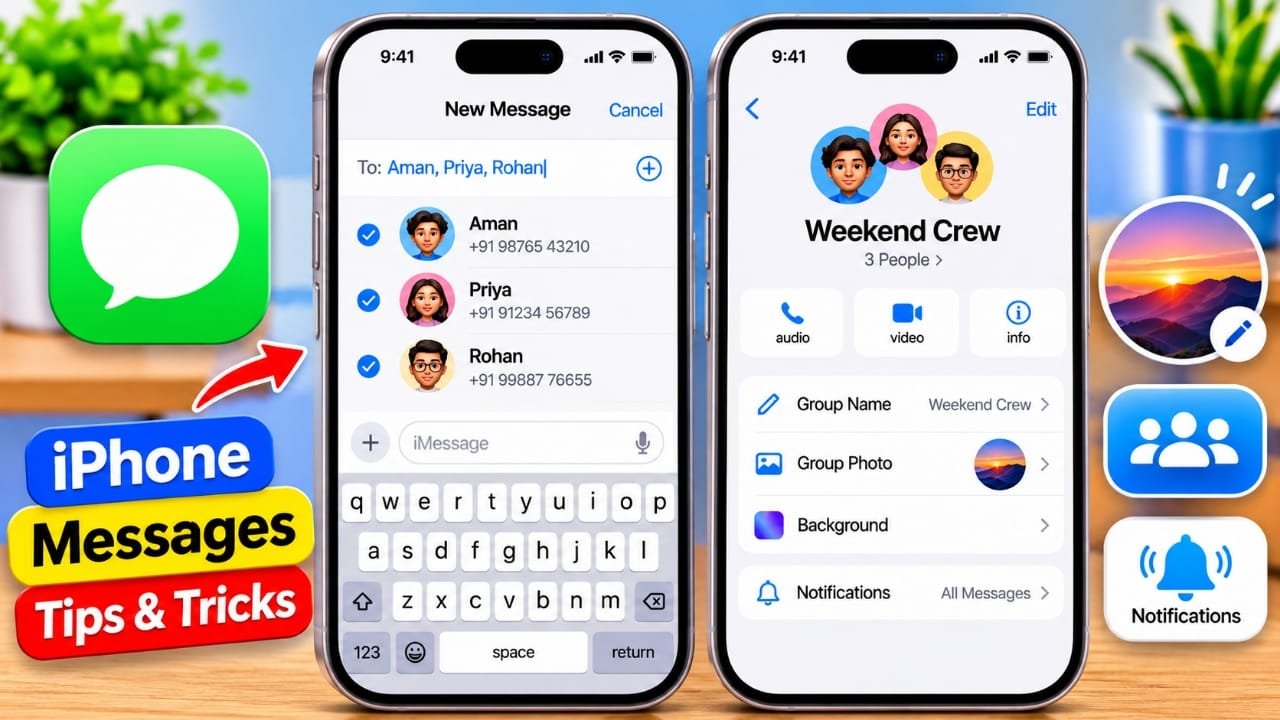
iMessage makes it easy to chat with several people at the same time. Whether you are planning a trip, discussing a project, or simply keeping in touch with friends, a group conversation can keep everything in one place.
If you are new to iMessage, some of the group chat options may not be obvious. This guide explains how to create a group chat, change its name, manage members, mute notifications, reply to specific messages, and leave a conversation on an iPhone or iPad.
Also read: How to Set a Data Usage Warning on an Android Phone
How to Create an iMessage Group Chat
Creating a group conversation is similar to starting a normal message. The main difference is that you select more than one recipient.
Advertisements
- Open the Messages app on your iPhone or iPad.
- Tap the Compose button in the top-right corner.
- In the To field, enter the names or phone numbers of the people you want to include.
- You can also tap the + button to select contacts from your address book.
- Type your message in the text field.
- Tap the Send button.
After the first message is sent, the conversation becomes a group chat. Messages sent within the conversation can then be seen by the other participants.
Keep in mind that the features available in a group conversation can vary depending on whether everyone is using iMessage or whether the chat includes SMS/MMS or other messaging types.
How to Change the Name and Photo of an iMessage Group
Giving a group conversation a name can make it much easier to find later, especially if you have several active chats in the Messages app.
To customize the group:
- Open the group conversation in Messages.
- Tap the group name or icons at the top of the screen.
- Select Change Name and Photo.
- Enter the name you want to use.
- Choose a photo, emoji, or another available group image option.
- Tap Done to save the changes.
You can choose a name that describes the purpose of the conversation, such as a trip, family group, or work discussion.
How to Add Someone to an iMessage Group
If the conversation supports adding participants, you can bring another person into the group without starting a completely new chat.
- Open the group conversation.
- Tap the group name or icons at the top.
- Open the participant information.
- Tap Add Contact or the option to add another person.
- Select the contact you want to add.
- Follow the on-screen instructions to complete the change.
The ability to add participants depends on the type and size of the conversation.
How to Remove Someone From an iMessage Group
You may also be able to remove a participant from an iMessage-only group.
- Open the group conversation.
- Tap the group name or icons at the top.
- Open the participant list.
- Swipe left on the person you want to remove.
- Tap Remove if the option is available.
Apple limits some group-management features based on the type of conversation and number of participants, so the remove option may not appear in every group.
How to Reply to a Specific Message
Busy group chats can quickly become difficult to follow when several people are talking at once. iMessage lets you respond directly to a particular message.
To do this, swipe left on the message you want to respond to. You can then type your response and send it.
The reply remains connected to the original message, making it easier for everyone to understand what you are responding to.
How to Mention Someone in a Group Chat
You can also mention a specific person when you want to get their attention.
While writing a message, enter the person’s name as supported by iMessage. If the feature is available for the conversation, iMessage can recognize the name and highlight the mention.
This can be useful when several people are chatting and you need a particular member to see your message.
How to Mute an iMessage Group Chat
Group conversations can generate a lot of notifications. If you do not want to leave the group but want fewer alerts, you can hide its notifications.
- Open the group conversation.
- Tap the group name or icons at the top.
- Find the Hide Alerts option.
- Turn it on.
The conversation will remain in Messages, but you will no longer receive the usual notifications for new messages from that group.
You can turn the option off later if you want to start receiving alerts again.
How to Leave an iMessage Group Chat
If you no longer want to participate in a group conversation, iMessage may provide an option to leave it.
- Open the group conversation.
- Tap the group name or icons at the top.
- Scroll through the available options.
- Tap Leave this Conversation if it is available.
- Confirm your choice.
The leave option is not available for every type of group conversation. For example, chats that include SMS/MMS participants may not offer the option to leave in the same way as an iMessage-only group.
Tips for Managing Busy Group Conversations
A few simple habits can make group chats easier to manage:
- Use a clear group name: This makes the conversation easier to identify.
- Reply directly to messages: Use inline replies when several topics are being discussed.
- Mention the right person: This helps direct an important message to a specific participant.
- Mute noisy conversations: Use Hide Alerts when you want to stay in the group without constant notifications.
- Keep important discussions organized: For larger conversations, replying to the relevant message can prevent confusion.
Also read: Nothing Teases Its First Screenless AI Device With a Metallic Design and LED Indicators
Final Thoughts
Creating an iMessage group chat is a simple way to keep multiple people connected in one conversation. Once the group is created, you can personalize it, manage participants when supported, reply to individual messages, mention people, and silence notifications when needed.
The exact options available can depend on the type of messaging conversation and the devices being used by its participants. If you do not see an option mentioned above, check the group details and make sure the conversation supports that feature.

Jatin Rajput (Tech Golu) — Tech blogger & YouTuber with 6+ years of experience in WhatsApp, Instagram, Facebook, and mobile guides. Founder of TechGolu.in.