Private Browsing in Safari is useful when you do not want websites to appear in your regular browsing history. But there are times when you may want to leave Private Browsing, lock it, or limit what can be accessed on an iPhone.
The steps are slightly different depending on what you want to do. Simply leaving Private Browsing takes only a moment, while restricting it on a child’s iPhone requires Screen Time settings.
Also read: Hotspot Slow? 7 Easy Ways to Make Your Android or iPhone Hotspot Faster
What Is Private Browsing on iPhone?
Safari’s Private Browsing mode keeps certain browsing information separate from your normal Safari activity.
Advertisements
When you use a Private tab:
- The pages you visit are not added to Safari History.
- Private tabs are not shared with your other Apple devices.
- Safari extensions that access browsing information are disabled.
- You can use a different search engine specifically for Private Browsing.
- Private tabs can be protected with Face ID, Touch ID, or a passcode.
However, Private Browsing does not make you completely anonymous online. Your internet provider, network administrator, or the websites you use may still be able to see information about your connection or activity.
How to Check If Safari Is in Private Browsing Mode
Safari uses a different appearance when Private Browsing is active.
Open Safari and tap the Tabs button. If you see Private selected in the tab group area, you are currently browsing privately.
In normal browsing, Safari shows your regular tab group or the number of open tabs instead.
How to Turn Off Private Browsing on iPhone
If you only want to leave Private Browsing and return to normal Safari, you can do it directly from the tab screen.
- Open Safari on your iPhone.
- Tap the Tabs button.
- Look at the tab group options at the bottom of the screen.
- Swipe from Private to your regular tab group.
- Tap an existing tab or open a new one.
You are now back in normal browsing.
Your Private tabs are not automatically deleted when you leave Private Browsing. Safari keeps them available if you switch back to Private later.
How to Close All Private Tabs
If you do not want the Private tabs to remain open, you can close them manually.
First, switch to the Private tab group in Safari. Then touch and hold Done or the Tabs button, depending on your Safari layout.
Choose the option to close all Private tabs.
This is particularly useful if you are about to give your iPhone to another person and do not want your Private tabs left open.
How to Open Private Browsing Again
You can return to Private Browsing whenever you want.
- Open Safari.
- Tap the Tabs button.
- Swipe through the tab groups until you reach Private.
- Select Private.
- If Safari asks you to authenticate, use Face ID, Touch ID, or your passcode.
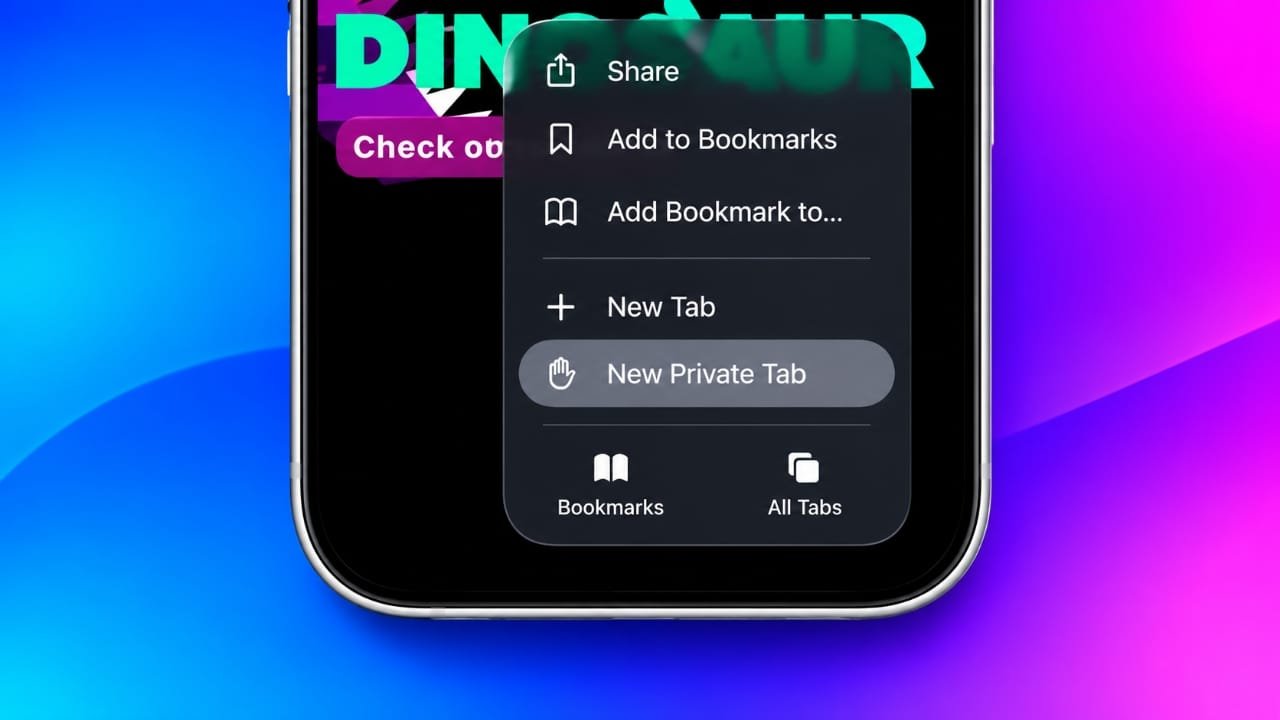
You can also touch and hold the Safari icon on your Home Screen and select New Private Tab.
How to Lock Private Browsing With Face ID
If you share your iPhone with someone else, you may not need to disable Private Browsing completely. Safari can protect Private tabs with biometric authentication.
To enable this feature:
- Open Settings.
- Tap Apps.
- Select Safari.
- Turn on Require Face ID to Unlock Private Browsing.
Depending on your iPhone, this option may refer to Touch ID or your passcode instead.
Once enabled, Safari requires authentication before protected Private Browsing tabs can be opened. This can be a better option if you want to keep your own Private tabs protected while continuing to use the feature.
Can Screen Time Disable Private Browsing on iOS 26?
This is where things have changed compared with older iOS versions.
In previous versions of iOS, many users used the Limit Adult Websites option in Screen Time to remove the Private Browsing option from Safari.
On iOS 26, that method should not be treated as a reliable way to completely remove Private Browsing.
The web-content filter can still restrict access to adult websites, but Private Browsing can remain available. In other words, filtering web content and completely disabling Private Browsing are two different things.
So if your goal is to protect a child’s iPhone, focus on the available Screen Time and Family Sharing controls rather than relying on the old method of hiding the Private tab.
How to Turn On Web Content Restrictions
Even though the setting does not necessarily remove Private Browsing, it can still be useful for restricting inappropriate websites.
On the iPhone:
- Open Settings.
- Tap Screen Time.
- Select Content & Privacy Restrictions.
- Turn the restrictions on.
- Open the App Store, Media, Web & Games or related content restriction section.
- Select Web Content.
- Choose Limit Adult Websites.
For a younger child, you can use Only Approved Websites if that option is available on the device.
Also make sure the Screen Time settings are protected with a passcode that the child does not know.
Use Family Sharing for a Child’s iPhone
If the iPhone belongs to a child who is part of your Apple Family Sharing group, you can manage many parental controls from the parent’s device.
This can make it harder for a child to change the restrictions directly on their iPhone.
For stronger protection, use a combination of:
- Family Sharing
- Screen Time
- A Screen Time passcode
- Web Content restrictions
- App and purchase restrictions where appropriate
The exact options can vary depending on the child’s age, Apple Account settings, and iOS version.
Private Browsing vs Web Restrictions
These two features serve different purposes.
Private Browsing controls how Safari handles browsing information on the device.
Web Content restrictions are designed to limit access to certain websites or categories of content.
Turning on a web filter does not mean that Private Browsing itself has been completely disabled.
Also read: Gemini 4 Carbon Now Available: Google’s Most Powerful AI Model, Pricing and Access
Final Thoughts
Turning off Private Browsing on an iPhone is simple. Open Safari’s tab view and switch from Private to your regular tab group.
If you want to protect your own Private tabs, enabling Face ID, Touch ID, or passcode authentication is a better approach than trying to remove the feature.
For a child’s iPhone, Screen Time can still provide useful web-content restrictions. However, on iOS 26, the older method of using Limit Adult Websites should not be relied upon as a guaranteed way to remove Private Browsing. For better parental control, combine Screen Time with Family Sharing and a properly protected Screen Time passcode.

Jatin Rajput (Tech Golu) — Tech blogger & YouTuber with 6+ years of experience in WhatsApp, Instagram, Facebook, and mobile guides. Founder of TechGolu.in.