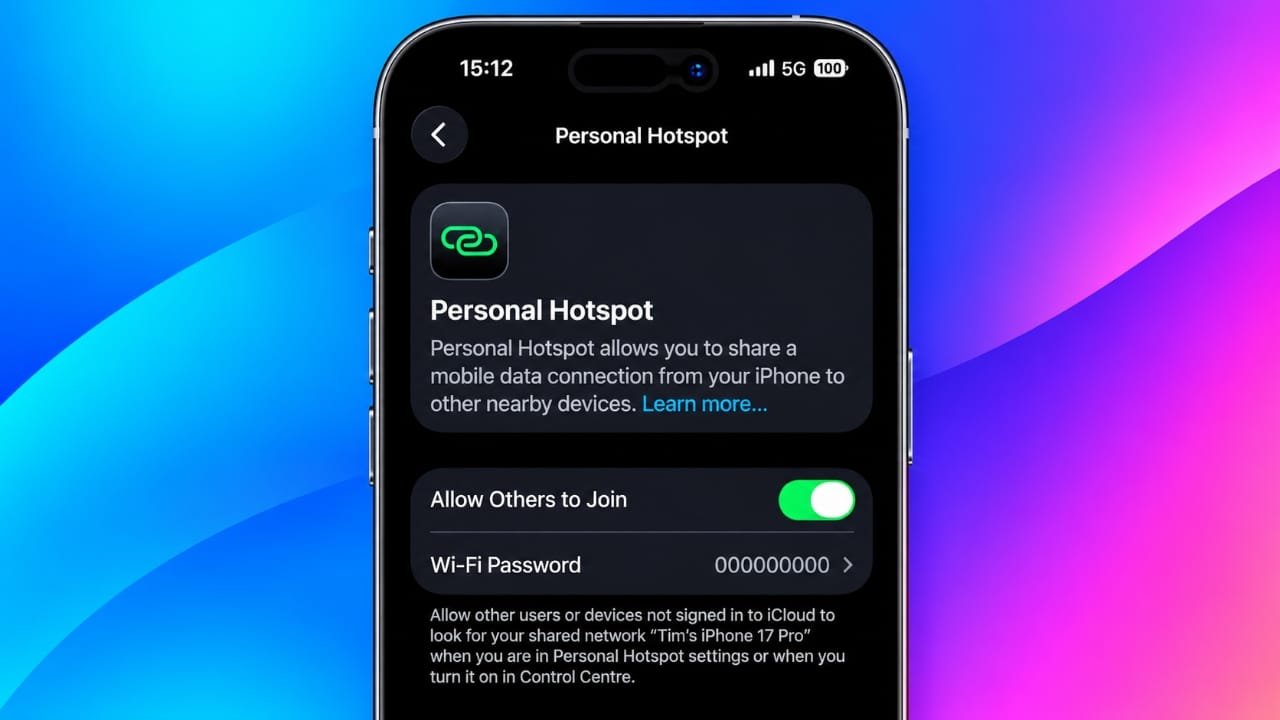
A phone hotspot is useful when your laptop or another device needs internet access without Wi-Fi. But sometimes the connection becomes frustratingly slow.
The good news is that the problem is often simple. A weak mobile signal, limited data, too many connected devices, or the wrong Wi-Fi band can all affect hotspot performance.
Try these practical fixes to find the cause and improve your hotspot speed.
Also read: Gemini 4 Carbon Now Available: Google’s Most Powerful AI Model, Pricing and Access
Quick Fixes for a Slow Hotspot
| Common problem | What to try |
|---|---|
| Weak mobile signal | Move your phone near a window or to a higher location |
| Mobile data limit reached | Check your plan and remaining data |
| Too many devices connected | Disconnect devices you aren’t using |
| Hotspot using 2.4GHz | Try 5GHz when the connected device is nearby |
| Laptop using data in the background | Set the hotspot as a metered connection |
| Hotspot connected but internet is not working | Restart both devices |
| Connection keeps dropping | Try USB tethering |
Why Is Your Phone Hotspot Slow?
1. Your phone has a weak mobile signal
A hotspot cannot normally provide better internet than the mobile connection available on your phone.
If your phone has only one or two signal bars, the hotspot may also be slow. The same can happen when the phone repeatedly switches between 4G and 5G.
Buildings, thick walls, underground areas and other physical obstacles can also affect cellular reception.
Try moving the phone closer to a window or placing it somewhere higher. Even changing its position slightly can improve the connection.
2. You may have used your available high-speed data
Your hotspot generally uses your phone’s mobile data connection. Depending on your carrier and plan, reaching a daily or monthly data limit may reduce the available speed.
Some plans may also have separate rules for tethering or hotspot usage. This is particularly important to check if you have an unlimited or promotional 5G plan.
Open your carrier’s app or check your plan details to see whether you’ve reached a limit or whether any speed restrictions apply.
3. Too many devices are connected
All devices connected to your hotspot share the same internet connection.
For example, if your laptop is downloading a large file while another device is streaming high-quality video, the available bandwidth is divided between them.
Disconnect phones, tablets, TVs or other devices that you aren’t currently using.
You don’t necessarily need to reach the maximum supported number of connections before experiencing slower speeds.
4. Your laptop may be downloading things in the background
A laptop can quietly use a lot of mobile data.
System updates, cloud synchronization, application updates and large downloads may continue even when you aren’t actively doing anything.
If you are using your hotspot for an important task, check what is running in the background and pause anything that isn’t necessary.
7 Ways to Improve Hotspot Speed
1. Move your phone to a better location
Start with the simplest fix.
Place your phone near a window or in a more open area. Avoid keeping it inside a drawer, surrounded by metal objects, or in a location where the cellular signal is weak.
Also keep the phone reasonably close to the device using the hotspot.
A better cellular signal can make a noticeable difference when the original problem is poor reception.
2. Switch to 5GHz Wi-Fi when possible
Many phones can create a hotspot using either 2.4GHz or 5GHz Wi-Fi.
The 5GHz band can offer faster local Wi-Fi speeds, but it generally has a shorter range than 2.4GHz. Therefore, it works best when your laptop or other device is fairly close to the phone.
On an iPhone 12 or newer, open:
Settings → Personal Hotspot
If Maximize Compatibility is enabled, turning it off can allow the hotspot to use the faster Wi-Fi mode when supported.
On Android, hotspot options vary by manufacturer. Look for settings such as Wi-Fi band, AP band, Speed & compatibility, or a similar option. If 5GHz is available, select it when your connected device is nearby.
Some Android phones may not provide this option.
3. Disconnect devices you don’t need
Open your phone’s hotspot settings and check which devices are connected.
Remove any device that isn’t being used. This is especially helpful if another device is streaming video, downloading files or performing a backup.
If you need the hotspot for a video call or work, temporarily disconnecting other devices can free up bandwidth.
4. Stop large downloads and backups
Before using the hotspot for something important, check your laptop for large downloads.
Pause things such as:
- Windows updates
- Game downloads
- Cloud backups
- Large file transfers
- Application updates
- Video or media downloads
You can resume them later when you are connected to regular Wi-Fi.
5. Mark the hotspot as a metered connection
Windows can use a hotspot like a normal Wi-Fi network unless you tell it otherwise.
On Windows 11, open:
Settings → Network & internet → Wi-Fi
Select the connected hotspot network and enable Metered connection.
This can help reduce certain background data usage and prevent unnecessary downloads from consuming your mobile data.
On a Mac, similar data-saving options may be available depending on the connected network and macOS version.
6. Restart both devices
Sometimes the problem isn’t your mobile plan or Wi-Fi band. A temporary network issue can also cause poor hotspot performance.
Turn off the hotspot, restart your phone, and restart the laptop or other connected device.
Then enable the hotspot again and reconnect.
Also check for available system updates on both devices. Keeping your phone and computer updated can help avoid problems caused by outdated network software.
7. Reset network settings if nothing else works
If the hotspot still refuses to work properly after trying the other solutions, resetting network settings can be worth considering.
This should be treated as a last step because it can remove saved Wi-Fi networks, passwords and other network-related settings.
On an iPhone, go to:
Settings → General → Transfer or Reset iPhone → Reset → Reset Network Settings
On Pixel and other Android phones with similar menus, look under:
Settings → System → Reset options
The exact wording can differ between Android versions and manufacturers.
For Samsung phones, the option is generally found under:
Settings → General management → Reset → Reset network settings
Make sure you know your important Wi-Fi passwords before performing the reset.
Try USB Tethering for a More Stable Connection
If Wi-Fi hotspot performance is inconsistent, a USB connection can be another option.
Connect your phone to the computer with a compatible USB cable and enable USB tethering on Android. On supported Apple devices and computers, Personal Hotspot can also work through a USB connection.
A wired connection avoids some of the interference that can affect Wi-Fi.
However, compatibility depends on the devices involved. For example, USB tethering from an Android phone to a Mac may not be supported in the same way as it is on Windows.
Also read: How to Create and Customize an iMessage Group Chat on iPhone and iPad
Final Takeaway
When your phone hotspot is slow, don’t immediately assume that the phone itself is faulty.
First, check your mobile signal and available data. Then disconnect unused devices and stop any large downloads running in the background.
If your phone supports it, try the 5GHz hotspot band when your laptop is nearby. Setting the connection as metered can also reduce unnecessary data usage.
If the problem continues, restart both devices. A network settings reset should be considered only after the simpler solutions have failed.
These steps work for most common hotspot problems on Android and iPhone and can help you identify whether the slowdown is coming from the mobile connection, Wi-Fi settings, or the connected device.

Jatin Rajput (Tech Golu) — Tech blogger & YouTuber with 6+ years of experience in WhatsApp, Instagram, Facebook, and mobile guides. Founder of TechGolu.in.