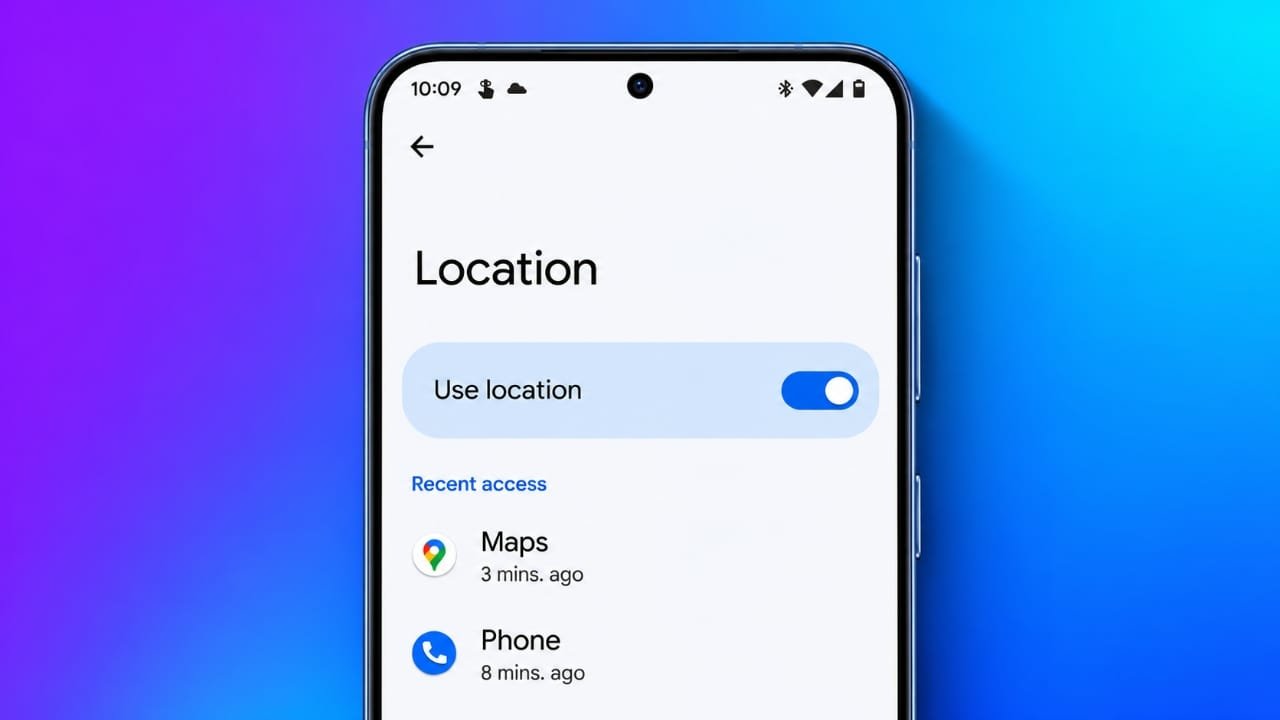
Android phones use location services for many everyday features, including maps, weather, ride-booking apps and location-based recommendations. If you do not want apps to access your location all the time, Android gives you several ways to limit or completely disable location access.
The simplest method is to open Settings > Location and turn off Use location. You can also manage location access for individual apps, disable Wi-Fi and Bluetooth scanning, and turn off Google Location Accuracy.
This guide explains what each option does, what may stop working when location is disabled, and how to manage your Google Maps Timeline.
Also read: Gemini Omni 1.2 Flash: 15-Second AI Videos, Chat Editing and Lower 720p Pricing
Why Turn Off Location on Android?
There are several reasons you may want to limit location access on your phone.
Better control over app permissions
Some apps request location access even though it may not be essential for their main function. Reviewing these permissions lets you decide which apps can use your location.
More privacy
Location information can reveal places you regularly visit, such as your home, workplace or other frequently visited areas. Limiting location access can reduce the amount of location information available to apps.
Potentially lower battery use
Apps that repeatedly check your location can use additional battery. Turning off location or restricting background access may reduce some of this activity, although the battery difference will vary from phone to phone.
You can turn it back on whenever needed
You do not have to keep location disabled permanently. For example, you can turn it on when using navigation or a ride-booking service and switch it off again afterward.
How to Turn Off Location on Android
The exact names and positions of these settings can vary between phones. Samsung, Xiaomi, Vivo, OnePlus and other manufacturers may use slightly different menus, but the basic options are similar.
Step 1: Turn Off Use Location
The quickest way to disable device location is through Android’s main Location setting.
- Open Settings.
- Tap Location.
- Turn off Use location.
On some phones, Location may be located under Privacy, Security & privacy, or a similar section.
You can also use Quick Settings:
- Swipe down from the top of the screen.
- Find the Location button.
- Tap it to turn location off.
If you cannot see the Location button, tap the edit or pencil option and check whether it can be added to Quick Settings.
Step 2: Disable Wi-Fi and Bluetooth Scanning
Android can use nearby Wi-Fi networks and Bluetooth devices to help determine your approximate location. These scanning features can sometimes work even when Wi-Fi or Bluetooth itself is turned off.
On newer Android versions, you can usually find them here:
Settings > Location > Location services
Look for:
- Wi-Fi scanning
- Bluetooth scanning
Turn off either option if you do not want Android to use background scans for location-related purposes.
On older Android versions, these settings may appear directly inside the Location menu.
Step 3: Turn Off Google Location Accuracy
Google Location Accuracy can combine information from GPS, Wi-Fi networks, mobile networks and device sensors to improve location results.
If you want to disable this feature:
- Open Settings.
- Go to Location.
- Open Location services.
- Select Google Location Accuracy.
- Turn off Improve Location Accuracy.
With this option disabled, location information may be less accurate or take longer to determine, particularly indoors.
This does not necessarily mean that GPS stops working completely. Depending on your phone and app permissions, apps may still be able to use available location information.
Step 4: Control Location Access for Individual Apps
You do not always need to disable location for your entire phone.
If you want certain apps to access your location while blocking others, manage their individual permissions instead.
Go to:
Settings > Location > App location permissions
Select an app and choose an option such as:
- Allow all the time
- Allow only while using the app
- Ask every time
- Don’t allow
The available choices can vary depending on your Android version and phone manufacturer.
For apps that only need your general area, you may also be able to turn off Use precise location.
For example, a weather app may only need an approximate area rather than your exact position.
It is also worth checking which apps have all-the-time location access. Most everyday apps do not need continuous background access.
Quick Guide to Android Location Settings
| Setting | What it controls | Typical location |
|---|---|---|
| Use location | Main device location access | Settings > Location |
| Wi-Fi scanning | Scans for nearby Wi-Fi networks for location-related services | Location > Location services |
| Bluetooth scanning | Scans for nearby Bluetooth devices | Location > Location services |
| Google Location Accuracy | Uses additional signals to improve location results | Location > Location services |
| App location permissions | Controls location access for individual apps | Location > App location permissions |
Menu names can differ depending on the Android version and phone brand.
What Still Works When Location Is Turned Off?
Turning off Android’s location setting does not make every form of location-related information disappear.
Emergency services can still receive location information
Disabling normal device location access does not guarantee that emergency services will be unable to determine your location.
When you contact emergency services, your phone, mobile network or an emergency location service may provide location information to help responders. The exact process depends on your device, network and country.
For this reason, turning off Location should not be considered a way to prevent emergency location services from working.
Websites can still estimate your general area
Websites and online services can sometimes estimate your approximate area from your IP address.
This can affect things such as local search results, language preferences, advertisements and regional content.
Your mobile network also has information about the cellular towers your phone connects to.
So, turning off Android Location mainly limits access to the device’s location services. It does not make you completely anonymous online.
What May Stop Working?
Some features depend heavily on location services. If you turn location off, you may notice problems with:
- Google Maps navigation: Live navigation and GPS-based features may not work as expected.
- Ride-booking apps: You may need to manually enter your pickup location.
- Delivery apps: Your current location may not be available for automatic address selection.
- Weather apps: Automatic local weather information may be affected.
- Find My Device: Some location-related features for finding a lost phone may be limited.
You can turn Location back on whenever you need these features.
How to Turn Off or Delete Google Maps Timeline
Google Maps Timeline is a separate feature that keeps a record of places you have visited when it is enabled.
If you previously turned it on and no longer want it recording your trips, you can manage it from Google Maps.
- Open Google Maps.
- Tap your profile picture.
- Select Your Timeline.
- Open the Timeline settings.
- Turn off Timeline if you no longer want new location history recorded.
- If available, use the deletion controls to remove previously saved Timeline information.
Google has changed the way Timeline data is handled, so the exact options can depend on your account, device and current Maps version.
If you want to keep Timeline information, you can also review its backup and privacy settings rather than deleting everything.
How to Turn Location Back On
Turning location back on is simple.
You can either:
Quick Settings:
Swipe down from the top of the screen and tap Location.
Or:
Settings:
Go to Settings > Location and switch on Use location.
Your individual app permissions generally remain as you previously configured them, so turning the main Location setting back on does not automatically mean every app gets unlimited access.
Frequently Asked Questions
Does turning off Location stop all tracking on Android?
No. It mainly prevents apps from using the phone’s normal location services. Websites can still estimate your general area from information such as your IP address, while mobile networks have their own network-related location information.
Can emergency services still receive my location if Location is off?
Emergency location handling can work differently from normal app location permissions. When you contact an emergency number, your carrier or an emergency location service may provide location information to responders.
What is Google Location Accuracy?
Google Location Accuracy is designed to improve the speed and accuracy of location detection by combining information from sources such as GPS, Wi-Fi, mobile networks and device sensors.
You can manage it from Settings > Location > Location services > Google Location Accuracy on supported Android devices.
Does turning off Location improve battery life?
It can reduce some location-related activity, especially when apps would otherwise check location in the background. However, the actual battery improvement depends on the phone, apps and settings being used.
Should I turn off Location completely?
That depends on how you use your phone. If you rarely use navigation or location-based services, disabling it may make sense. Another option is to leave Location enabled but give individual apps access only when necessary.
Also read: How to Schedule Text Messages on iPhone and Send Them Later
Final Takeaway
Android gives you several ways to control location access.
If you want a complete shutdown, turn off Use location. For more control, review Wi-Fi scanning, Bluetooth scanning, Google Location Accuracy, and the location permissions assigned to individual apps.
You should also review Google Maps Timeline if you previously enabled it and no longer want your visits recorded.
The important point is that turning off Android Location does not make your phone completely invisible. Some services, websites and mobile networks can still have other ways to estimate or determine your general location.
For everyday privacy, the best approach is to review which apps actually need location and give them the minimum access necessary.

Jatin Rajput (Tech Golu) — Tech blogger & YouTuber with 6+ years of experience in WhatsApp, Instagram, Facebook, and mobile guides. Founder of TechGolu.in.