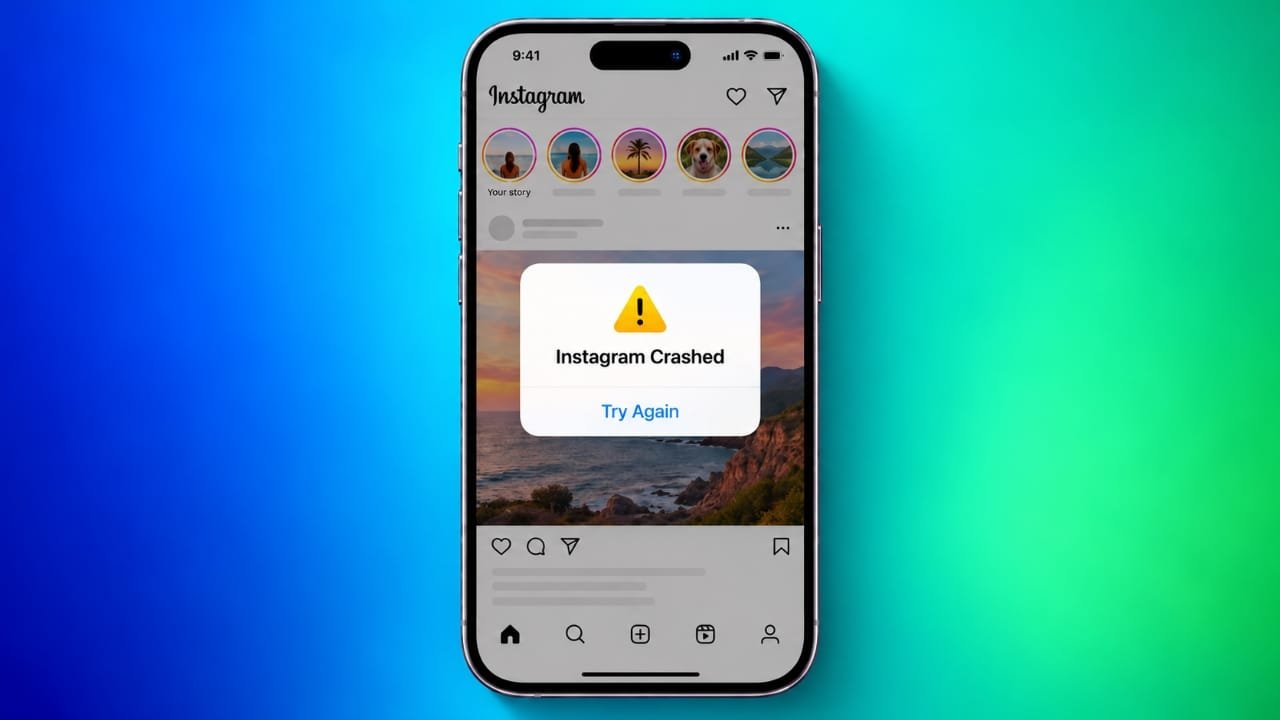
Instagram can sometimes close unexpectedly, freeze while scrolling, or stop working when you open Reels. These problems can occur on both Android phones and iPhones. In many cases, the reason is an outdated app, a temporary software issue, limited storage space, or damaged cache files.
The good news is that you can try several simple solutions before reinstalling Instagram. Start with the basic fixes and move to the more advanced steps if the problem continues.
Also read: Instagram Notes Not Showing? 8 Easy Ways to Fix the Problem
Why Does Instagram Keep Crashing?
There are several possible reasons why Instagram may not work properly on your phone.
- Outdated Instagram app: An older version may contain bugs that have already been fixed in a newer release.
- Temporary software glitches: A background process may become stuck and prevent the app from working normally.
- Low storage space: Your phone needs enough free storage to handle temporary files, videos, and app updates.
- Corrupted cache files: Damaged temporary data can sometimes cause freezing or unexpected crashes.
- Outdated phone software: An older Android or iOS version may have compatibility issues with the latest Instagram updates.
- Unstable beta version: Test versions of the app may contain bugs that are not present in the regular release.
- Instagram server problems: Sometimes, the issue comes from Instagram itself rather than your device.
Identifying the likely cause can help you choose the right solution without making unnecessary changes to your phone.
10 Ways to Fix Instagram Crashing on Android and iPhone
1. Close Instagram and Open It Again
The first thing to try is closing Instagram completely. Simply returning to the home screen may leave the app running in the background.
On Android:
- Open your phone’s Settings.
- Go to Apps or App Management.
- Select Instagram.
- Tap Force stop and confirm if prompted.
- Open Instagram again.
On iPhone:
- Open the app switcher by swiping up from the bottom of the screen and pausing. On older iPhones with a Home button, double-press the Home button.
- Find Instagram.
- Swipe its preview upward to close it.
- Launch the app again.
This quick step can resolve temporary problems without deleting your account information.
2. Restart Your Phone
If Instagram continues to freeze or close, restart your phone. A restart can clear temporary system problems and stop background processes that may be affecting the app.
Turn off your phone, wait a few seconds, and switch it back on. Once the device starts, open Instagram and check whether it works normally.
If other apps are also freezing, restarting the phone is particularly worth trying.
3. Update Instagram to the Latest Version
Instagram regularly receives updates that may include bug fixes, performance improvements, and compatibility changes.
For Android users:
- Open the Google Play Store.
- Search for Instagram.
- Open its app listing.
- Tap Update if the option is available.
For iPhone users:
- Open the Apple App Store.
- Search for Instagram.
- Open the app listing.
- Tap Update if an update is available.
If the button says Open instead, there may not be an update available for your device at that time.
After updating, reopen Instagram and test the feature that was causing the crash.
4. Update Your Phone’s Operating System
Instagram may experience compatibility problems when a phone runs an outdated operating system. Installing an available system update can improve compatibility and address other software issues.
On Android:
- Open Settings.
- Find Software update or System update.
- Check for available updates and follow the instructions.
The exact menu name depends on your phone manufacturer.
On iPhone:
- Open Settings.
- Select General.
- Tap Software Update.
- Install an available update if appropriate.
Before updating, make sure your phone has sufficient battery power and a reliable internet connection. It is also sensible to back up important data before a major system update.
5. Free Up Storage Space
When your phone’s storage is nearly full, Instagram may struggle to save temporary files and load video content smoothly. This can contribute to slow performance, freezing, or crashes.
Check your available storage and remove unnecessary files if needed.
On Android: Open Settings and look for Storage.
On iPhone: Go to Settings > General > iPhone Storage.
Consider removing old downloads, duplicate videos, unused apps, and other files you no longer need. Keep important photos and documents backed up before deleting them.
After freeing up some space, restart Instagram and see whether its performance improves.
6. Clear Instagram’s Cache
Temporary files help Instagram load content more quickly, but damaged or outdated cache data can occasionally cause problems.
Android provides a built-in option for clearing an individual app’s cache.
How to clear the cache on Android:
- Open Settings.
- Select Apps.
- Find and tap Instagram.
- Open Storage or Storage & cache.
- Tap Clear cache.
The menu names may differ between Android devices.
Avoid choosing Clear data or Clear storage unless necessary. Those options can remove local app data and sign you out, so make sure you know your login details before proceeding.
What about iPhone?
iOS does not provide a separate Clear cache button for Instagram. You can try offloading the app instead:
- Open Settings.
- Go to General > iPhone Storage.
- Select Instagram.
- Tap Offload App.
- Reinstall the app using the available option.
Offloading removes the app itself while generally preserving its documents and data. This differs from deleting the app, which can remove locally stored information.
7. Check Your Internet Connection and Instagram’s Status
Sometimes Instagram appears to crash when it is actually struggling to load content. This may happen when opening Reels, refreshing the feed, or uploading a story over an unstable connection.
Try these steps:
- Switch from Wi-Fi to mobile data, or the other way around.
- Turn Airplane mode on briefly, then turn it off.
- Check whether other apps can access the internet.
- Try Instagram again after reconnecting.
If the app still fails while your internet connection is working normally, check whether other users are reporting similar problems.
You can look at Instagram’s official communication channels or a reputable outage-tracking website for recent reports. If Instagram is experiencing a widespread service disruption, you may need to wait until the issue is resolved.
Changing your phone’s settings will not fix a problem affecting Instagram’s servers.
8. Review Instagram’s App Permissions
Instagram uses certain permissions for features such as taking photos, recording videos, and uploading content from your gallery.
If the app closes when you open the camera or select a photo, reviewing the relevant permissions may help.
On Android:
- Open Settings.
- Go to Apps > Instagram.
- Select Permissions.
- Review access to the camera, microphone, and photos or videos.
On iPhone:
- Open Settings.
- Find Instagram in the app settings.
- Review the available permissions.
- Enable the permissions required for the features you want to use.
Only allow access that you are comfortable granting. Instagram does not need access to every permission for basic browsing to work.
9. Leave the Instagram Beta Program on Android
If you signed up to test Instagram beta versions, the app may contain experimental features or bugs that affect stability.
You can switch back to the regular release if the beta version appears to be causing the problem.
- Open the Google Play Store.
- Search for Instagram.
- Open its app page.
- Find the beta testing section and select the option to leave, if available.
- Follow the store’s instructions to return to the standard version.
You may need to uninstall and reinstall Instagram after leaving the program. Before doing so, confirm that you know your login details and can access any required two-factor authentication method.
Beta participation and exit options may vary depending on availability.
10. Reinstall Instagram and Report the Problem
If none of the earlier solutions works, reinstalling Instagram is another option. A fresh installation can replace damaged app files that an ordinary update may not resolve.
Before uninstalling, make sure you can sign in again. Check that you know your password and have access to your recovery email, phone number, or authentication method.
To reinstall Instagram:
- Uninstall Instagram from your phone.
- Open the Google Play Store or Apple App Store.
- Search for Instagram.
- Install the official app.
- Sign in and check whether the problem has disappeared.
Uninstalling the app does not normally delete your Instagram account, posts, or followers. However, some locally stored information, drafts, or unsynced data may be lost, so check anything important before removing the app.
If Instagram still crashes after a fresh installation, report the issue.
How to report an Instagram problem:
- Open Instagram and go to your profile.
- Tap the menu icon in the top-right corner.
- Look for Help and select Report a problem.
- Explain what happens and when the crash occurs.
- Include a screenshot or screen recording if it helps explain the issue.
- Submit the report.
The exact menu wording may vary by app version. Provide accurate details, such as whether Instagram closes when opening Reels, uploading a story, or launching the app. This can help Instagram investigate the issue.
Quick Checklist: Fix Instagram Crashes
If you want to troubleshoot the problem quickly, use this checklist:
- Close Instagram completely and reopen it.
- Restart your phone.
- Install any available Instagram update.
- Check for an Android or iOS update.
- Free up storage space.
- Clear the cache on Android.
- Try offloading Instagram on iPhone.
- Test your internet connection.
- Check whether Instagram is experiencing an outage.
- Review the permissions needed for the affected feature.
- Leave the beta program if you use an unstable test version.
- Reinstall Instagram and report the issue if necessary.
Try the simpler steps first. You may not need to complete the entire list if one of the early solutions fixes the problem.
Also read: Facebook Your Algorithm: How to Control What You See in Feed and Reels
Final Thoughts
Instagram crashes can be frustrating, especially when you are watching Reels, checking messages, or uploading a post. Fortunately, many problems can be resolved with a few basic troubleshooting steps.
Start by closing Instagram, restarting your phone, and checking for updates. If the issue continues, free up storage, clear the Android cache, review permissions, or try offloading the app on iPhone.
Reinstalling Instagram and submitting a problem report are useful next steps when simpler fixes fail. If the issue comes from an Instagram outage, waiting for the service to recover may be the only practical solution.
The best approach is to identify when the crash happens and test one solution at a time. This makes it easier to find the cause without changing settings you do not need to change.

Jatin Rajput (Tech Golu) — Tech blogger & YouTuber with 6+ years of experience in WhatsApp, Instagram, Facebook, and mobile guides. Founder of TechGolu.in.