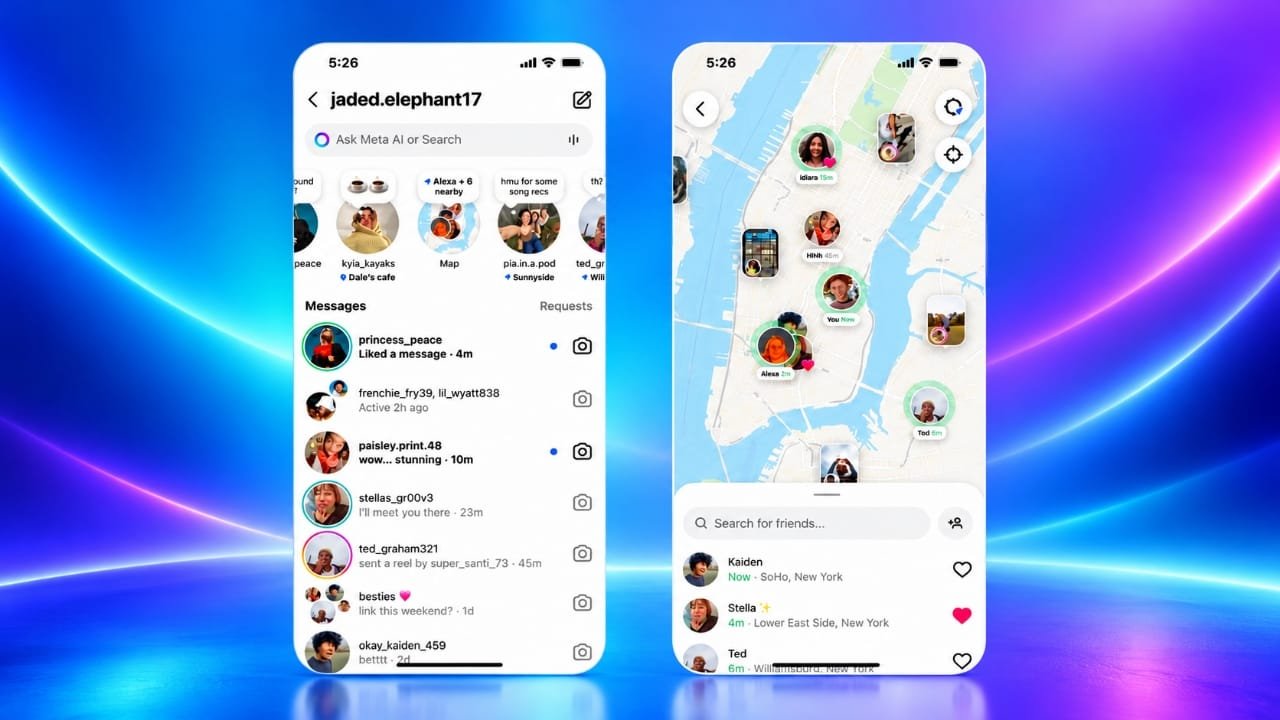
Instagram offers a Map feature that allows users to explore location-tagged content and share their last active location with selected people. While this can be useful for connecting with friends, some users may prefer to keep their whereabouts private.
The good news is that you can control who sees your location through Instagram’s settings. You can also disable the app’s access to your phone’s location for additional privacy.
In this guide, you’ll learn how to turn off Instagram Map location sharing, manage your audience, and review other privacy settings.
Also read: Nothing OS 5.0 Update Released for Phone (3): New Features, Android 17 and Rollout Details
What Is Instagram Map?
Instagram Map is a feature available through the app’s direct message (DM) inbox. It helps users discover posts, Reels, and Stories associated with particular places. It also offers an option to share your last active location with selected people.
Meta introduced Instagram Map in the United States in August 2025 and expanded its availability to India in October 2025.
Here are a few important things to understand about this feature:
- Location sharing is optional: Your location is not shared through the Map unless you choose to enable the feature.
- Location updates depend on app activity: When sharing is enabled, your last active location can update when you open Instagram or return to it after using another app.
- Location-tagged content is separate: Publicly accessible or otherwise viewable posts with location tags may appear on the Map even when you do not share your personal location.
- Sharing controls are available: You can review your audience and change your location-sharing preferences in the Map settings.
How to Turn Off Location Sharing on Instagram Map
If you previously enabled location sharing, follow these steps to stop sharing your location with other Instagram users.
Step 1: Open Instagram
Launch the Instagram app on your phone. Make sure you are using an updated version so that the available settings are easier to locate.
Step 2: Open Your Messages
Tap the Messages icon in the top-right area of the home screen to enter your direct message inbox.
Step 3: Go to Instagram Map
Look for the Map option near the top of your inbox and tap it to open the feature.
Step 4: Open the Map Settings
Tap the gear icon in the upper-right corner of the Map screen. This will open the location-sharing controls.
Step 5: Select No One
Find the location-sharing audience options and choose No one. This setting prevents you from sharing your location with other people through the Map.
Step 6: Save Your Changes
Tap Update to apply your selection.
Your location-sharing preference should now be set to No one. If you cannot find these exact options, check whether Instagram has updated its interface or changed the menu names in your version of the app.
How to Choose Who Can See Your Instagram Location
You do not necessarily have to disable location sharing completely. If you want to use the feature while limiting access, Instagram may offer several audience options.
Depending on the settings available to your account, these can include:
- Friends: People who follow you and whom you follow back.
- Close Friends: People included in your Close Friends list.
- Selected friends: Specific people you choose to share your location with.
- No one: Disables location sharing with other people through the Map.
Some versions may also provide controls for excluding particular people or places. If these options are available, review them carefully before enabling location sharing.
Choosing a smaller audience can provide more control, but remember that even trusted contacts may see information about your movements. Select the option that best matches your privacy needs.
How to Disable Instagram’s Location Access on Your Phone
Changing Instagram’s Map settings controls location sharing with other people. Your phone’s permission settings determine whether Instagram can access your device’s location.
If you want an additional layer of privacy, you can deny the app permission to use your location.
Turn Off Location Access on iPhone
Follow these steps on your iPhone:
- Open the Settings app.
- Scroll down to Apps and select Instagram. On some iOS versions, Instagram appears directly in the main Settings menu.
- Tap Location.
- Select Never, if that option is available.
Instagram will no longer have permission to access your device’s location through the standard location permission.
Turn Off Location Access on Android
The steps may vary slightly depending on your phone manufacturer and Android version.
- Open your phone’s Settings.
- Select Apps or App Management.
- Find and open Instagram.
- Tap Permissions.
- Select Location.
- Choose Don’t allow.
Once you change this permission, Instagram cannot access your device’s location through that permission while it remains disabled.
Keep in mind that blocking location access may affect features such as adding location tags to new posts. It does not automatically remove location information that you previously added to your content.
Location Tags and Location Sharing: What’s the Difference?
Location tags and personal location sharing are two separate Instagram features. Understanding the difference can help you manage your privacy more effectively.
Location tags identify a place associated with a post, Reel, or Story. For example, you might tag a restaurant, park, or tourist attraction. That content may appear on the Map if it is eligible to be displayed and the viewer has permission to see it.
Location sharing allows you to share your last active location with an audience you choose through Instagram Map.
Turning off personal location sharing does not automatically remove location tags from your existing posts. If you no longer want a particular post associated with a place, review the post’s location tag and edit or remove it where possible.
Also, remember that removing a location tag does not erase every other clue about your whereabouts that might appear in a photo or caption.
Why You Should Review Your Location Privacy Settings
Sharing your location can be convenient when arranging a meeting or helping friends find a place. However, sharing too much information may reveal details about your daily activities.
For example, repeated location updates or posts from the same places could help someone work out where you spend your time, such as near your home, workplace, or school.
You can reduce unnecessary exposure by following a few simple practices:
- Share your location only with people you trust.
- Keep location sharing disabled when you do not need it.
- Review your audience settings from time to time.
- Avoid adding precise location tags to content when they are unnecessary.
- Check older posts for location details you no longer want to share.
- Remove unfamiliar followers if they do not need access to your content.
These steps can help you maintain better control over the information you share online.
Location Privacy Tips for Teenagers and Parents
Location-sharing features deserve extra attention when teenagers use social media. Sharing a location with a large audience may expose personal routines or make it easier for unfamiliar people to identify frequently visited places.
Parents and guardians can discuss these risks with teenagers and encourage them to make thoughtful privacy choices.
Instagram provides parental supervision features for eligible teen accounts. Depending on the account, region, and available controls, parents may be able to manage or review certain Map location-sharing settings and see information about whom their teen shares a location with.
Before relying on a particular parental control, check the options currently available in Instagram’s Family Center or supervision settings.
It is also helpful to encourage teenagers to:
- Share their location only with people they know and trust.
- Avoid posting details that reveal where they live or study.
- Ask for help if someone pressures them to share their location.
- Review their followers and privacy settings regularly.
Open conversations about online privacy can help young users understand how to use social media more safely.
Other Instagram Privacy Settings Worth Checking
Turning off Map location sharing is a useful step, but there are other settings you may want to review.
Message requests: Adjust who can send you message requests to reduce unwanted contact.
Tags and mentions: Limit who can tag or mention your account if you want more control over how others interact with your profile.
Followers: Review your follower list and remove accounts you do not recognize or trust.
Account privacy: Consider making your account private if you want to restrict who can follow you and view your private posts.
Old posts: Use Instagram’s Archive feature to hide eligible posts from your profile without permanently deleting them.
Other social media apps: If you use location-sharing features on other platforms, review their settings separately. Disabling Instagram Map sharing will not automatically change the location settings of other apps.
Frequently Asked Questions
Is Instagram Map location sharing enabled by default?
No. Instagram Map’s personal location-sharing feature is optional. You need to enable sharing before your location is shared with the audience you select.
Does Instagram show my live location all the time?
Instagram Map is designed to show your last active location rather than provide a continuous live-location feed. When sharing is enabled, the displayed location can update when you open Instagram or return to it after it has been running in the background.
Can people still see my location after I turn off sharing?
They may still see location-tagged content that they are allowed to view. Turning off personal location sharing does not automatically remove location tags from existing posts, Reels, or Stories.
Also read: Meta Muse India Launch: Availability, Expected Features, and How to Prepare
Final Thoughts
Instagram Map can make it easier to discover places and connect with friends, but you should have control over how much location information you share.
To disable personal location sharing, open Instagram’s DM inbox, select Map, tap the gear icon, choose No one, and tap Update. For additional privacy, you can also deny Instagram access to your location in your phone’s settings.
Finally, review your older posts and location tags separately, because turning off Map sharing does not remove location details that you have already published.
Taking a few minutes to check these settings can help you use Instagram while keeping more control over your personal information.

Jatin Rajput (Tech Golu) — Tech blogger & YouTuber with 6+ years of experience in WhatsApp, Instagram, Facebook, and mobile guides. Founder of TechGolu.in.