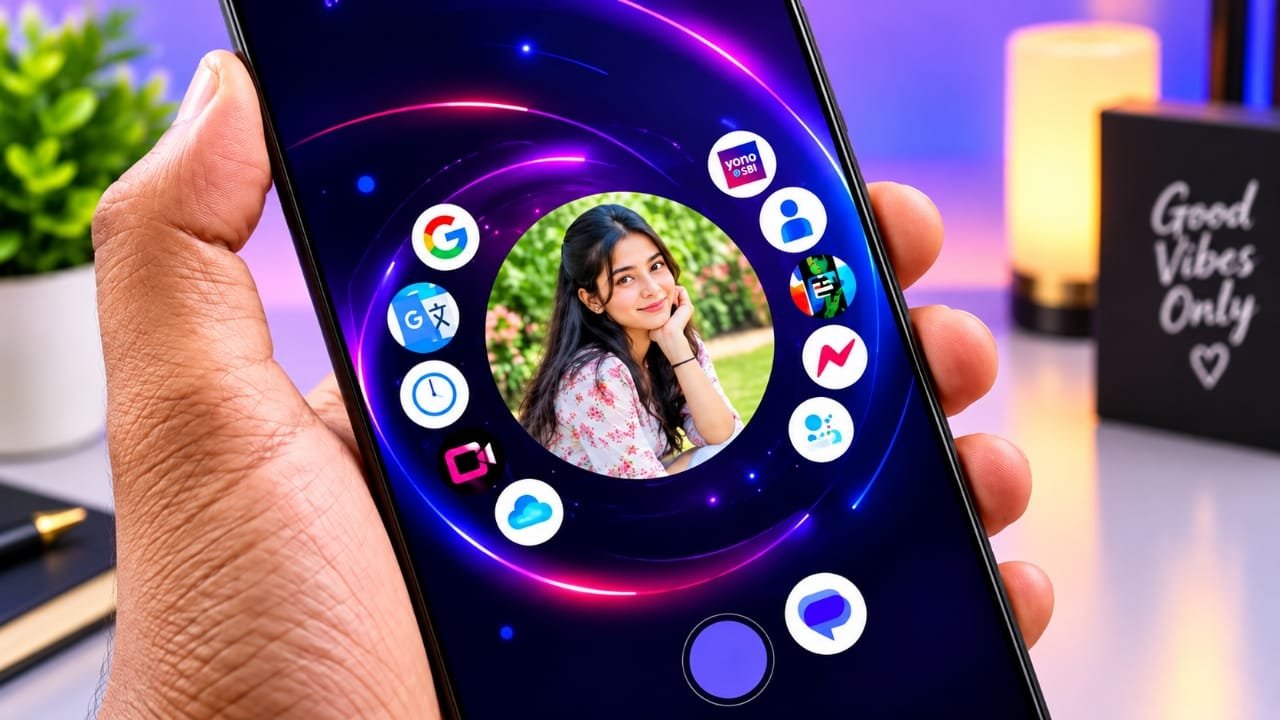
Most people unlock their smartphones dozens of times every day. Since the home screen is the first thing you see, using the same layout for months or years can start to feel repetitive. While Android already offers some customization, many users prefer a launcher that provides a more personalized experience.
Nocebo Launcher is designed for people who enjoy changing the look and feel of their Android device. Instead of relying on the standard grid of app icons, it introduces a creative interface with unique visual effects and flexible customization options.
Also read: How to Transfer Photos from iPhone to MacBook Air
What Is Nocebo Launcher?
Nocebo Launcher is a third-party Android launcher that replaces your phone’s default home screen. It gives you a different way to organize apps and interact with your device while allowing you to personalize the interface to match your preferences.
Advertisements
Unlike many traditional launchers that display apps in a fixed grid, Nocebo Launcher focuses on a more dynamic design. This creates a home screen that feels modern and visually different from the standard Android experience.
If you enjoy experimenting with your phone’s appearance, this launcher may be worth exploring.
Key Features of Nocebo Launcher
1. Creative Spinning Interface
One of the standout features of Nocebo Launcher is its spinning-style layout. Instead of presenting static icons, it offers a more animated and interactive navigation experience.
For users who enjoy trying fresh interface designs, this unique approach can make everyday phone usage feel more engaging.
2. Flexible Customization
Customization is one of the biggest reasons people install Android launchers, and Nocebo Launcher provides several options to personalize your device.
You can adjust different parts of the home screen to create a style that suits your taste. Whether you prefer a clean and minimal setup or a more futuristic appearance, the launcher allows you to customize the overall look.
3. Dynamic Home Screen Design
Rather than keeping the home screen fixed, Nocebo Launcher aims to create a more lively interface. Its changing visual elements give the launcher a distinctive appearance that stands apart from traditional layouts.
This makes it appealing to users who see smartphone customization as a way to express their personal style.
4. A Different Android Experience
Changing wallpapers and icon packs can refresh your phone, but the overall navigation often stays the same. Nocebo Launcher goes beyond cosmetic changes by introducing a different way to interact with your home screen.
If you’re looking for something beyond the standard Android layout, it offers an alternative experience.
Who Should Use Nocebo Launcher?
Nocebo Launcher may be a good choice for:
- Android users who enjoy customization.
- People who want to try a different home screen design.
- Users looking for an alternative to the traditional grid layout.
- Those who like experimenting with modern or minimalist interfaces.
- Anyone interested in giving their smartphone a fresh appearance.
If you’re already happy with your phone’s default launcher, switching may not be necessary. However, users who enjoy personalization may find it interesting.
Advantages of Using a Custom Launcher
Installing a custom launcher gives you greater control over how your phone looks and works.
Some benefits include:
- Organizing apps more efficiently.
- Creating a personalized home screen.
- Changing navigation styles.
- Using custom themes and layouts.
- Improving overall visual appeal.
Many people also arrange their most-used apps for quicker access, making everyday tasks more convenient.
Check Performance Before Using It
Before making any launcher your default, make sure it performs well on your device.
After installation, spend some time testing:
- Home screen responsiveness.
- App opening speed.
- Animation smoothness.
- Overall navigation.
Older smartphones or devices with limited hardware may perform differently, so it’s worth checking how the launcher behaves during regular use.
Pay Attention to Privacy and Permissions
Whenever you install a third-party Android app, reviewing its permissions is a good habit.
Before granting access:
- Read the permissions requested by the app.
- Allow only permissions that are necessary for its functionality.
- Review the developer’s information and update history.
- Download the app from trusted sources whenever possible.
Taking these simple steps helps you make informed decisions about your device’s privacy and security.
Can It Replace Your Default Launcher?
Whether Nocebo Launcher becomes your everyday launcher depends on your personal preferences.
If you enjoy creative interfaces and unique navigation styles, you may appreciate its design. On the other hand, users who prefer the familiar Android layout might need some time to get comfortable with the new interface.
Trying it for a few days is the best way to decide if it fits your daily usage.
Things to Consider Before Installing
Before using Nocebo Launcher, check the following:
- Confirm that it supports your Android version.
- Explore the available customization options.
- Test overall performance on your device.
- Monitor battery usage during normal use.
- Review permissions and privacy information.
- Look for regular updates from the developer.
Considering these factors can help you have a smoother experience.
What Makes Nocebo Launcher Different?
Many Android launchers focus mainly on changing icons or themes. Nocebo Launcher takes a different approach by redesigning how the home screen behaves and looks.
Its combination of animated layouts, visual creativity, and customization options gives users an alternative to the standard Android interface.
For people who enjoy exploring new designs, it offers a refreshing change from the traditional home screen.

Also read: Best Android Volume Customization App with Neon RGB Effects
Final Thoughts
Nocebo Launcher provides a different way to personalize your Android smartphone. With its distinctive interface, customizable design, and focus on visual creativity, it offers an alternative for users who want something beyond the default launcher.
Before installing any third-party launcher, make sure it is compatible with your device, performs smoothly, and requests only appropriate permissions. Taking these precautions helps ensure a better overall experience.
If you’re interested in giving your Android phone a fresh new look, Nocebo Launcher could be an option worth trying based on your preferences and everyday needs.

Jatin Rajput (Tech Golu) — Tech blogger & YouTuber with 6+ years of experience in WhatsApp, Instagram, Facebook, and mobile guides. Founder of TechGolu.in.