Running low on storage can make your Android phone feel slow and limit what you can do. You may struggle to install app updates, save new photos, or download files. The good news is that you don’t have to delete your important memories or documents to create more space.
Android includes several built-in features that help you find and remove unnecessary files safely. With a few simple steps, you can recover storage while keeping your valuable data intact.
Also read: How to Fix a Mouse That Isn’t Working on Windows or Mac
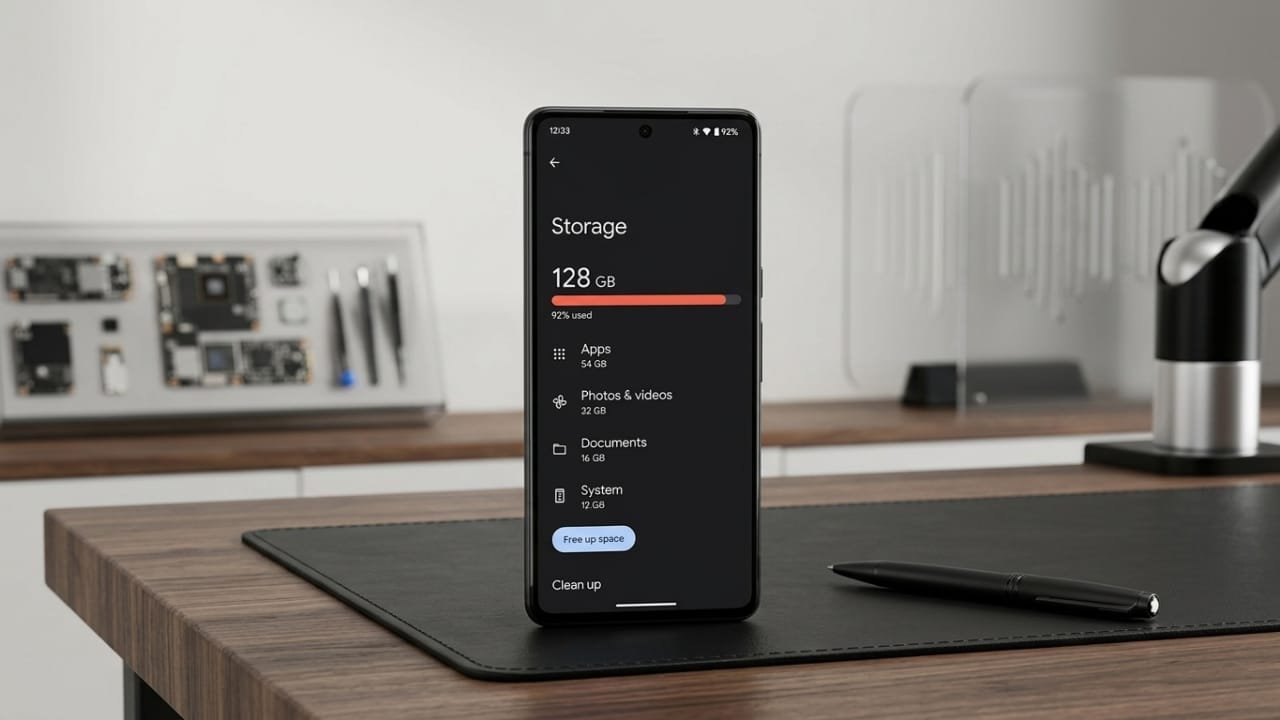
1. Check What’s Using Your Storage
Before removing anything, take a look at what’s filling up your phone.
Advertisements
Go to:
Settings → Storage
The exact location may differ depending on your phone’s manufacturer and Android version.
Here, you’ll usually see categories such as Apps, Photos, Videos, Documents, Downloads, Audio, and System Files. This overview helps you focus on the biggest space users instead of deleting files randomly.
2. Clean the Downloads Folder
The Downloads folder often collects files you no longer need.
Look for items such as:
- Old PDF files
- Duplicate documents
- Downloaded images
- ZIP archives
- Installation files (APK)
- Shared files you no longer use
Open your preferred file manager or the Files by Google app and review the folder carefully. If a file is important but rarely used, move it to cloud storage or another device instead of deleting it.
3. Clear App Cache
Many apps store temporary files, known as cache, to improve performance. Over time, these files can consume a significant amount of storage.
You can usually find this option by going to:
Settings → Apps → Select an app → Storage
If the cache size is large, choose Clear Cache.
Be careful not to select Clear Storage or Clear Data unless you understand the consequences, as doing so may remove app settings or sign you out.
4. Manage Storage in Messaging Apps
Apps like WhatsApp can quickly fill your phone with photos, videos, voice notes, and documents.
In WhatsApp, go to:
WhatsApp → Settings → Storage and Data → Manage Storage
You can review large files and unnecessary media without deleting your conversations. Before removing important files, make sure they are backed up somewhere safe.
5. Back Up Photos and Videos
Photos and videos are usually the largest storage consumers.
Instead of deleting them, upload them to a trusted cloud service such as Google Photos. After confirming the backup is complete, remove the local copies from your phone to recover storage.
Always verify that your files have been successfully backed up before deleting anything.
6. Remove Duplicate and Unwanted Photos
Your gallery may contain many unnecessary images, including:
- Duplicate photos
- Blurry pictures
- Accidental screenshots
- Old memes
- Test camera shots
- Unwanted screen recordings
Review these files occasionally and delete only the ones you no longer need. Some gallery apps can also help identify duplicate images automatically.
7. Find Large Files
Deleting a few large files can free more space than removing hundreds of small ones.
Check your file manager for a Large Files section. Review items like:
- Long videos
- Downloaded movies
- Screen recordings
- Archive files
- Old installation packages
If you still need these files but don’t access them often, move them to another storage location.
8. Remove Unused Apps
Many installed apps, especially games, occupy a lot of storage.
Review your app list and uninstall applications you haven’t used for a long time. If needed, you can reinstall them later, provided your data is synced with your account.
Some Android devices even suggest apps that are rarely used.
9. Delete Offline Downloads
Streaming apps often store offline content on your device.
Check your music, video, podcast, or map apps for downloaded content that you no longer need. Removing these files won’t usually affect your account, and you can download them again later if necessary.
10. Clean Screenshots and Screen Recordings
Screenshots and screen recordings are easy to forget but can consume a surprising amount of storage.
Browse the relevant folders and remove files that were only needed temporarily, such as receipts, troubleshooting images, or demonstration recordings.
11. Use Android’s Storage Cleanup Tools
Many Android phones include built-in storage management features.
These tools may recommend removing:
- Temporary files
- Junk files
- Large files
- Duplicate files
- Old screenshots
- Unused apps
- Already backed-up photos
Review each suggestion before confirming the deletion to avoid removing anything important.
12. Move Important Files to Another Location
If you rarely use certain files, there’s no need to keep them on your phone all the time.
Consider moving them to:
- A computer
- An external hard drive or SSD
- A USB-C flash drive
- Cloud storage
This keeps your important data safe while freeing valuable space on your device.
13. Be Careful with Third-Party Cleaner Apps
Many apps claim they can dramatically improve your phone’s performance or free large amounts of storage.
In most cases, Android’s built-in storage tools and a reliable file manager are sufficient. Some third-party cleaner apps may request unnecessary permissions or display excessive advertisements without providing significant benefits.
14. Avoid Deleting System Files
You may notice folders or files that you’re unfamiliar with while browsing your phone’s storage.
Unless you’re certain about their purpose, leave system files untouched. Removing important system components can cause apps or Android itself to stop working properly.
Instead, focus on personal files, unused apps, cached data, downloads, and offline content.
How Much Free Storage Should You Keep?
There’s no fixed amount that works for every device, but maintaining some free storage helps your phone perform better.
When storage becomes almost full, your phone may struggle to:
- Install updates
- Save new photos
- Download files
- Store temporary app data
Regularly checking your storage and performing small cleanups can help prevent these issues.
Also read: How to Add Bluetooth to Your Computer Using a USB Adapter
Final Thoughts
Freeing up storage on your Android phone doesn’t mean sacrificing your important files. By identifying what’s using space, clearing temporary data, removing unnecessary downloads, organizing media, and moving rarely used files to another storage location, you can keep your device running smoothly without losing valuable information.
A few minutes of regular maintenance can help your phone stay organized, improve performance, and ensure you always have room for new apps, photos, and documents.

Jatin Rajput (Tech Golu) — Tech blogger & YouTuber with 6+ years of experience in WhatsApp, Instagram, Facebook, and mobile guides. Founder of TechGolu.in.