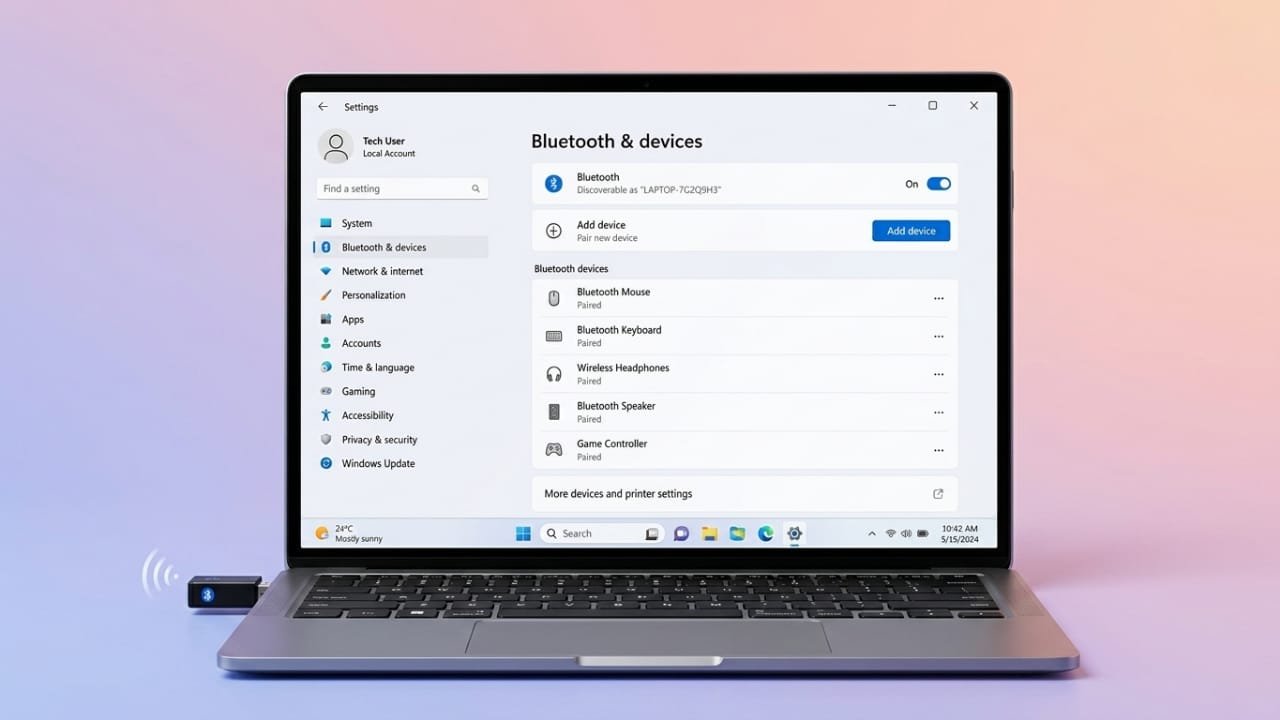
Bluetooth makes using your computer much more convenient. It lets you connect wireless headphones, speakers, keyboards, mice, and many other accessories without dealing with cables. While many modern computers already have Bluetooth built in, some older desktops and laptops do not.
The good news is that you can easily add Bluetooth support with a small USB adapter. These adapters are affordable, simple to install, and require no technical experience.
Also read: Telegram’s .gram Domains Could Transform Usernames into Personal Websites
Check Whether Your Computer Already Has Bluetooth
Before buying a USB adapter, confirm whether your computer already supports Bluetooth. Many systems include Bluetooth hardware, but it may simply be turned off.
Advertisements
Windows 11
- Open the Start menu.
- Select Settings.
- Click Bluetooth & devices.
- Look for the Bluetooth option.
If Bluetooth appears, your computer already supports wireless connections.
Windows 10
- Open Start and select Settings.
- Click Devices.
- Open Bluetooth & other devices.
If you see Bluetooth settings, you don’t need an external adapter.
Fix Bluetooth Issues Before Buying New Hardware
If Bluetooth is already available but isn’t working correctly, try troubleshooting before purchasing anything.
Here are a few simple fixes:
- Restart your computer.
- Turn Bluetooth off and then back on.
- Keep your Bluetooth device close during pairing.
- Make sure the accessory is in pairing mode.
- Update your Bluetooth drivers.
- Follow the troubleshooting steps provided by your computer’s manufacturer.
These basic steps often solve common connection problems.
Add Bluetooth with a USB Adapter
If your computer doesn’t include Bluetooth, a USB Bluetooth adapter is the easiest solution.
Simply plug the adapter into an available USB port. There’s no need to open your computer or install internal hardware.
Most Bluetooth USB adapters are compact, inexpensive, and easy to find online or in electronics stores.
Choosing the Right Adapter
Before purchasing, check the type of USB ports available on your computer.
- USB 2.0 ports usually have a black insert.
- USB 3.0 ports often have a blue insert.
- Ports labeled SS indicate SuperSpeed USB.
Although USB 3.0 offers better performance, Bluetooth adapters also work with USB 2.0 ports.
Also verify that the adapter supports your version of Windows before buying.
Installing the Bluetooth Adapter
Installation is usually straightforward.
- Plug the adapter into an available USB port.
- Wait for Windows to detect the device.
- In most cases, Windows installs the required drivers automatically.
If automatic installation doesn’t work, visit the adapter manufacturer’s official website and download the correct driver for your Windows version. Follow the provided installation instructions.
After installation, return to the Bluetooth settings. Bluetooth should now be available and ready for use.
Pair Bluetooth Devices on Windows
Once Bluetooth is active, you can connect compatible accessories.
Windows 11
- Open Settings.
- Select Bluetooth & devices.
- Click Add device.
- Choose Bluetooth.
- Select your device from the list.
- Follow the on-screen instructions.
- Click Done when pairing is complete.
Windows 10
- Open Settings.
- Select Devices.
- Click Bluetooth & other devices.
- Choose Add Bluetooth or other device.
- Select Bluetooth.
- Pick your accessory.
- Finish the pairing process by following the prompts.
Windows 8
- Turn on your Bluetooth device.
- Enable pairing mode.
- Search for Bluetooth from Windows Search.
- Open Bluetooth settings.
- Turn Bluetooth on.
- Select your accessory and choose Pair.
Windows 7
- Open Control Panel.
- Select Hardware and Sound.
- Open Devices and Printers.
- Click Add a device.
- Choose your Bluetooth accessory.
- Complete the pairing instructions.
Connect Bluetooth Devices on a Mac
Most Macs already include Bluetooth support.
To connect a device:
- Open the Apple menu.
- Go to System Preferences or System Settings, depending on your macOS version.
- Select Bluetooth.
- Turn Bluetooth on if it’s disabled.
- Put your accessory into pairing mode.
- Select the device from the list.
- Click Connect.
Some accessories may request a pairing code. If prompted, enter the code provided by the manufacturer or confirm the connection.
What Happens After Pairing?
Once a device has been paired successfully, it usually reconnects automatically whenever:
- Bluetooth is enabled on both devices.
- The devices are within range.
Bluetooth works with many popular accessories, including:
- Wireless headphones
- Bluetooth speakers
- Wireless keyboards
- Wireless mice
- Smartphones for supported features
Troubleshooting Connection Problems
If Bluetooth still isn’t working, try these tips:
- Confirm Bluetooth is turned on.
- Ensure your accessory is in pairing mode.
- Move both devices closer together.
- Restart both the computer and the accessory.
- Update the Bluetooth adapter driver.
- Download drivers only from the adapter manufacturer’s official website.
Avoid installing random drivers from unknown sources, as they may create compatibility issues.
Also read: How to Switch Your Instagram Business Account to a Personal Account
Final Thoughts
Adding Bluetooth to a computer is quick and affordable with a USB adapter. Most adapters install in just a few minutes, allowing you to connect wireless accessories without complicated setup.
Whether you want to use Bluetooth headphones, a wireless keyboard, or a mouse, a USB Bluetooth adapter is an easy way to upgrade an older computer and enjoy the convenience of wireless connectivity.

Jatin Rajput (Tech Golu) — Tech blogger & YouTuber with 6+ years of experience in WhatsApp, Instagram, Facebook, and mobile guides. Founder of TechGolu.in.