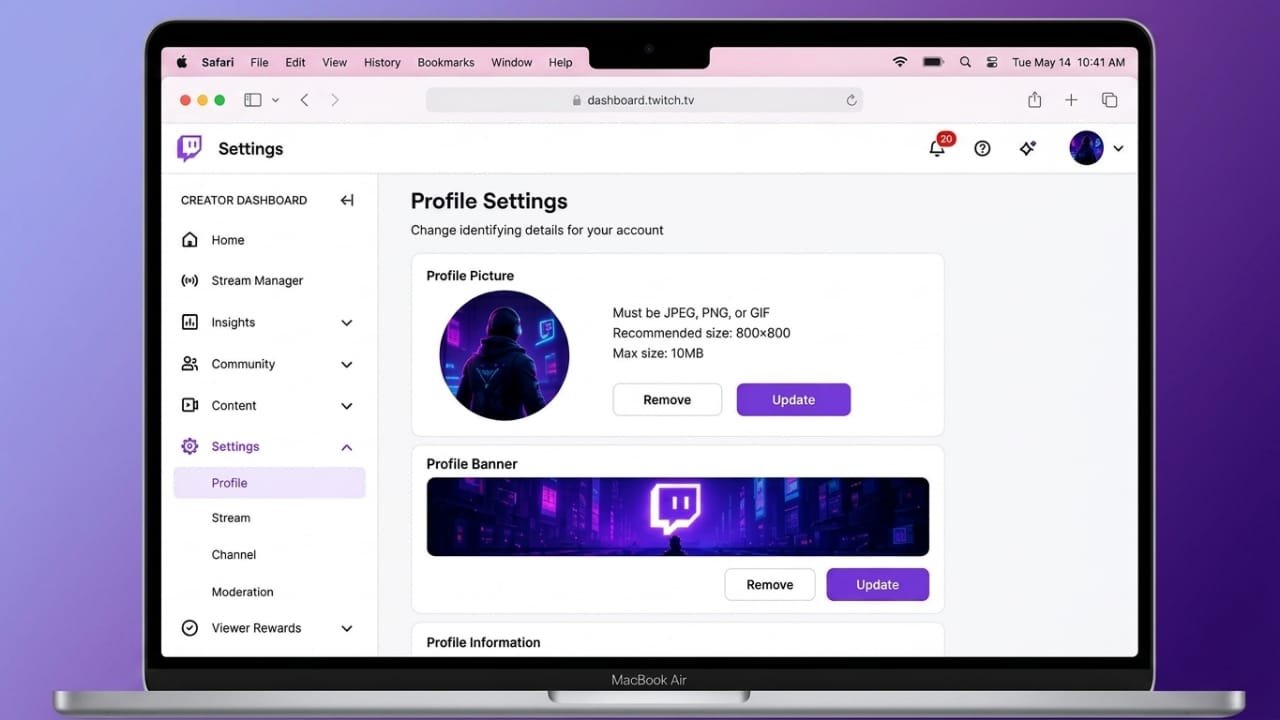
Your Twitch profile picture is one of the first things people notice when they visit your channel. A clear and professional image helps viewers recognize your brand and gives your profile a polished look. Whether you use a personal photo, logo, or custom avatar, updating your profile picture only takes a few minutes.
This guide explains how to change or remove your Twitch profile picture, the image requirements you should follow, and a few extra customization tips to improve your channel.
Also read: How to Share a Twitch Link With Friends and Followers
How to Change Your Twitch Profile Picture
Updating your profile picture is simple if you already have an image ready.
Advertisements
Step 1: Sign in to Twitch
Open Twitch in your web browser and log in to your account.
Step 2: Open Account Settings
Click your profile icon in the top-right corner, then choose Settings from the menu.
Step 3: Update Your Profile Image
In your account settings, locate your current profile picture.
- Click Update Profile Picture if you already have one.
- If you’re setting it for the first time, click Add Profile Picture.
Step 4: Upload an Image
Select Upload Photo, browse your computer, and choose the image you want to use.
You can upload:
- A personal photo
- Your channel logo
- A custom avatar
Step 5: Adjust the Image
After uploading, Twitch lets you crop and reposition the picture.
- Move the image to center the important part.
- Zoom in or out if needed.
- Review the preview before saving.
Step 6: Save Changes
Click Save to apply your new profile picture. Your updated image should appear on your profile shortly.
How to Remove Your Twitch Profile Picture
If you want to delete your current profile picture, Twitch also provides that option.
Follow these steps:
- Log in to Twitch.
- Open Settings from your profile menu.
- Find your current profile picture.
- Click the trash can icon next to it.
The picture will be removed immediately. You can upload a new one whenever you like.
Twitch Profile Picture Requirements
Before uploading an image, make sure it meets Twitch’s requirements.
Supported File Formats
Twitch accepts the following image types:
- JPEG (.jpg)
- PNG (.png)
- GIF (.gif)
If your image uses another format, convert it before uploading.
Maximum File Size
Your profile picture must be smaller than 10 MB.
If your file is too large, compress it while keeping the image clear.
Recommended Image Size
For the best results, use an image that is 256 × 256 pixels.
Simple and high-quality images usually look better because profile pictures appear in a small size across Twitch.
Copyright and Content Guidelines
Only upload images that you have permission to use.
Good choices include:
- Your own photograph
- A custom logo
- An original illustration
- A personal avatar
Avoid copyrighted images, offensive content, or anything that violates Twitch’s community guidelines.
Improve Your Twitch Branding
Your profile picture is only one part of your channel’s appearance. Twitch also lets you customize other elements to create a consistent brand.
Change Your Accent Color
Your accent color appears in several parts of Twitch, including chat.
To change it:
- Open Creator Dashboard.
- Go to Settings → Channel.
- Open the Brand section.
- Pick a preset color or enter a custom HEX color.
- Save your changes.
Choose a color that matches your logo and overall channel style.
Update Your Channel Banner
A custom banner makes your profile look more complete.
To change it:
- Open the Brand section in your Creator Dashboard.
- Select the banner upload option.
- Choose your image.
- Save the changes.
Using matching colors and graphics across your banner and profile picture helps create a professional look.
Edit Your About Section
Your About section tells visitors what your channel is about.
You can update:
- Display name
- Username (when available)
- Channel bio
- Social media links
- Website links
Keep your bio short, clear, and easy to read so new visitors quickly understand your content.
Frequently Asked Questions
Can I change my Twitch profile picture anytime?
Yes. Twitch allows you to update your profile picture whenever you want.
Can I see who viewed my profile?
No. Twitch does not show who has visited your profile page.
How do I share my Twitch profile?
Open your channel page, click the Share option, or copy your profile URL and send it wherever you like.
Also read: How LTE Networks Work: A Beginner-Friendly Guide to LTE Technology
Final Thoughts
Changing your Twitch profile picture is a quick way to refresh your channel and strengthen your online identity. Choose a clear image that represents your content, follow Twitch’s file requirements, and keep your branding consistent across your profile, banner, and channel information.
A professional-looking profile helps make a positive first impression and makes your channel easier for viewers to remember.

Jatin Rajput (Tech Golu) — Tech blogger & YouTuber with 6+ years of experience in WhatsApp, Instagram, Facebook, and mobile guides. Founder of TechGolu.in.