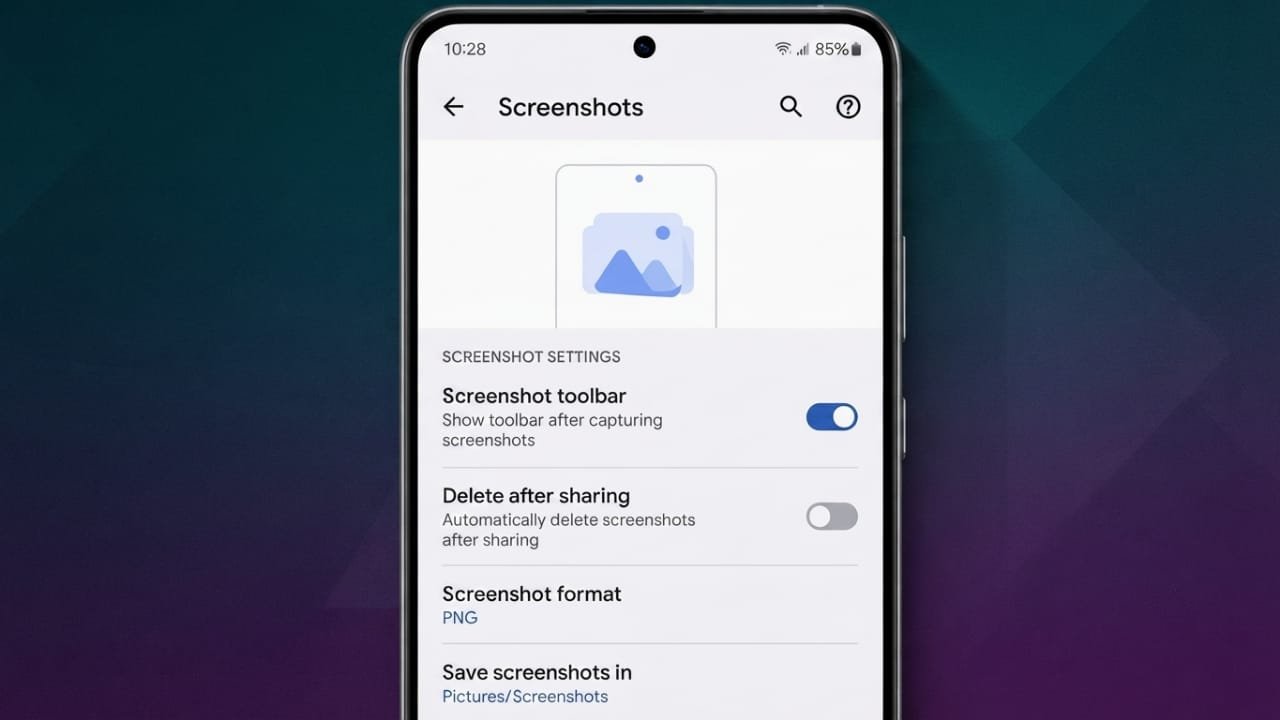
Screenshots are one of the most useful features on an Android phone. They let you quickly save information, share conversations, or capture something important on your screen. But sometimes the screenshot feature suddenly stops working, which can be frustrating.
The good news is that most screenshot problems are easy to fix. Whether the issue is caused by a software glitch, low storage, incorrect button combinations, or security restrictions, this guide will help you find the right solution.
Also read: How to Use Clipboard on Android for Faster Copy and Paste
Why Are Screenshots Not Working?
There isn’t a single reason why screenshots fail on Android devices. Depending on your phone and the app you’re using, the problem can have different causes.
Advertisements
You might notice messages such as:
- Unable to take a screenshot because of security restrictions.
- Screenshot couldn’t be saved due to insufficient storage.
- Storage is unavailable.
- The screenshot buttons don’t respond.
- Google Assistant cannot capture the current screen.
These problems are usually linked to one of the following reasons:
- Security policies from a work or school account.
- A recently installed app causing conflicts.
- Using the wrong screenshot shortcut.
- Not enough free storage.
- Taking screenshots in Chrome Incognito Mode.
- Temporary software bugs.
- Faulty Power or Volume buttons.
- Device management or security settings.
Start With the Simple Fixes
Before trying advanced troubleshooting, begin with a few basic checks. In many cases, these simple steps solve the problem within minutes.
Remove Recently Installed Apps
If the screenshot issue started after installing a new app, that app may be interfering with your device.
To check:
- Open your list of installed apps.
- Find apps you installed recently.
- Uninstall any suspicious or unnecessary apps.
- Restart your phone.
- Try taking a screenshot again.
Security or device management apps are common causes of screenshot restrictions.
Remove a Work or School Account
If your phone uses a managed Google account from your workplace or school, certain security rules may disable screenshots.
To remove the account:
- Open Settings.
- Go to Accounts.
- Select your Google account.
- Tap Remove Account.
- Confirm your choice.
- Sign in with your personal Google account if needed.
- Test the screenshot feature again.
If the phone belongs to your organization, contact your IT department before making changes. Some restrictions are intentional and cannot be removed.
Use the Correct Screenshot Shortcut
Different Android brands may use different methods for capturing screenshots.
The most common shortcut is:
- Press the Power and Volume Down buttons together.
- Hold them briefly.
- Release them once the screen flashes or you hear the shutter sound.
Some phones also support gesture controls or Quick Settings shortcuts, so check your device’s user guide if the standard method doesn’t work.
Try Google Assistant
If your hardware buttons are damaged or not responding, Google Assistant can help.
Here’s how:
- Open the screen you want to capture.
- Say, “OK Google, take a screenshot.”
- Wait for the screenshot to be captured.
- Save or share it as needed.
This is a useful alternative when physical buttons are difficult to use.
Check If You’re Using Incognito Mode
Some apps and browser privacy modes prevent screenshots to protect sensitive information.
If you’re using Chrome Incognito Mode:
- Close all Incognito tabs from the notification panel, or
- Exit Chrome completely and reopen it in normal browsing mode.
After switching back to a regular tab, try taking a screenshot again.
Make Sure You Have Enough Storage
Android needs free storage space to save screenshots. If your phone is almost full, screenshots may fail without warning.
To check storage:
- Open Settings.
- Go to Storage.
- Check the available free space.
- Delete files you no longer need.
You can free up storage by:
- Removing unwanted photos and videos.
- Deleting old downloads.
- Clearing app cache.
- Uninstalling unused apps.
- Moving files to cloud storage or an SD card.
Once you have enough free space, test the screenshot feature again.
Restart Your Phone
A simple restart can fix temporary software issues that affect screenshot functionality.
To restart:
- Press and hold the Power button.
- Tap Restart.
- Wait for the phone to reboot.
- Try taking another screenshot.
This refreshes system processes and often resolves minor software glitches.
Test in Safe Mode
Sometimes a third-party app is responsible for the problem. Safe Mode temporarily disables downloaded apps, making it easier to identify the cause.
General steps include:
- Press and hold the Power button.
- Touch and hold Power Off until the Safe Mode option appears.
- Confirm and allow the phone to restart.
If screenshots work normally in Safe Mode, one of your installed apps is likely causing the issue. Remove recently installed apps one by one until the problem disappears.
Reset Your Phone as a Last Option
If none of the previous methods work, a factory reset may solve deeper software issues.
Before resetting your device, back up important data such as:
- Contacts
- Photos
- Videos
- Documents
- Messages
- Downloads
- App data
After creating a backup, perform the factory reset from your phone’s settings. Your device will return to its original state, so you’ll need to set it up again.
Check for Hardware Problems
If the screenshot shortcut still doesn’t work, the issue may be hardware-related.
Possible causes include:
- A damaged Power button.
- A faulty Volume Down button.
- Internal hardware issues.
In these situations, it’s best to visit an authorized service center or a qualified repair technician for inspection.
Remember That Some Apps Block Screenshots
Certain applications intentionally disable screenshots for security and privacy reasons. This is common in banking apps, payment apps, and some workplace applications.
These restrictions are designed to protect sensitive information and usually cannot be disabled by users. If screenshots are blocked in these apps, it’s best to respect their security policies.
Also read: How to Move Photos From Google Photos to iCloud (Two Simple Methods)
Final Thoughts
Most Android screenshot problems can be fixed with a few simple troubleshooting steps. Start by checking storage, restarting your device, and confirming you’re using the correct screenshot method. If the issue continues, test your phone in Safe Mode or review any security restrictions that may be preventing screenshots.
Only consider a factory reset after trying all other solutions. If the problem is caused by damaged hardware, professional repair is the safest and most reliable option.

Jatin Rajput (Tech Golu) — Tech blogger & YouTuber with 6+ years of experience in WhatsApp, Instagram, Facebook, and mobile guides. Founder of TechGolu.in.