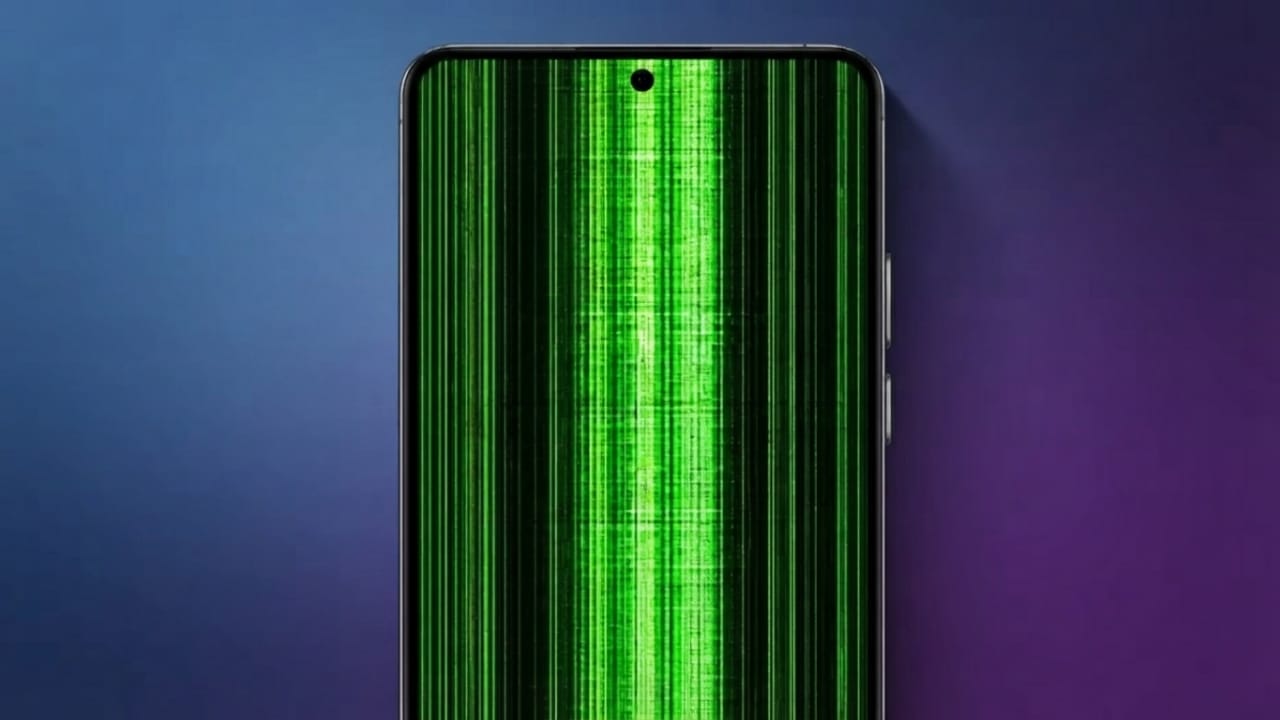
A flickering phone screen can be frustrating, especially when it starts without warning. The display may flash, blink, or change brightness repeatedly, making it difficult to use your device.
This issue can affect both Android phones and iPhones. In many cases, the problem is caused by software bugs, incorrect settings, charging issues, or hardware damage. Before spending money on repairs, it is worth trying a few simple troubleshooting steps.
Also read: How to Make Your iPad Multitask Like a Mac With iPadOS 26
Common Reasons Why a Phone Screen Flickers
Finding the actual cause makes it much easier to fix the problem. Below are the most common reasons behind screen flickering.
Advertisements
1. Water or Moisture Damage
Even a small amount of moisture can affect your phone’s internal components. Water may weaken display connections or damage important circuits, causing the screen to flicker.
If your phone has been exposed to water, turn it off and let it dry completely. If the problem continues, professional inspection may be necessary.
2. Damage from Drops
Accidentally dropping your phone can loosen display connectors or damage the screen itself. In some cases, the display starts flickering immediately, while in others the problem appears days later.
If your phone has visible cracks or has experienced a hard impact, internal hardware damage could be the reason.
3. Charging Accessories
A faulty charger, damaged charging cable, or unstable power source can sometimes cause screen flickering while charging.
Check your charging cable for cuts or bent connectors. If possible, test another original or certified charger and plug it into a different wall outlet.
4. Software Bugs
Software problems are one of the most common causes of display issues. An outdated operating system or a buggy app may interfere with normal screen performance.
Installing the latest software updates often fixes known bugs and improves device stability.
5. Aging Hardware
As phones get older, their internal components naturally wear out. Display connectors may become loose, and hardware reliability can decrease over time, especially with heavy daily use.
6. Manufacturing Defects
In rare situations, a phone may have a defective display or internal component from the factory. These issues may appear weeks or months after purchase and usually require professional repair.
7. Poor Internet During Video Calls
Some users notice flickering only during video calls. A weak internet connection can reduce video quality and create temporary display glitches.
Switching to a stronger Wi-Fi or mobile network may resolve the issue.
8. Can a Virus Cause Screen Flickering?
Although malware can affect device performance, it is not a common reason for screen flickering. Most display problems are related to software bugs, hardware faults, or display settings rather than viruses.
Easy Ways to Fix a Flickering Phone Screen
Start with the simplest solutions before considering repairs.
Restart Your Phone
A restart clears temporary system errors and refreshes background processes. Many minor display problems disappear after rebooting the device.
Install the Latest Software Update
Keeping your phone updated is important for performance and security. Software updates often include fixes for display-related bugs.
Update Your Apps
Old app versions may not work properly with the latest operating system. Open your app store and install all available updates.
If flickering happens only inside one app, updating that app may solve the problem.
Remove Recently Installed Apps
If the issue started after installing a new application, uninstall it and monitor your phone for a while.
If the screen stops flickering, the removed app was likely causing the conflict.
Check Your Charger and Cable
Inspect your charging accessories for visible damage. Replace worn-out cables or faulty chargers with reliable alternatives.
Try Another Power Outlet
Sometimes the issue is related to an unstable electrical connection. Charging your phone from another wall outlet can help identify whether the power source is responsible.
Turn Off Auto Brightness
Automatic brightness adjusts the screen based on surrounding light. Occasionally, this feature may behave unexpectedly and make the display appear to flicker.
Disable Auto Brightness temporarily and see if the problem improves.
Reset Display Settings
Incorrect display settings can sometimes lead to unusual screen behavior. Resetting display-related settings to their default values may restore normal performance.
Disable Blue Light Features
Blue light filters, whether built into the phone or installed as separate apps, can occasionally interfere with display performance.
Turn these features off temporarily and check whether the flickering stops.
Enable “Disable HW Overlays” (Android)
Android phones include a Developer Options menu with advanced settings.
If you are familiar with these settings, you can enable Disable HW Overlays to see whether it improves display stability. Avoid changing other developer settings unless you understand their purpose.
Clear System Cache (Android)
Temporary system files can sometimes become corrupted and cause unexpected problems.
Some Android devices allow you to clear the system cache through Recovery Mode. Since the steps vary by manufacturer, follow the instructions provided for your specific device.
Boot into Safe Mode
Safe Mode temporarily disables third-party apps, making it easier to determine whether an installed application is causing the issue.
If the screen works normally in Safe Mode, one of your installed apps is likely responsible.
When to Get Professional Help
If none of the above solutions work, the problem may be related to the phone’s hardware.
A qualified repair technician can check the display, connectors, and other internal components to identify the exact cause.
If your phone is still under warranty, contact the manufacturer’s support team before attempting any hardware repair.
Use Screen Mirroring as a Temporary Option
If the display becomes difficult to use, screen mirroring can help you access your phone while deciding on the next step.
You can mirror the screen to a compatible TV or computer, allowing you to back up important data before repair.
Cracked Screen Problems
Even small cracks can become larger over time and may eventually affect the display.
Temporary solutions may help protect the screen from further damage, but replacing the damaged display is the most reliable long-term fix.
Keep Your Screen Clean
Dust, fingerprints, and dirt do not usually cause flickering, but they can reduce visibility.
Clean the display with a soft microfiber cloth. If necessary, lightly dampen the cloth with water, making sure no excess moisture enters the device. Electronics-safe cleaning wipes can also be used according to their instructions.
Also read: Optimize Google Wallet for Faster Checkouts with Simple Organization Tips
Final Thoughts
A flickering phone screen does not always mean your device needs immediate replacement. In many cases, restarting the phone, updating the software, checking the charger, or adjusting display settings can solve the problem.
If the issue continues after trying these troubleshooting steps, it is best to have the device inspected by a professional. Fixing the problem early can help prevent further damage and keep your phone working properly.

Jatin Rajput (Tech Golu) — Tech blogger & YouTuber with 6+ years of experience in WhatsApp, Instagram, Facebook, and mobile guides. Founder of TechGolu.in.