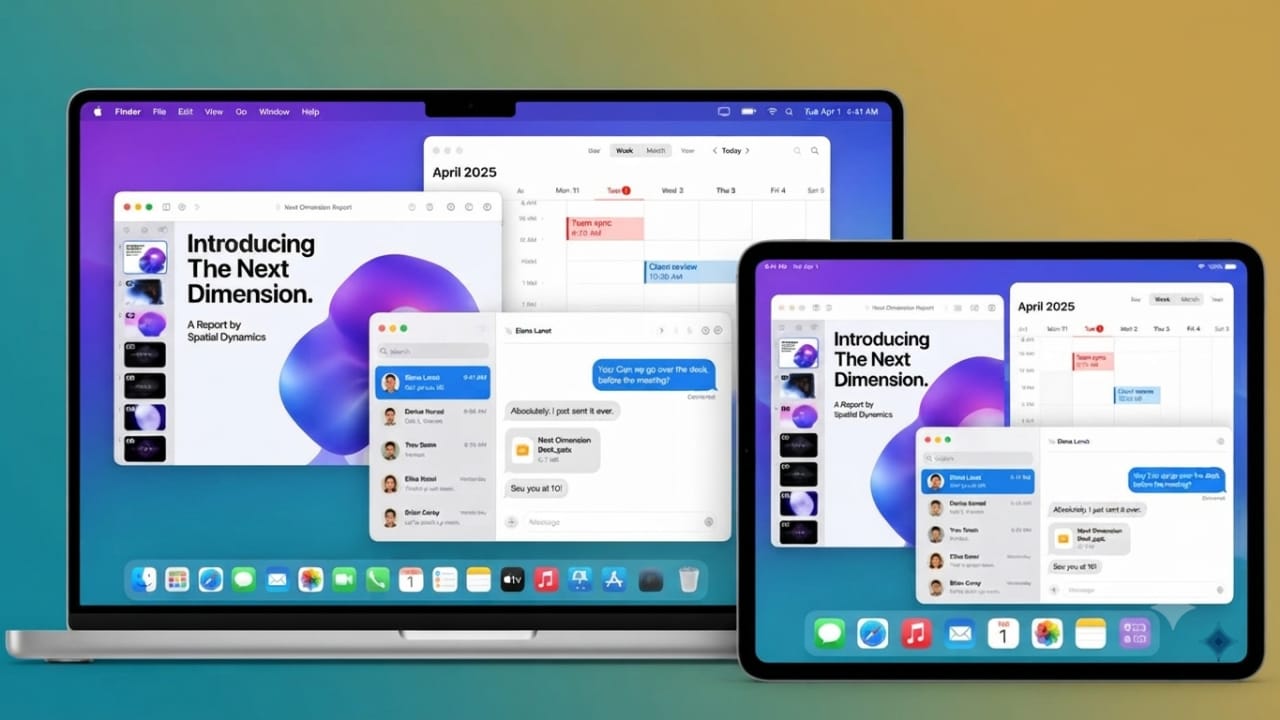
Apple has made multitasking on the iPad much more powerful with iPadOS 26. The latest update introduces desktop-style features that make it easier to work with multiple apps, organize windows, and switch between tasks. If you use your iPad for work, study, or everyday productivity, these improvements can help you get more done.
Also read: Optimize Google Wallet for Faster Checkouts with Simple Organization Tips
Use Windowed Apps for Better Multitasking
One of the biggest additions in iPadOS 26 is support for Windowed Apps. Instead of keeping apps locked into fixed layouts, you can now open them in separate windows, move them around the screen, and resize them whenever needed.
Earlier versions of iPadOS mainly relied on Split View and Slide Over, which offered limited multitasking. With the new window system, your iPad works much more like a desktop computer, giving you greater control over your workspace.
Advertisements
Turn On Windowed Apps
Enabling this feature is simple.
- Open Settings.
- Tap Multitasking & Gestures.
- Select Windowed Apps.
- Turn the feature on.
After enabling it, supported apps will open in movable and resizable windows, making it easier to work with several apps at once.
Open Multiple Apps Together
There are several ways to launch multiple apps while working.
- Open your first app.
- Swipe up slightly to reveal the Dock.
- Tap another app from the Dock to open it.
- Return to the Home Screen and launch additional apps.
- Use Spotlight Search to quickly find and open any app.
If you’re using a Magic Keyboard, press Command + Space to open Spotlight instantly. On the touchscreen, swipe down from the Home Screen and search for the app you want.
You can even open more than one window of the same app by dragging its icon from the Dock into the center of the screen. A new window will appear without replacing the one that’s already open.
Move Windows Anywhere
Unlike older multitasking modes, windows are no longer restricted to fixed positions.
Simply drag the top of a window and place it wherever it works best for you. Windows can overlap, making it easy to create a workspace that fits your workflow.
Organize Windows with Built-In Layouts
iPadOS 26 includes automatic layout options that help arrange your apps quickly.
Press and hold the window controls at the top of an app to access layout choices such as:
- Align to the left or right side
- Move to the top or bottom
- Fill the entire screen
- Split the display into two equal windows
- Arrange three or four windows
- Open an app in Slide Over
These layouts save time and help keep your screen organized.
Snap Apps Side by Side
If you prefer a cleaner setup, you can snap apps next to each other.
Drag a window to the edge of the display until it snaps into place. Then drag another app to the opposite side. This layout is useful when comparing documents, taking notes while reading, or doing online research.
Resize Windows Easily
Every window includes resize handles, allowing you to adjust its size whenever needed.
Drag the resize handle to make a window larger or smaller. You can also adjust dividers between tiled windows to give more space to the app you’re currently using.
Some layouts may have minor resizing limitations, but most offer plenty of flexibility for everyday tasks.
Get More Done with Stage Manager
Stage Manager has also received important improvements in iPadOS 26.
This feature groups related apps into separate workspaces, making it easier to switch between different activities without losing your window arrangement.
Enable Stage Manager
To turn it on:
- Open Settings.
- Tap Multitasking & Gestures.
- Select Stage Manager.
- Enable the feature.
Once enabled, you can quickly switch between groups of apps using touch gestures or supported accessories.
Create App Groups
Stage Manager lets you organize apps based on your workflow.
For example, you can create separate groups for:
- Email and messaging
- Social media
- Music and entertainment
- Writing and content creation
Open the apps you want, drag them into the same workspace, and arrange them however you like. iPadOS remembers each layout, so your workspace is ready the next time you return.
Use Desktop-Style Window Controls
Every app window now includes familiar controls similar to those found on desktop computers.
These buttons let you:
- Close the current window
- Minimize it
- Expand it to full screen
Holding these controls may also reveal extra options for organizing your windows more efficiently.
Continue Using Slide Over
Slide Over is still available and works well for apps you need only occasionally.
For example, you can keep a messaging or music app in Slide Over while focusing on your main work. When needed, simply swipe to access it and continue where you left off.
Access the Menu Bar
iPadOS 26 introduces a menu bar that provides quick access to additional app commands.
Swipe down from the top-center of the screen to reveal it. If it doesn’t appear, check Settings > Multitasking & Gestures and make sure the menu bar option is enabled.
Switch Between Open Windows Faster
Managing many windows is now much easier.
To view all windows from a single app:
- Press and hold the app icon in the Dock.
- Tap Show All Windows.
To see every open app and workspace, swipe up from the bottom of the screen and pause briefly. The overview displays all open windows, allowing you to switch to the one you need with a single tap.
Improve Your Workspace with USB-C Accessories
If your iPad supports USB-C, connecting accessories can make multitasking even more comfortable.
Useful accessories include:
- External monitors for extra screen space
- External storage for larger files
- Keyboards and trackpads for faster navigation
These additions create a more desktop-like setup and can improve productivity during daily work.
Also read: How to Set a Song as Your iPhone Alarm
Final Thoughts
iPadOS 26 brings major improvements to multitasking. Features like Windowed Apps, Stage Manager, smarter window management, and desktop-style controls make the iPad more capable than ever for everyday productivity.
While a Mac is still the better choice for demanding professional workloads, many users will find that iPadOS 26 offers a flexible and efficient multitasking experience for work, study, and general use.

Jatin Rajput (Tech Golu) — Tech blogger & YouTuber with 6+ years of experience in WhatsApp, Instagram, Facebook, and mobile guides. Founder of TechGolu.in.