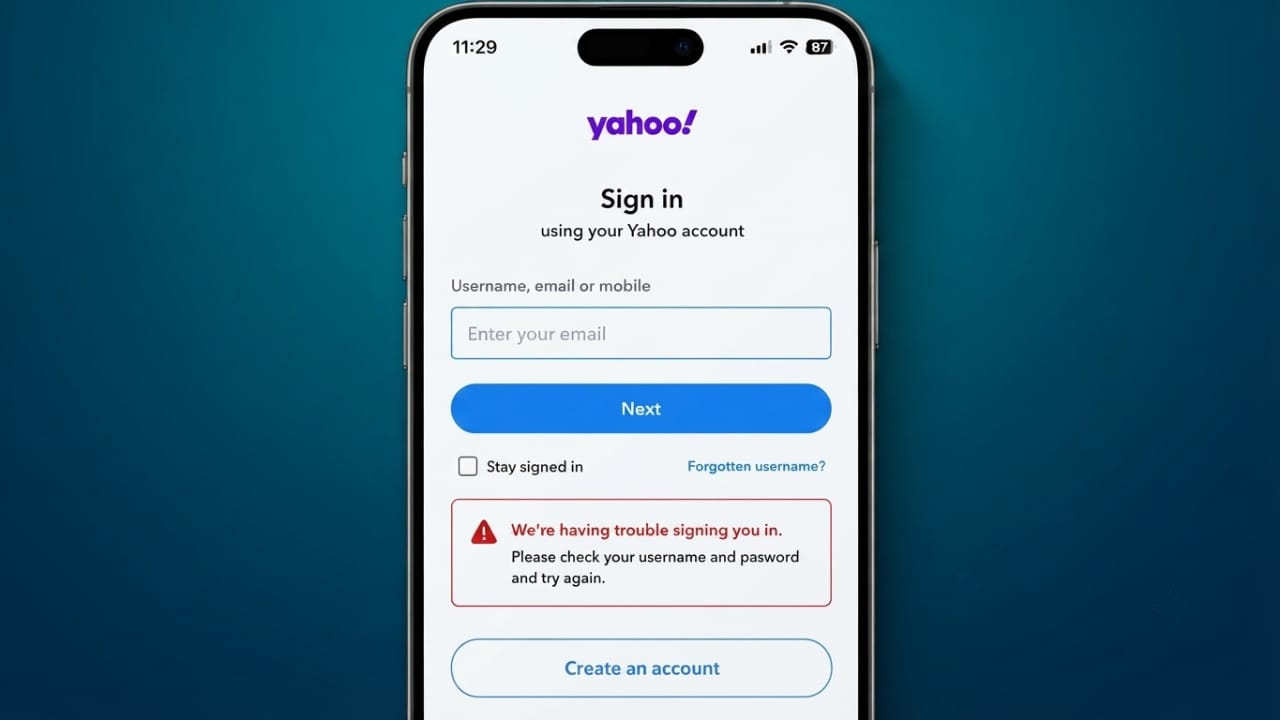
Having trouble signing in to your Yahoo Mail account? You’re not alone. Login issues can happen for different reasons, such as entering the wrong password, browser problems, security checks, or temporary Yahoo service outages.
The good news is that most login problems can be fixed with a few simple steps. This guide explains the common causes and shows you how to get back into your account safely.
Also read: How to Unblock Someone on Snapchat and What Happens Next
Why Can’t You Log In to Yahoo Mail?
There are several reasons why Yahoo Mail may not let you sign in. Some problems are caused by incorrect account information, while others are related to your browser, device, internet connection, or Yahoo’s servers.
Advertisements
Some common reasons include:
- Incorrect email address or password
- Forgotten login credentials
- Browser cache or cookies causing conflicts
- Temporary Yahoo server issues
- Too many failed login attempts
- Two-step verification problems
- Outdated browser or Yahoo Mail app
- Weak or unstable internet connection
- Security checks after unusual login activity
Finding the actual cause makes it much easier to fix the problem.
Check if Yahoo Mail Is Down
Before changing your account settings, make sure the issue isn’t on Yahoo’s side. Sometimes Yahoo experiences temporary service interruptions that prevent users from logging in.
If the service is unavailable, the best option is to wait until Yahoo restores normal operation.
Review Your Login Details
Incorrect login information is one of the most common reasons for sign-in failures.
Check Your Email Address
Carefully confirm that you’ve entered the correct Yahoo email address.
Make sure:
- The username is spelled correctly.
- No letters or numbers are missing.
- The email domain is correct.
- There are no extra spaces before or after the address.
Even a small typing mistake can stop you from logging in.
Verify Your Password
Yahoo passwords are case-sensitive, so uppercase and lowercase letters must match exactly.
Before signing in:
- Turn off Caps Lock if it’s enabled.
- Check your keyboard language.
- Type the password slowly and carefully.
- Avoid relying only on autofill if it keeps failing.
If available, use the password visibility (eye) icon to confirm that the password is entered correctly.
Remove Saved Passwords
Sometimes your browser stores an old password, causing repeated login failures.
Delete the saved Yahoo password from your browser, then enter your current password manually. This often solves autofill-related problems.
Try a Different Yahoo Login Page
If one Yahoo login page isn’t working properly, try signing in through another official Yahoo page. Temporary page-specific issues can occasionally affect the login process.
Reset Your Yahoo Password
If you’re sure the password is incorrect or you’ve forgotten it, resetting it is usually the fastest solution.
How to Reset Your Password
- Open the Yahoo sign-in page.
- Select Forgot Password.
- Enter your Yahoo email address.
- Complete the verification process.
- Create a new password.
- Sign in using your new credentials.
Create a Strong Password
Choose a password that includes:
- Uppercase letters
- Lowercase letters
- Numbers
- Special characters
Avoid using easy-to-guess passwords or personal information.
Account Temporarily Locked?
Yahoo may temporarily lock your account after several unsuccessful login attempts. This is a security feature designed to protect your account.
If this happens:
- Wait for some time before trying again.
- Reset your password if necessary.
- Use a trusted device and internet connection when signing in.
Clear Browser Cache and Cookies
Old browser data can sometimes interfere with Yahoo’s login process.
To clear your browsing data:
- Open your browser settings.
- Go to Privacy and Security.
- Select the option to clear browsing data.
- Delete cache and cookies.
- Restart the browser.
- Try logging in again.
This simple step often fixes many login issues.
Restart Your Browser
Temporary browser glitches can also prevent successful sign-in.
Close the browser completely, wait a few seconds, reopen it, and try again.
Fix Temporary Yahoo Errors
Occasionally, Yahoo may display temporary error messages during login. These errors are often caused by browser-related issues.
The following solutions usually help:
- Restart the browser.
- Clear cache and cookies.
- Try another browser.
Try Another Browser
If Yahoo Mail doesn’t open in your current browser, test it in another one.
Popular options include:
- Google Chrome
- Mozilla Firefox
- Microsoft Edge
- Safari
If Yahoo works in another browser, the problem is likely with your original browser.
Disable Browser Extensions
Some browser extensions can interfere with Yahoo Mail.
Examples include:
- Ad blockers
- Privacy extensions
- Security add-ons
Temporarily disable all extensions, restart the browser, and try signing in. If the issue is resolved, enable the extensions one at a time to find the one causing the problem.
Check Your Internet Connection
A slow or unstable internet connection may interrupt the login process.
Try these basic checks:
- Restart your Wi-Fi router.
- Switch to another network if available.
- Test your internet speed.
- Move closer to your Wi-Fi router.
A stable connection improves the chances of a successful login.
Update Your Browser
Using an outdated browser can create compatibility issues with Yahoo Mail.
Install the latest browser updates, restart the browser, and try signing in again.
Update the Yahoo Mail App
If you’re using Yahoo Mail on a mobile device, make sure the app is updated.
To update:
- Open the Google Play Store or App Store.
- Search for Yahoo Mail.
- Install any available updates.
- Restart the app.
- Sign in again.
Updated apps generally provide better performance and security.
Solve Two-Step Verification Problems
If two-step verification is enabled, login problems may occur if:
- Verification codes don’t arrive.
- Your recovery device isn’t available.
- There are temporary network delays.
Keep your recovery phone number and email address updated so you can easily verify your identity.
Use Yahoo Account Key
Yahoo Account Key lets you approve sign-in requests through your mobile device instead of entering a password.
If you’re having repeated password problems, Account Key may offer a more convenient way to access your account. If it causes difficulties, you can switch back to password-based login through your account settings.
Tips to Avoid Future Yahoo Mail Login Problems
Following a few simple habits can reduce the chances of future login issues:
- Use a strong and unique password.
- Enable two-factor authentication.
- Keep your recovery information up to date.
- Regularly update your browser and Yahoo Mail app.
- Avoid signing in on unsecured public Wi-Fi networks.
- Monitor your account for unusual activity.
- Double-check your login details before submitting them.
- Maintain a reliable internet connection.
Also read: How to Back Up Your iPhone to a MacBook (Finder, Wi-Fi, and iTunes Guide)
Conclusion
Most Yahoo Mail login problems can be resolved without much effort. Start by checking your email address and password, then clear your browser data, update your software, and verify your security settings if needed.
If you’re still unable to sign in, resetting your password or waiting for a temporary Yahoo service issue to be resolved can often restore access. Keeping your account information updated and following good security practices will also help prevent future login problems.

Jatin Rajput (Tech Golu) — Tech blogger & YouTuber with 6+ years of experience in WhatsApp, Instagram, Facebook, and mobile guides. Founder of TechGolu.in.