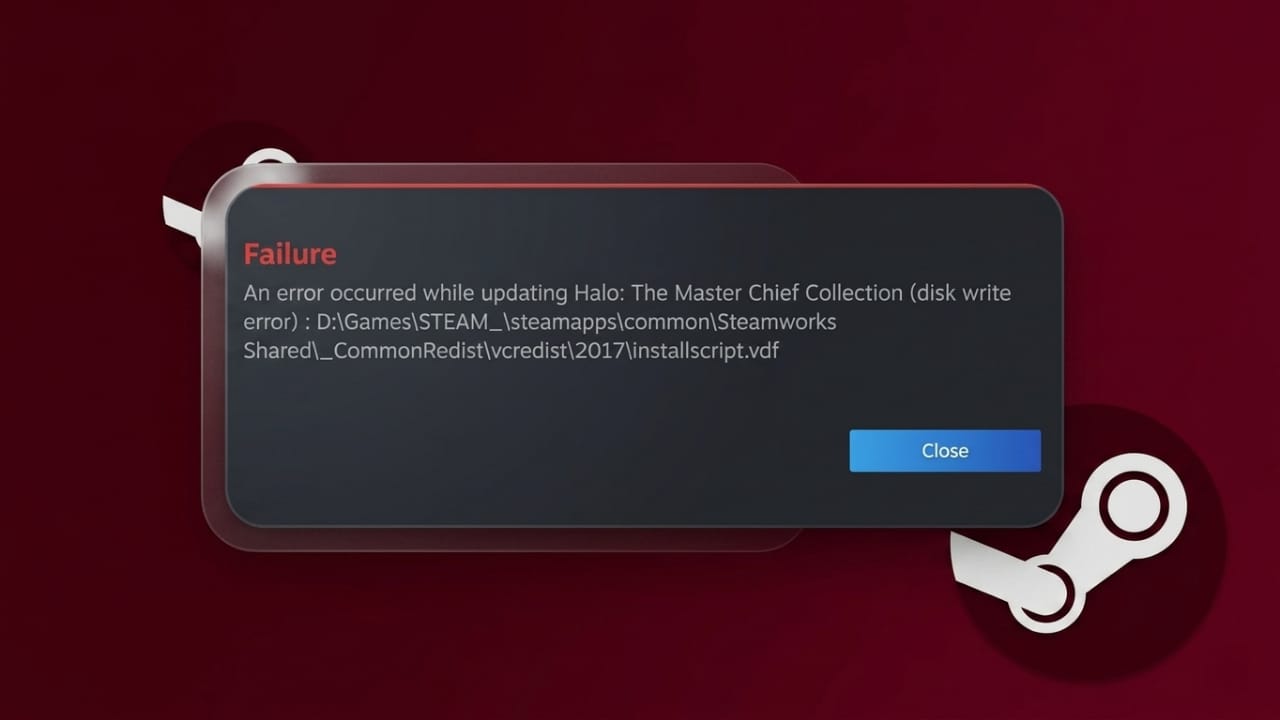
Steam is a popular platform for downloading and managing games. Most of the time it works smoothly, but sometimes you may face errors while installing or updating a game. One of the most common issues is the Disk Write Error, which prevents Steam from saving or updating game files.
This problem usually appears during downloads, updates, or even while saving game data. The good news is that it’s often caused by simple issues and can be fixed easily.
Also read: How to Check Your iPhone MAC Address (2026 Guide)
Why Does Steam Show Disk Write Error?
Before fixing the problem, it helps to understand why it happens. This error appears when Steam is unable to write data to your storage drive.
Common causes include:
- Not enough free space on your drive
- Corrupted cache or damaged game files
- Antivirus or firewall blocking Steam
- Folder or drive set to read-only mode
- Missing file permissions
- Hard drive issues or bad sectors
Once you know the reason, fixing the issue becomes much easier.
Best Ways to Fix Steam Disk Write Error
Follow these methods one by one. Most users fix the issue within a few steps.
1. Restart Steam and Your PC
Temporary glitches can cause this error.
- Close Steam completely
- Open it again and try downloading
- If the issue continues, restart your computer
2. Check Available Storage Space
If your drive is full, Steam cannot save files.
- Open your system storage settings
- Delete unnecessary files or apps
- Make sure enough space is available
3. Clear Steam Download Cache
A broken cache can interrupt downloads.
- Open Steam settings
- Go to Downloads
- Click Clear Download Cache
- Restart Steam and try again
4. Repair Steam Library
This helps fix missing or damaged files.
- Go to Steam settings
- Open Storage section
- Click the three dots next to your drive
- Select Repair Library
5. Run Steam as Administrator
This gives Steam full system access.
- Right-click the Steam icon
- Select Run as Administrator
6. Remove Read-Only (Write Protection)
If your folder is locked, Steam cannot write data.
- Open Steam installation folder
- Right-click → Properties
- Uncheck Read-only
- Apply changes
7. Fix Folder Permissions
Incorrect permissions can block file access.
- Open folder properties
- Go to Security tab
- Select your user account
- Allow full access if restricted
8. Delete Corrupted Game Files
Damaged files can cause installation failure.
- Open Steam folder → steamapps → common
- Find the game folder
- Delete files with zero size (if present)
- Restart Steam
9. Verify Game Files
Steam can automatically fix missing files.
- Open your game library
- Right-click the game → Properties
- Go to Installed Files
- Click Verify Integrity of Game Files
10. Move Steam to Another Drive
If your current drive has issues:
- Install Steam on another drive
- Make sure the new drive has enough space
11. Check Hard Drive Health
Drive errors can block writing tasks.
- Run disk checking tools
- Fix bad sectors if found
- Replace drive if needed
12. Check Firewall Settings
Firewall may block Steam processes.
- Allow Steam in firewall settings
- Or temporarily disable firewall for testing
13. Disable Antivirus (Temporarily)
Some antivirus programs block Steam by mistake.
- Turn off antivirus briefly
- If it works, add Steam as an exception
14. Remove Drive Write Protection
Sometimes the whole drive is restricted.
- Open drive properties
- Disable write protection
15. Use Disk Analyzer Tool
Large hidden files can fill your storage.
- Use a disk analyzer tool
- Find and remove unnecessary files
16. Restart After Fixes
After making changes (especially cache clearing), always restart Steam to apply them properly.
17. Contact Steam Support
If nothing works, reach out to Steam support. They can guide you based on your specific issue.
Tips to Avoid This Error in Future
- Keep enough free storage space
- Clear cache regularly
- Update Steam to the latest version
- Check disk health from time to time
- Configure antivirus and firewall properly
Also read: ChatGPT on Apple CarPlay: Useful Idea, but Not Fully There Yet
Final Thoughts
The Steam Disk Write Error is usually caused by simple system issues like low storage, permission problems, or corrupted files. By following the steps above carefully, you can fix the problem without much effort.
If the issue still doesn’t go away, it might be related to your storage drive, and checking your hardware would be the next step.
Once fixed, you can continue downloading and playing your games without interruption.

Jatin Rajput (Tech Golu) — Tech blogger & YouTuber with 6+ years of experience in WhatsApp, Instagram, Facebook, and mobile guides. Founder of TechGolu.in.