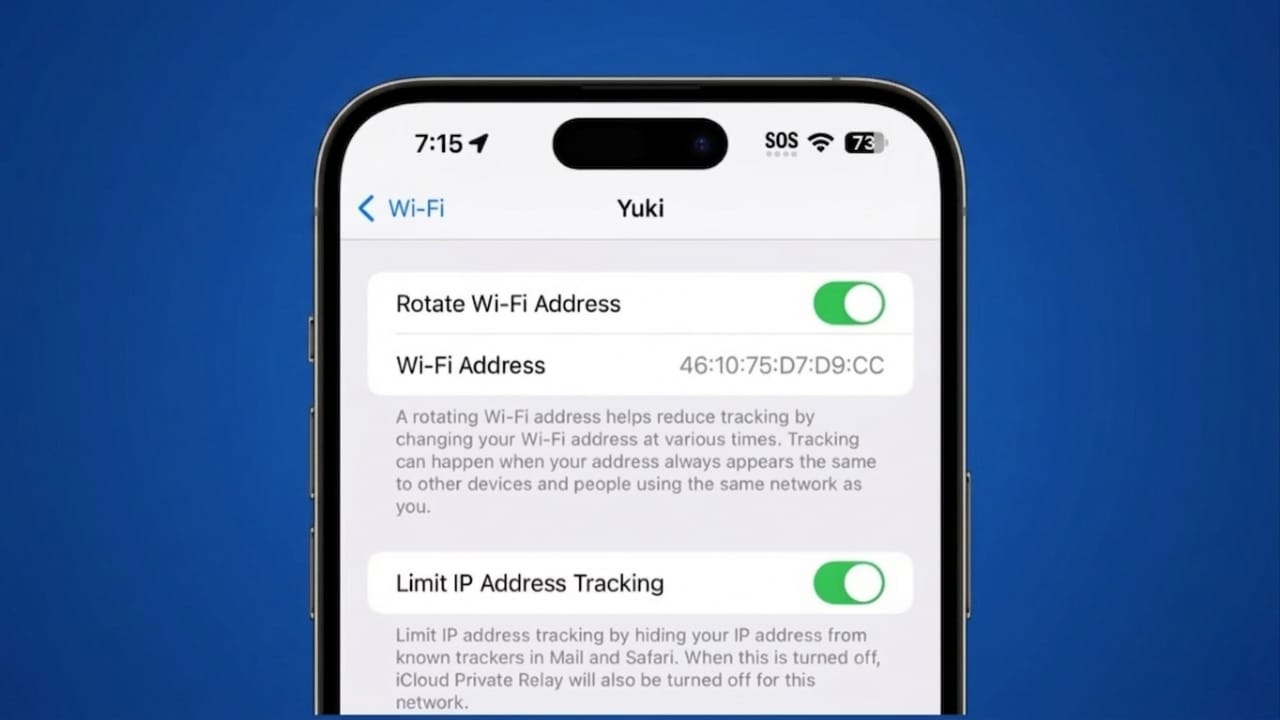
If you need your iPhone’s MAC address, you don’t have to install anything extra. Apple already includes this information in the settings. It’s useful for connecting to certain Wi-Fi networks, troubleshooting internet issues, or sharing details with technical support.
Let’s go through the easiest ways to find it.
Also read: How to Boost Engagement with Instagram Story Polls and Questions
Method 1: Check MAC Address from Wi-Fi Settings
Why this method is popular
This is the quickest way if your iPhone is already connected to a Wi-Fi network. You can view your MAC address along with other network details in one place.
Steps to follow
- Open Settings on your iPhone
- Tap on Wi-Fi
- Find the network you are connected to
- Tap the small “i” (info icon) next to the network name
Where to find it
You will see a page with network details. Look for Wi-Fi Address — this is your MAC address. It appears as a mix of letters and numbers.
Important note about Private Address
You may also see an option called Private Address.
- If it is turned on, your iPhone uses a different (random) MAC address for that specific network.
- This helps improve privacy by preventing tracking.
How to view the actual MAC address
If you want to check your original (real) MAC address for that network:
- Turn off Private Address
- Then check the Wi-Fi Address again
Why use this method
- Fast and easy
- Shows IP address and router info as well
- Helpful for quick network troubleshooting
Method 2: Find MAC Address in General Settings
When to use this method
This option works even if your iPhone is not connected to Wi-Fi. It’s also the best way to find your device’s permanent MAC address.
Steps to follow
- Open Settings
- Tap General
- Select About
Where to find it
Scroll down until you see Wi-Fi Address. This is your device’s original MAC address.
Key point
This address does not change, even if Private Address is enabled. It remains fixed and represents your device.
Why this method is useful
- Works without internet connection
- Shows the real MAC address always
- Best option when someone specifically asks for your device ID
What is a MAC Address?
A MAC (Media Access Control) address is a unique code assigned to your device. Networks use it to identify and allow devices to connect.
Think of it like a digital ID for your phone on a network.
What is Private Wi-Fi Address?
Apple introduced the Private Wi-Fi Address feature to improve user privacy.
How it works
- Your iPhone creates a unique MAC address for each Wi-Fi network
- It uses that same random address every time you reconnect to that network
- Different networks get different addresses
Why it matters
This makes it harder for networks or trackers to monitor your activity across different locations.
MAC Address vs Wi-Fi Address
On iPhones, Wi-Fi Address and MAC Address mean the same thing. Apple simply uses a more user-friendly term.
Which MAC Address Should You Share?
This part is important.
- If someone asks for your device MAC address, use the one from Settings → General → About
- If they need the network-specific address, use the one shown in Wi-Fi settings
Always confirm which one is required before sharing.
Common Mistakes to Avoid
- Sharing the wrong MAC address type
- Forgetting that Private Address changes the value
- Not double-checking before submitting to support or IT teams
Understanding the difference can save time and prevent connection issues.
Also read: Best AI Tools for Instagram Posts: A Simple Guide for Creators
Final Thoughts
Finding your iPhone’s MAC address is simple once you know where to look. Whether you use Wi-Fi settings or the About section, both methods are quick and reliable.
Just remember:
- Wi-Fi section = network-specific address
- About section = original device address
With this knowledge, you can handle network setups and troubleshooting without confusion.

Jatin Rajput (Tech Golu) — Tech blogger & YouTuber with 6+ years of experience in WhatsApp, Instagram, Facebook, and mobile guides. Founder of TechGolu.in.