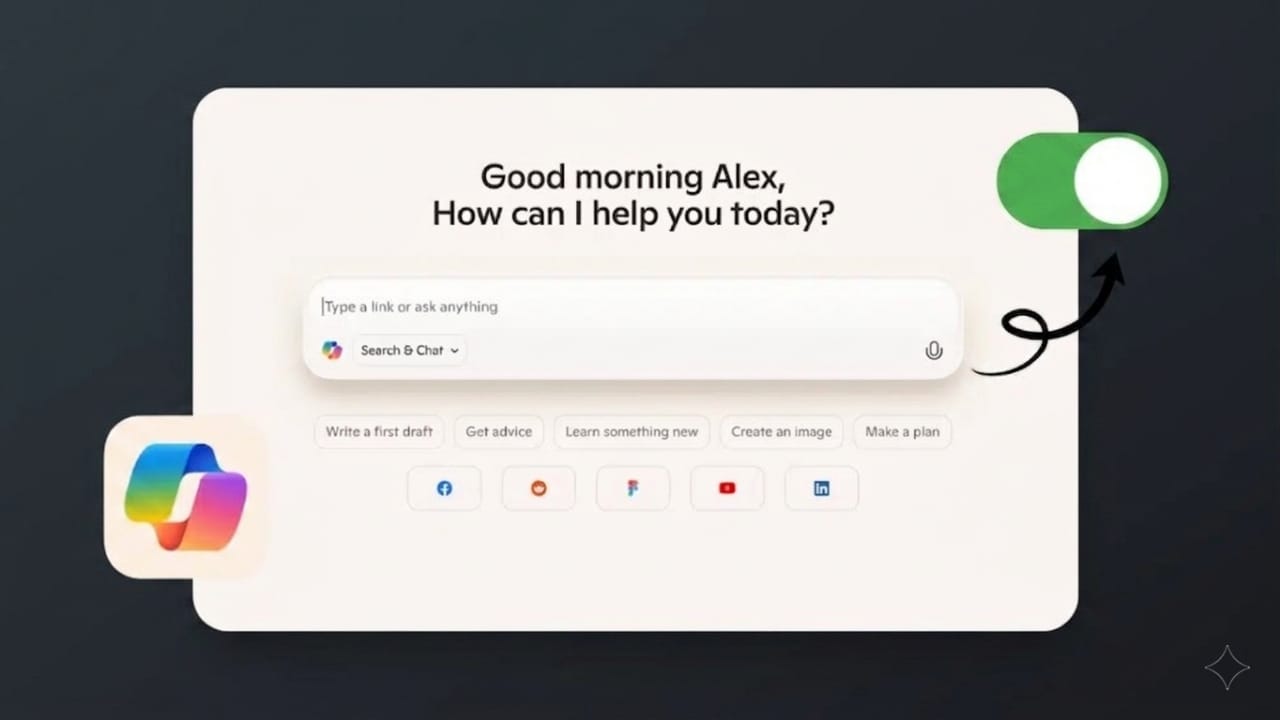
Microsoft Edge now comes with several built-in AI tools powered by Copilot. These features include a chatbot, writing help, smart suggestions, and sidebar shortcuts. While some people like these tools, others prefer a cleaner browser without extra AI options.
If you want a simple browsing experience, the good news is that most Copilot features can be turned off in just a few steps.
Also read: How to Tell if Your Samsung Phone Is Genuine (Easy, Practical Guide)
Why Some Users Disable Copilot in Edge
There are many reasons people choose to switch off AI tools in their browser:
- Cleaner and less distracting interface
- Better privacy control
- Fewer unwanted suggestions
- Traditional browsing experience
- No accidental opening of Copilot tools
Turn Off Copilot Features in Edge Settings
The easiest way is through Microsoft Edge settings.
Open Settings
- Launch Microsoft Edge
- Click the three-dot menu in the top-right corner
- Select Settings
Disable Copilot Mode
- In the left menu, open AI Innovations
- Find Copilot Mode
- Turn the toggle Off
This disables many AI-powered browser tools such as smart suggestions and AI-powered new tab features.
Remove Copilot Sidebar and Toolbar Button
- Go to Appearance
- Open Copilot and Sidebar Settings
- Turn off:
- Show sidebar button
- Always show sidebar
- Show Copilot button on toolbar
This removes the Copilot icon and sidebar from your browser window.
Turn Off AI Writing Assistance
If you do not want AI suggestions while typing online:
- Open Languages in settings
- Find Use Copilot for writing on the web
- Switch it Off
This stops writing suggestions on websites and text boxes.
Improve Privacy by Disabling Background AI Activity
Some Copilot tools may use browsing data for personalized suggestions.
Manage Privacy Settings
- Open Edge Settings
- Search for Copilot using the settings search bar
- Select Manage Copilot Settings
Turn Off Data Usage Options
Inside the privacy section:
- Disable all available AI personalization toggles
- Turn off data collection options
- Remove saved Copilot activity if available
This gives you better control over your browsing privacy.
Advanced Method for Permanent Blocking
This method is better for advanced users and system administrators.
Use Windows Registry Editor
- Press Win + R
- Type regedit and press Enter
- Go to:
HKEY_LOCAL_MACHINE\SOFTWARE\Policies\Microsoft\Edge
- If the Edge folder does not exist, create it.
Add These Values
Create DWORD (32-bit) values:
HubsSidebarEnabled=0CopilotPageContext=0
Restart Edge after saving.
This helps keep Copilot disabled more permanently.
Disable Copilot on New Tab Page
- Open Edge Settings
- Go to Start, Home, and New Tab Page
- Turn off Copilot New Tab Page
Your normal new tab page should return.
What Changes After Disabling Copilot?
Once turned off:
- Copilot chatbot stops appearing
- Sidebar disappears
- Writing suggestions stop
- New tab page becomes normal again
- Browser feels simpler and cleaner
Can You Turn It Back On Later?
Yes. If you change your mind:
- Go back to the same settings
- Turn the toggles back on
Copilot features can be enabled anytime.
Also read: Instagram Introduces Comment Editing Feature
Final Thoughts
You cannot fully uninstall Copilot from Microsoft Edge because it is built into the browser, but you can disable almost all visible AI features. This is a great option for users who want privacy, fewer distractions, and a more traditional browsing experience.

Jatin Rajput (Tech Golu) — Tech blogger & YouTuber with 6+ years of experience in WhatsApp, Instagram, Facebook, and mobile guides. Founder of TechGolu.in.