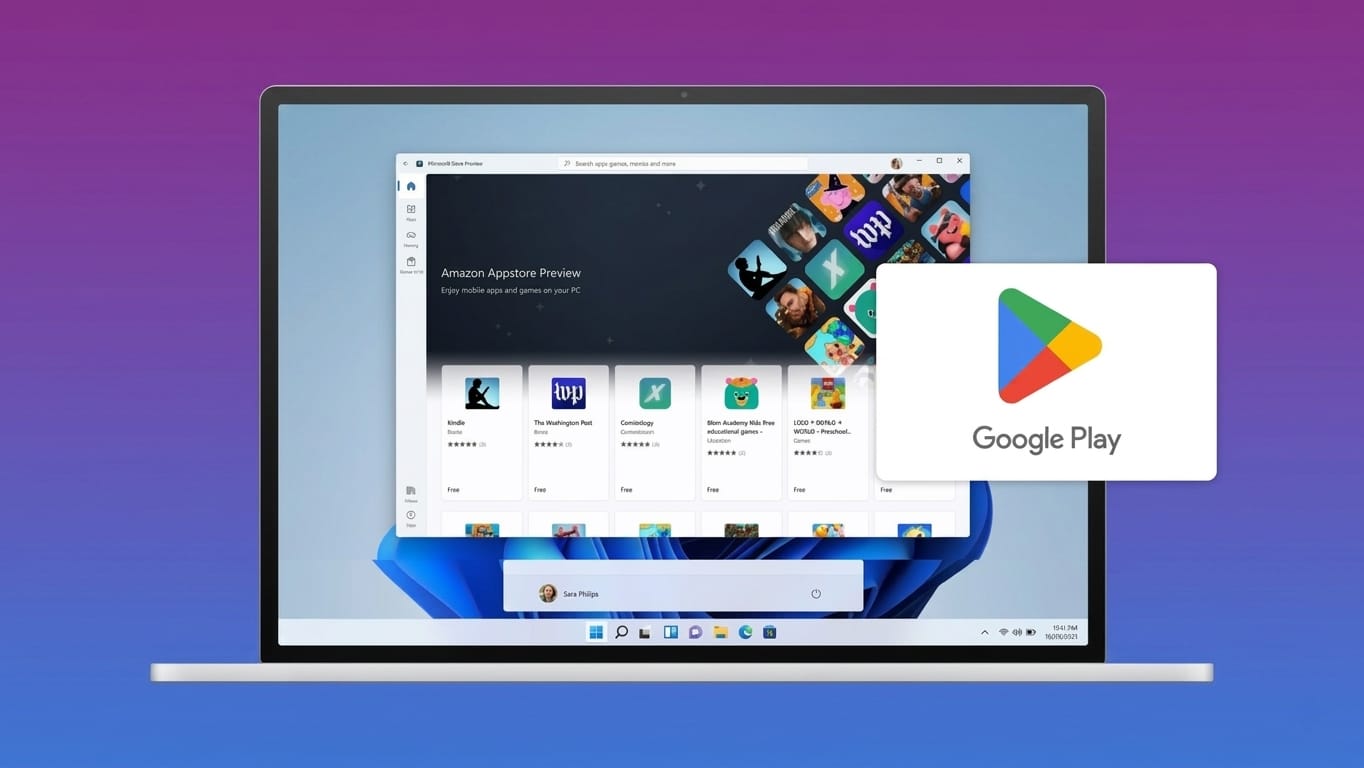
Running Android apps on a Windows PC is something many people want. In the past, tools like emulators were the only option. They worked, but they felt separate from the system and often slowed things down.
With Windows 11, things are better. Microsoft added support for Android apps through built-in features. This makes apps feel more natural on your PC. However, installing the Google Play Store is not officially supported, so the process requires careful steps.
Also read: WhatsApp Now Works Directly on Apple CarPla
Before You Start: Requirements & Preparation
1. Check Your System Compatibility
Make sure your computer meets these basic requirements:
- Storage: SSD is recommended for better speed
- RAM: Minimum 8GB (16GB is ideal)
- System Type: 64-bit or ARM-based only
- Note: 32-bit systems won’t work
If your PC uses an older HDD or low RAM, the experience may not be smooth.
2. Understand the Risks
This setup is not official, so keep these points in mind:
- The method may stop working after updates
- It can modify system-level files
- Incorrect steps might cause system issues
- In rare cases, Windows may fail to boot
Tip: Always back up important files before starting.
Step-by-Step Setup
Step 1: Turn On Developer Mode
- Open Settings from the Start menu
- Go to System → For Developers
- Enable Developer Mode
- Click Yes when prompted
Step 2: Enable Required Windows Features
- Press Win + R, type
optionalfeatures, and hit Enter - Enable:
- Virtual Machine Platform
- Windows Hypervisor Platform
- Click OK and restart your PC
Step 3: Enable Virtualization in BIOS
- Restart your PC
- Enter BIOS (usually by pressing F2, Esc, or Del)
- Find Virtualization Technology
- Enable it and save changes
Installing Windows Subsystem for Android (WSA)
WSA is the core system that allows Android apps to run on Windows.
Step 4: Remove Existing Android Components
- Go to Settings → Apps
- Uninstall:
- Windows Subsystem for Android
- Amazon Appstore (if installed)
This avoids conflicts during setup.
Step 5: Download a Custom WSA Build
- Visit GitHub and search for custom WSA builds
- Download a version that includes Google Apps
Step 6: Extract the Files
- Right-click the downloaded file
- Click Extract All
- Choose a folder
Step 7: Install Using Terminal
- Open the extracted folder
- Right-click and select Open in Terminal
- Run the provided installation command
- Allow admin permissions when asked
Alternative Method (Advanced Users)
You can also install using Linux tools:
- Install Windows Subsystem for Linux (WSL) from Microsoft Store
- Install Ubuntu
- Use Git commands to download required files
- Run setup scripts and choose:
- Correct processor type (x64/ARM64)
- Google Apps package
- Skip root options
This method is more technical but flexible.
Final Installation Steps
- Locate generated WSA files
- Copy them to a new folder (e.g.,
C:\WSA) - Open Command Prompt as Administrator
- Navigate to the folder
- Run the install command
Wait until installation completes.
How to Use Google Play Store
1. Open WSA
- Search Windows Subsystem for Android
- Launch it
2. Enable Developer Mode Inside WSA
- Open WSA settings
- Turn on Developer Mode
3. Sign In to Google Play Store
- Open Play Store
- Log in with your Google account
- Wait for it to load
4. Install Apps
- Search for apps
- Click Install
- Apps will appear in your Windows Start menu
You can open them like regular programs.
Easier Alternatives
If this process feels too complex, consider these options:
- Amazon Appstore (official but limited apps)
- APK sideloading
- Android emulators (simpler setup)
Also read: Fix OneDrive Not Running on Windows 11 (Easy Step-by-Step Guide)
Final Thoughts
Installing the Google Play Store on Windows 11 gives you more freedom to use Android apps directly on your PC. The experience can be smooth once everything is set up properly.
That said, the process is a bit technical and comes with some risks. If you’re not comfortable with advanced steps, safer alternatives are available.
If done correctly, though, it can turn your Windows PC into a powerful hybrid device.

Jatin Rajput (Tech Golu) — Tech blogger & YouTuber with 6+ years of experience in WhatsApp, Instagram, Facebook, and mobile guides. Founder of TechGolu.in.