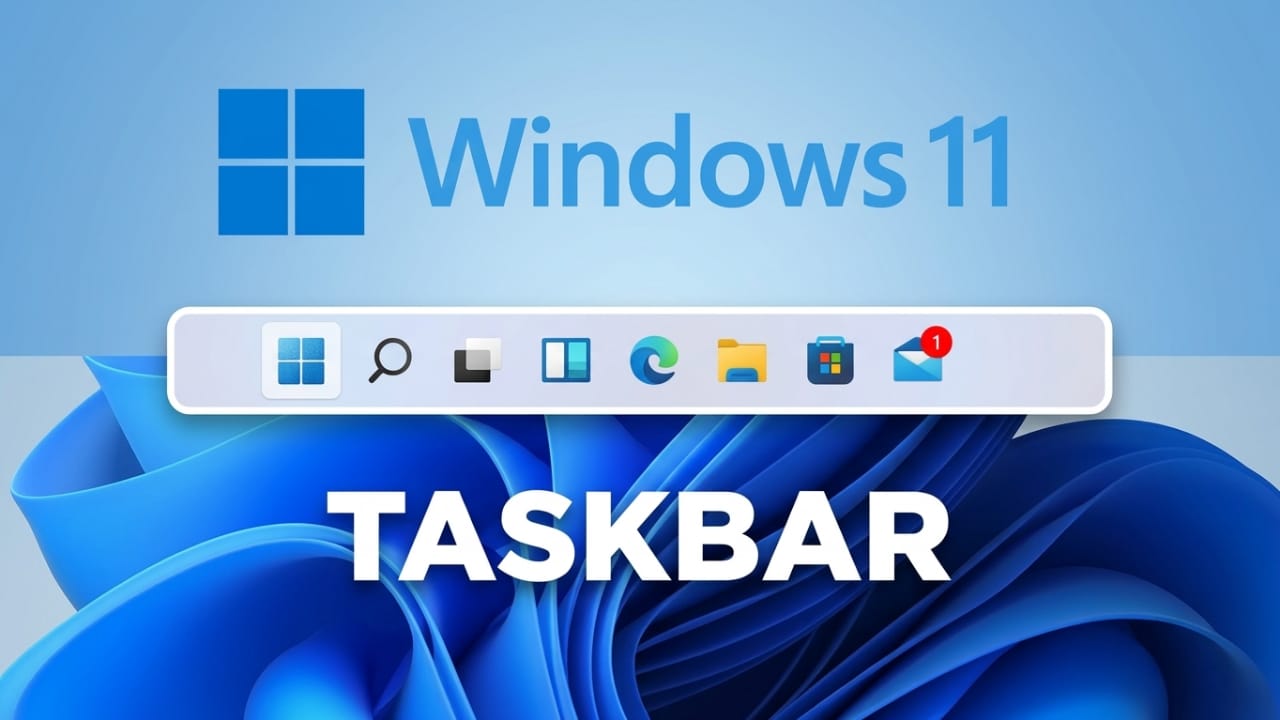
The taskbar is one of the most used parts of Windows 11. It sits at the bottom of your screen and helps you open apps, switch between tasks, and check system status quickly.
While Windows 11 removed a few advanced options from older versions, it still gives you enough control to personalize the taskbar for your daily use. Let’s go step by step in a simple and practical way.
Also read: How to Delete Copilot Chat History (2026 Guide)
Open Taskbar Settings
To start customizing:
- Press Windows + I to open Settings
- Click on Personalization
- Select Taskbar
This section includes almost everything you need to adjust how your taskbar looks and behaves.
Manage Widgets and Task View
Widgets show things like weather, news, and updates. Task View helps you switch between open windows and virtual desktops.
If you prefer a cleaner taskbar, you can turn these off:
- Go to Taskbar settings
- Find Widgets and switch it off
- Find Task View and disable it
You can always turn them back on later if needed.
Customize the Search Option
Windows 11 gives you different ways to display search on the taskbar:
- Search box – type directly from the taskbar
- Search icon with label – shows a small text with icon
- Search icon only – minimal and clean
- Hidden – removes search completely
Choose the one that matches your style and how often you use search.
Pin Apps for Quick Access
Pinning apps helps you open them instantly without searching.
To pin an app:
- Find the app on desktop or Start menu
- Drag and drop it onto the taskbar
Once pinned, the app stays there for one-click access.
Rearrange Taskbar Icons
You can organize apps in any order:
- Click and hold an icon
- Drag it left or right
- Place important apps where they are easy to reach
This small change can make your workflow faster.
Remove Apps from Taskbar
If your taskbar looks crowded, remove unused apps:
- Right-click on the app icon
- Click Unpin from taskbar
This helps keep things clean and simple.
Important Limitation
In Windows 11:
- You cannot pin files or folders directly to the taskbar
- Only apps and shortcuts are supported
This is different from older Windows versions.
Control System Tray Icons
The system tray is the area near the clock. It shows icons like Wi-Fi, battery, volume, and background apps.
To customize it:
- Open Taskbar settings
- Go to System tray options
- Choose which icons should always be visible
Hide less important icons to reduce clutter.
Change Taskbar Alignment
By default, Windows 11 centers the taskbar icons. If you prefer the classic look, you can move them to the left.
Steps:
- Right-click on the taskbar
- Select Taskbar settings
- Open Taskbar behaviors
- Change alignment from Center to Left
This gives a more familiar Windows feel.
Turn On Auto-Hide
If you want more screen space:
- Enable Automatically hide the taskbar
The taskbar will disappear when not in use and reappear when you move your mouse to the bottom.
Manage App Notifications (Flashing Icons)
Some apps flash on the taskbar when they need attention.
You can control this behavior in settings if you find it distracting.
Use Taskbar on Multiple Screens
If you use more than one monitor:
- You can show the taskbar on all screens
- This makes multitasking easier
You’ll find this option under taskbar behavior settings.
Extra Behavior Settings
Windows 11 includes a few additional options like:
- Showing badges on apps
- Controlling how icons behave
- Adjusting small visual features
You can explore these to fine-tune your experience.
What’s Missing in Windows 11
Compared to older versions, some features are limited:
- You cannot easily change taskbar height
- Moving the taskbar to the sides or top is not supported
However, Microsoft continues to improve these features through updates.
Also read: New Sticky Notes vs Old Sticky Notes: A Simple Comparison Guide
Final Thoughts
Customizing the Windows 11 taskbar is simple once you know where to look. You can:
- Adjust search and widgets
- Pin and organize apps
- Control system tray icons
- Change alignment and behavior
Even though a few advanced options are missing, the available settings are enough to create a clean and efficient workspace.

Jatin Rajput (Tech Golu) — Tech blogger & YouTuber with 6+ years of experience in WhatsApp, Instagram, Facebook, and mobile guides. Founder of TechGolu.in.