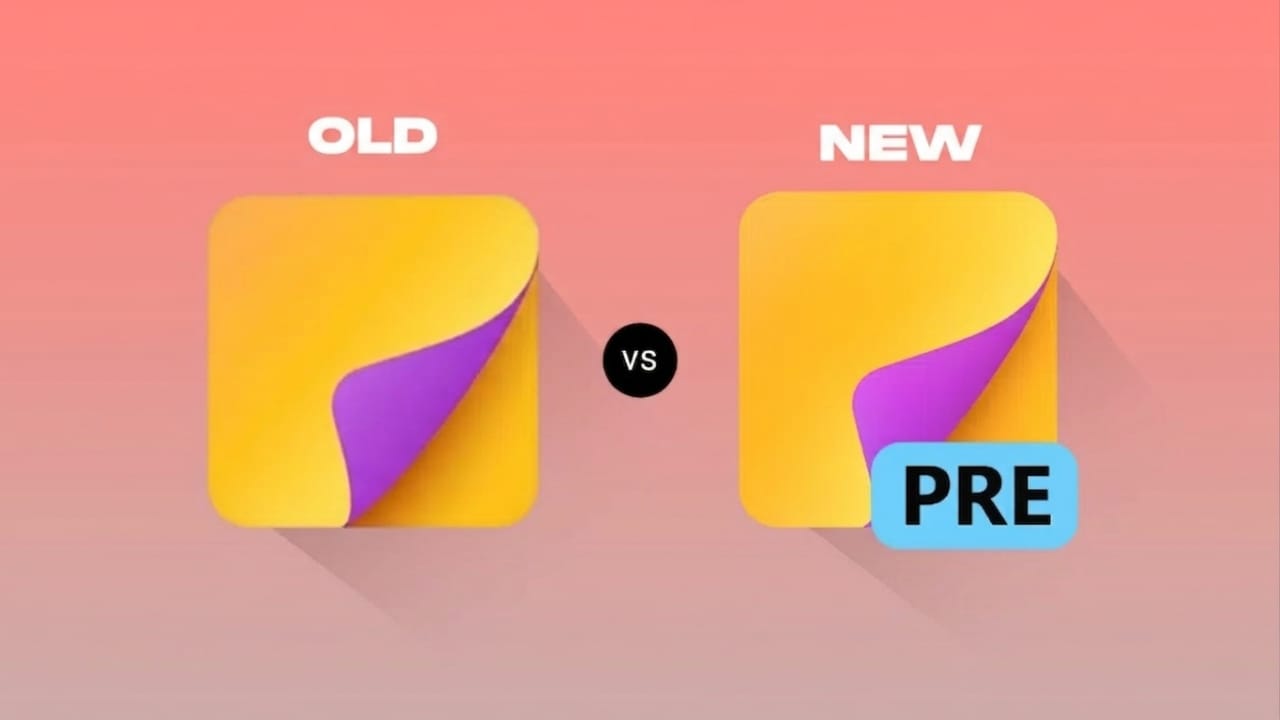
Sticky Notes has come a long way over the years. Microsoft has redesigned the app to make it more useful, cleaner, and easier to manage. If you’re still using the older version, you might be wondering whether it’s worth switching. This guide explains the differences in a simple and clear way.
Also read: How to Change or Reset Your Instagram Password (2026 Guide)
A Fresh Look and Better Design
The first thing you’ll notice in the new Sticky Notes is its updated design. It follows the modern style of Windows 11, which makes it look more polished and organized.
In the older version, notes appeared as small floating windows scattered across your screen. While this worked, it often felt messy—especially when handling multiple notes.
The newer version changes this completely. It opens from a toolbar area and lets you manage everything in one place. You can also dock your notes neatly to the side of your screen, keeping them visible while you work.
Overall, the updated design feels cleaner and fits better with today’s Windows interface.
Easier Navigation and Faster Use
Using the old Sticky Notes could sometimes feel slow. You had to open notes one by one, and finding a specific note wasn’t always quick.
The new version improves this experience a lot:
- All your notes are visible in one list
- You can switch between notes instantly
- Creating a new note takes just a click
- Editing is smoother and more responsive
There’s also an “Always on top” option. This keeps your notes visible above other apps, which is helpful when copying information or tracking tasks.
In short, the new version saves time and feels more natural to use.
Useful New Features
Microsoft has added several helpful features that make the app more powerful:
Screenshot Support
You can take a screenshot directly from the app and save it as a note. This is useful for capturing quick information.
Text Recognition (OCR)
The app can read text from images and convert it into editable text. This helps when working with screenshots or handwritten notes.
Search Function
You can quickly find notes by typing keywords. The app highlights matching text, making it easier to locate what you need.
Sync Across Devices
By signing in with your Microsoft account, your notes stay updated across all your devices automatically.
These features were not available in the older version, making the new one far more capable.
Common Issues and Simple Fixes
While the new version is better overall, some users may face small issues like slow scrolling, syncing problems, or missing notes after an update.
Here are some simple ways to fix them:
Basic Fix
- Sign out and sign back in
- Make sure you’re using the same Microsoft account
- Check if notes exist in the old version
Manual Copy Method
If syncing doesn’t work, you can copy notes from the old app and paste them into the new one.
Reinstall the App
Reinstalling Sticky Notes from the Microsoft Store can solve many issues quickly.
Backup and Recovery
If needed, you can recover notes from local files using a database viewer, though this is a more advanced option.
Helpful Tips to Avoid Data Loss
- Always keep syncing turned on
- Use one Microsoft account consistently
- Keep backups if your notes are important
These small steps can help protect your data.
Also read: How to Delete Copilot Chat History (2026 Guide)
Final Thoughts
When comparing the two versions, the new Sticky Notes clearly offers a better experience. It looks modern, works faster, and includes useful features like search, syncing, and text recognition.
The old version still works for now, but it may not be supported in the future. Switching early can help you get used to the updated system and avoid problems later.
If you use notes regularly, the new Sticky Notes is a smart upgrade that can improve your daily workflow.

Jatin Rajput (Tech Golu) — Tech blogger & YouTuber with 6+ years of experience in WhatsApp, Instagram, Facebook, and mobile guides. Founder of TechGolu.in.