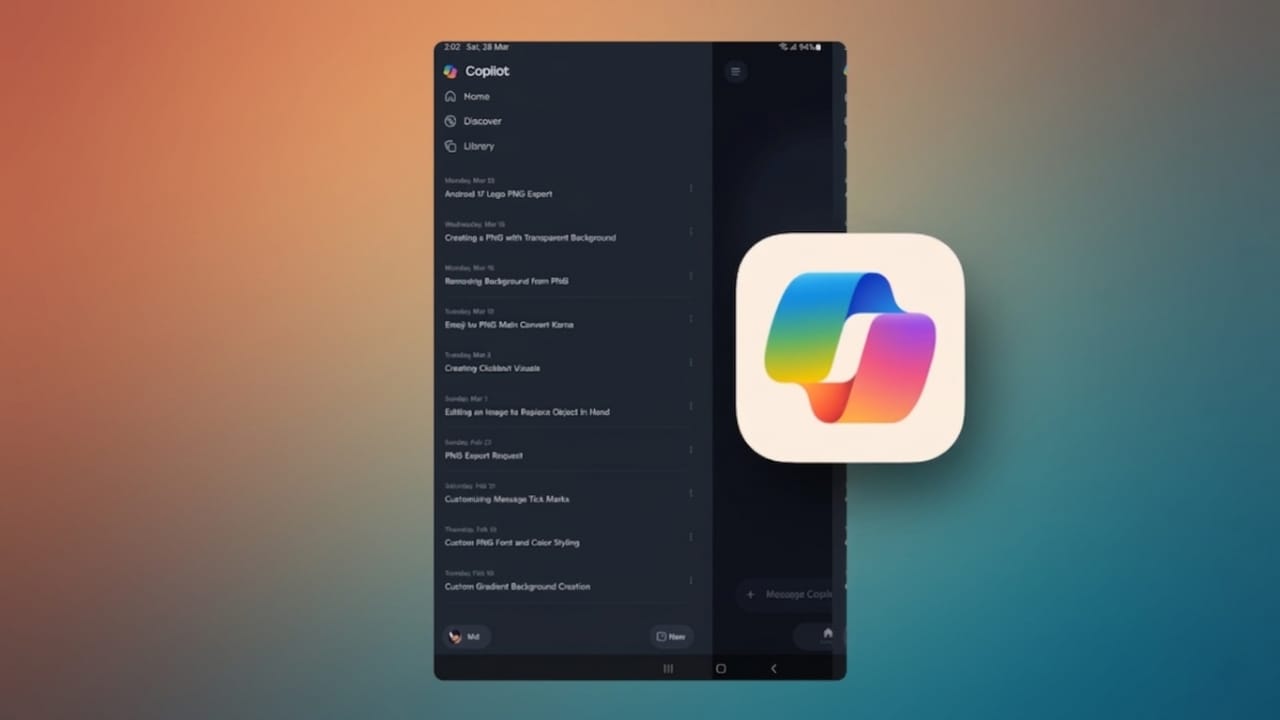
Managing your chat history in Copilot is important if you care about privacy and a clutter-free workspace. Copilot saves conversations so you can revisit them later, but not everyone wants old chats stored for long periods. The good news is that you can easily remove your history—either completely or partially—whenever you like.
This guide explains simple ways to delete your Copilot chat history on apps, browsers, and across Microsoft 365.
Also read: How to Fix WhatsApp Error 131026 (Message Not Delivered)
Delete Copilot Chat History in the App
If you’re using the Copilot app, follow these steps to remove your chat history:
- Open the Copilot app on your device.
- Tap the sidebar icon (usually in the top corner).
- Click on your profile icon.
- Go to Settings.
- Open the Privacy section.
- Scroll to Activity History.
- Select the option to delete your history.
- You may be redirected to your Microsoft account—log in if needed.
- Find the option to delete all activity.
- Confirm by clicking Clear.
Once done, all your saved chats will be permanently removed. This is useful if you want a completely fresh start.
Delete Copilot Chat History in a Browser
You can also clear your chat history directly from your browser. This works on Edge and other browsers.
- Open Copilot in your browser.
- Click your profile icon (bottom corner).
- Select Settings.
- Go to the Privacy section.
- Scroll down to find Clear History.
- Click the Clear History button.
- Confirm when the popup appears.
Your entire chat history will be erased instantly from the browser.
Delete Only Selected Conversations
If you don’t want to remove everything, you can delete specific chats:
- Open Copilot (app or browser).
- Find the conversation you want to remove.
- Hover over it or tap the options (three dots).
- Click Delete.
- Confirm your choice.
Only that conversation will be deleted, and the rest will stay saved. This option is helpful when you want to keep important chats but remove unnecessary ones.
Why You Should Delete Copilot Chat History
Copilot works across many Microsoft 365 tools, and your activity can appear in different places. Old chats might show up during screen sharing, meetings, or presentations.
For example:
- Practice prompts may appear during live demos
- Personal queries could be visible during screen sharing
- Old data might create confusion in meetings
Deleting your history helps avoid these situations and keeps your information private.
Apps Where Copilot Activity Is Stored
Copilot is integrated into several Microsoft 365 apps, including:
- Word (documents)
- Excel (data and spreadsheets)
- PowerPoint (presentations)
- Teams (meetings and chats)
- Loop (collaboration)
- Planner (task management)
- Whiteboard (visual brainstorming)
- Forms (surveys and feedback)
Your activity can be saved across these apps, so clearing history removes data from the entire system.
Delete Copilot History Across Microsoft 365
To remove activity from all connected apps, follow these steps:
- Open the Microsoft 365 website.
- Click your profile icon (top right).
- Select View Account.
- Go to Settings and Privacy.
- Open the Privacy section.
- Find Copilot Activity History.
- Click Delete History.
- Select the activity type (Microsoft 365 Copilot).
- Confirm by clicking Delete.
This will remove your Copilot data across all Microsoft 365 services.
How Long Does It Take?
In most cases, the deletion process is quick and completes within a few seconds. However, it may take up to 10–15 minutes in some situations.
Once the process is finished, your old chats will no longer be visible.
Also read: How to Change or Reset Your Instagram Password (2026 Guide)
Final Thoughts
Deleting your Copilot chat history is simple and gives you better control over your data. You can clear everything or remove only selected conversations based on your needs.
Regularly cleaning your history helps:
- Protect your privacy
- Avoid awkward moments during presentations
- Keep your workspace organized
Whether you use the app, browser, or Microsoft 365 tools, the process is straightforward and worth doing from time to time.

Jatin Rajput (Tech Golu) — Tech blogger & YouTuber with 6+ years of experience in WhatsApp, Instagram, Facebook, and mobile guides. Founder of TechGolu.in.