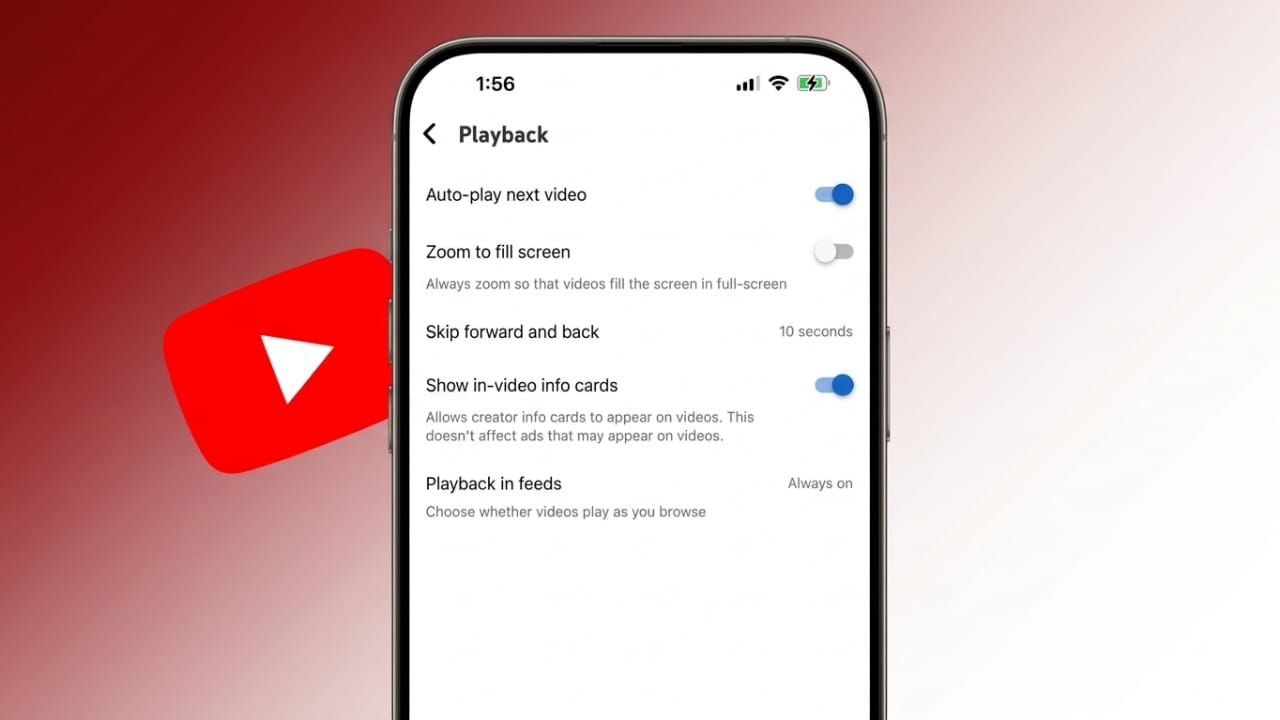
Autoplay on YouTube automatically starts the next video once the current one finishes. While this can feel convenient, it often leads to longer watch sessions without you even noticing. If you want better control over your time and data, turning this feature off is a smart choice.
In this guide, you’ll learn what autoplay does, why you may want to disable it, and how to turn it off on different devices.
Also read: Samsung to Add AirDrop-Like Sharing on Galaxy S26 Using Quick Share
What Is YouTube Autoplay?
Autoplay is a default feature on YouTube that plays another video after the one you’re watching ends. A short countdown appears, and then the next video begins on its own.
YouTube selects these videos based on your activity. It looks at:
- Your watch history
- Your search habits
- Channels you follow
This is why you often see similar or related content.
Autoplay also behaves differently depending on your connection:
- On mobile data, it usually stops after about 30 minutes
- On Wi-Fi, it may continue for up to 4 hours
Why Turn Off Autoplay?
Disabling autoplay gives you more control over your viewing experience. Here are some common reasons people switch it off:
- Helps limit screen time
- Saves mobile data
- Prevents unwanted or random videos
- Reduces distractions
- Lets you choose what to watch next
How to Turn Off Autoplay on Mobile (Android & iPhone)
You can disable autoplay on your phone in two easy ways.
Method 1: From the Video Screen
- Open the YouTube app
- Play any video
- Look for the autoplay switch near the player
- Turn the switch off
Method 2: From Settings
- Open the YouTube app
- Tap your profile icon
- Go to Settings
- Open Playback
- Turn off “Autoplay next video”
Both methods work well, so you can use whichever feels easier.
How to Turn Off Autoplay on Desktop (PC/Laptop)
- Open YouTube in your browser
- Play any video
- Look at the right side of the video player
- Find the autoplay toggle
- Click it to turn it off
Your browser usually remembers this setting for future visits.
How to Turn Off Autoplay on Smart TV
If you watch YouTube on a TV, you can disable autoplay there too.
- Open the YouTube app on your TV
- Go to Settings
- Find the autoplay option
- Turn it off
This works on most smart TVs, including devices like Roku and Fire TV.
How to Disable Video Previews
YouTube also plays short previews while you scroll. These can use extra data and distract you.
On Mobile
- Open YouTube
- Tap your profile icon
- Go to Settings
- Select Playback (or General on Android)
- Find “Playback in feeds”
- Set it to Off
On Desktop
- Open YouTube
- Click your profile icon
- Go to Settings
- Open Playback and performance
- Turn off video previews
On Smart TV
- Open YouTube app
- Go to Settings
- Find preview or autoplay preview option
- Turn it off
Fix: Autoplay Not Turning Off?
If autoplay still continues, try these quick fixes:
- Double-check the toggle setting
- Restart the YouTube app or browser
- Refresh the page (on desktop)
- Restart your device
- Update the YouTube app
- Clear browser cache and cookies
- Disable browser extensions
- Log out and log back in
If the issue remains, try using a different browser.
Control Autoplay Through Your Browser
Some browsers allow you to manage autoplay across all websites.
Google Chrome
- Go to Settings → Privacy → Site Settings → Sound
- Block sites from playing sound automatically
Mozilla Firefox
- Go to Settings → Privacy
- Under Permissions, open Autoplay
- Select “Block audio and video”
Microsoft Edge
- Go to Settings → Site Permissions
- Select Media autoplay
- Choose “Limit”
Safari
- Open Settings → Websites → Autoplay
- Set to “Never Auto-Play”
Also read: YouTube Videos Not Playing on Safari on Mac: Simple Fixes That Work
Final Thoughts
Turning off autoplay on YouTube is a simple way to take control of your viewing habits. It helps you avoid endless scrolling, save data, and stay focused.
Once you disable it, you decide what to watch next—no surprises, no distractions.

Jatin Rajput (Tech Golu) — Tech blogger & YouTuber with 6+ years of experience in WhatsApp, Instagram, Facebook, and mobile guides. Founder of TechGolu.in.