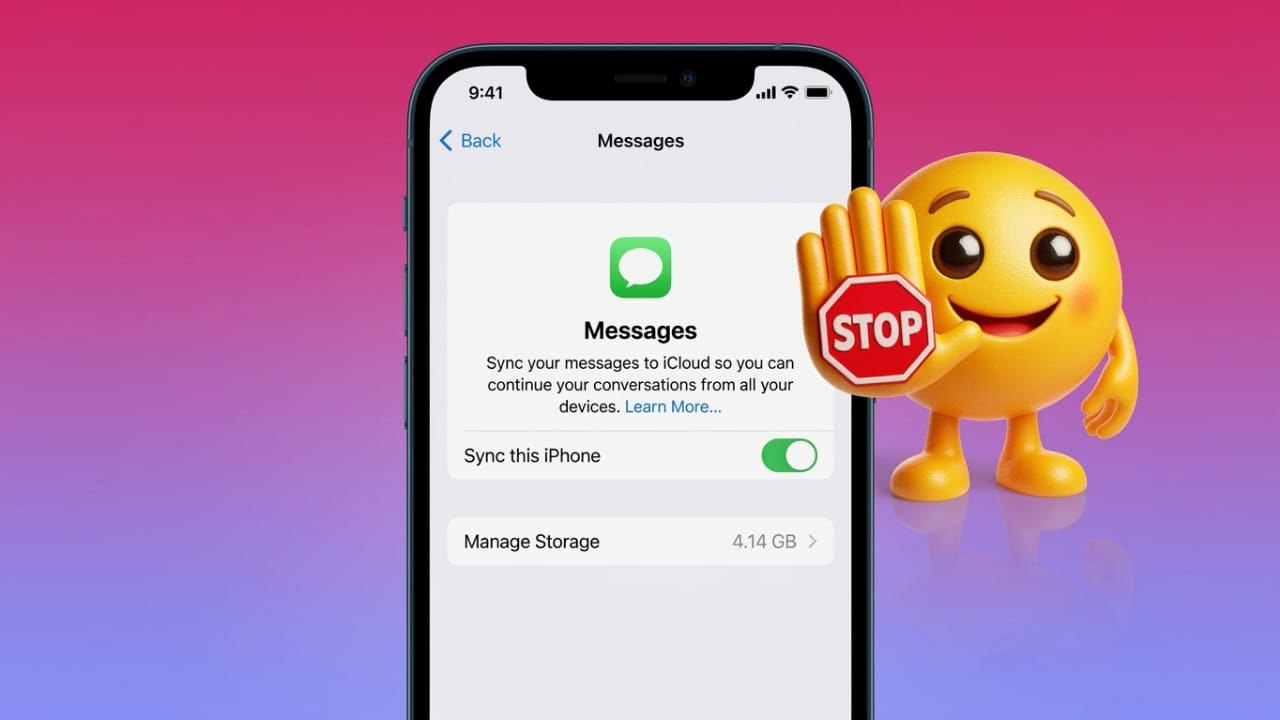
Apple’s iMessage is designed to keep your conversations updated on every Apple device you use. When you send or receive a message on your iPhone, the same conversation can instantly appear on your iPad, Mac, and even your Apple Watch. This works through your Apple ID and iCloud account.
While this feature is helpful for many people, it can also become distracting. Notifications may appear on multiple devices at the same time, and sometimes messages show up where you don’t want them. If you prefer more control over where your messages appear, you can easily adjust the settings.
This guide explains how to stop iMessage syncing across devices and how to manage notifications if they become overwhelming.
Also read: Copy on iPhone and Paste on Mac: A Simple Guide to Apple Universal Clipboard
Why iMessage Appears on All Apple Devices
Apple connects all your devices through a single Apple ID. When iMessage is enabled, conversations are automatically synchronized across those devices. This allows you to start a chat on one device and continue it on another without losing the conversation.
However, constant message alerts can interrupt your focus. For example, notifications might pop up while you are watching a movie, working on your Mac, or attending a meeting. If you share your Apple ID with family members, synced messages may also reduce privacy.
Another issue some users experience is unexpected sign-outs. When iMessage signs out automatically, messages may switch from blue bubbles (iMessage) to green bubbles (SMS). In that situation, sending or receiving messages may not work as expected until the connection is restored.
How to Stop iMessage on an iPad
If you want to prevent your iPhone messages from appearing on your iPad, you can disable iMessage on the iPad itself.
Follow these steps:
- Open the Settings app on your iPad.
- Scroll down and tap Messages.
- Turn off the iMessage switch.
Once disabled, messages from your iPhone will no longer appear on the iPad.
If iMessage keeps turning off or behaving strangely, you may need to check a few additional settings.
Check Apple’s Service Status
Sometimes the issue is not related to your device. Apple services occasionally experience temporary outages.
You can check the Apple System Status page online to see if iMessage is working normally. If there is a server issue, the best solution is simply to wait until the service is restored.
Restart iMessage and FaceTime
Turning these services off and on again can refresh the connection.
Steps:
- Open Settings.
- Tap Messages and switch iMessage off.
- Go back and tap FaceTime.
- Turn FaceTime off as well.
- Restart your device.
- Turn both features back on after the restart.
This simple reset often resolves temporary syncing problems.
Check Your Internet Connection
iMessage relies on a stable internet connection. Weak Wi-Fi or mobile data signals can cause messages to stop syncing or lead to random sign-outs.
Try these tips:
- Move closer to your Wi-Fi router.
- Avoid placing the router near appliances that create interference, such as microwaves.
- Place the router in a higher, open location for better coverage.
You can also test your internet speed using websites like Fast.com or Ookla Speedtest. Slow speeds or high latency may affect messaging performance.
If your connection seems unstable, restarting your modem and router may help.
Basic restart process:
- Turn off your device.
- Unplug your modem and router.
- Wait about 30 seconds.
- Plug them back in and wait until the lights stabilize.
- Turn your device back on.
Check Storage Space
Low storage can sometimes cause unexpected system problems.
To check storage:
- Open Settings.
- Tap General.
- Select Device Storage.
If your device is nearly full, consider removing unused apps, large videos, or old files. Freeing up space can improve overall stability.
Verify Date and Time Settings
Incorrect time settings may interfere with certain services.
To check:
- Open Settings.
- Tap General.
- Select Date & Time.
- Enable Set Automatically.
If the option is already on, try turning it off and back on again.
Reset Network Settings
If connection problems continue, resetting network settings may help. This clears saved Wi-Fi networks and reconnects your device from scratch.
After the reset, you will need to enter your Wi-Fi passwords again.
Managing iMessage on a Mac
Messages also sync with Macs that are signed into the same Apple ID. If desktop notifications interrupt your work, you have two choices: sign out of iMessage or simply disable notifications.
Sign Out of iMessage on Mac
- Open the Messages app.
- Click Messages in the top menu bar.
- Select Preferences.
- Go to the iMessage tab.
- Click Sign Out.
After signing out, messages will stop syncing to the Mac.
Turn Off Only Notifications
If you want to keep using iMessage on your Mac but avoid alerts:
- Click the Apple menu.
- Open System Settings (or System Preferences).
- Select Notifications.
- Choose Messages from the list.
- Turn off Allow Notifications.
This allows messages to appear in the app without showing alerts.
Managing iMessage Alerts on Apple Watch
Apple Watch mirrors notifications from your iPhone. Although you cannot sign out of iMessage directly on the watch, you can control how alerts appear.
To adjust settings from your iPhone:
- Open the Watch app.
- Tap My Watch.
- Select Messages.
- Choose Custom.
- Turn off Show Alerts.
This will stop message notifications from appearing on the watch.
You can also mute individual alerts directly on the watch by swiping left on a notification and selecting a mute option.
Other Tips if iMessage Keeps Signing Out
If problems continue, consider these additional steps:
- Restart your devices occasionally to clear temporary glitches.
- Make sure your Apple ID password is correct.
- Confirm that two-factor authentication is working properly.
- Check that messages are being sent from the correct phone number.
In rare situations, restoring your device from an earlier backup may help resolve persistent issues.
Also read: How to Set Up Calling Cards on Android and Personalize Your Caller Screen
Final Thoughts
iMessage syncing can be convenient because it keeps conversations updated across all Apple devices. However, constant alerts and automatic syncing may not suit everyone.
By adjusting your settings, you can decide exactly where messages appear and how notifications behave. Turning off iMessage on specific devices or disabling alerts can create a quieter and more focused experience while still keeping your messages accessible where you need them.

Jatin Rajput (Tech Golu) — Tech blogger & YouTuber with 6+ years of experience in WhatsApp, Instagram, Facebook, and mobile guides. Founder of TechGolu.in.