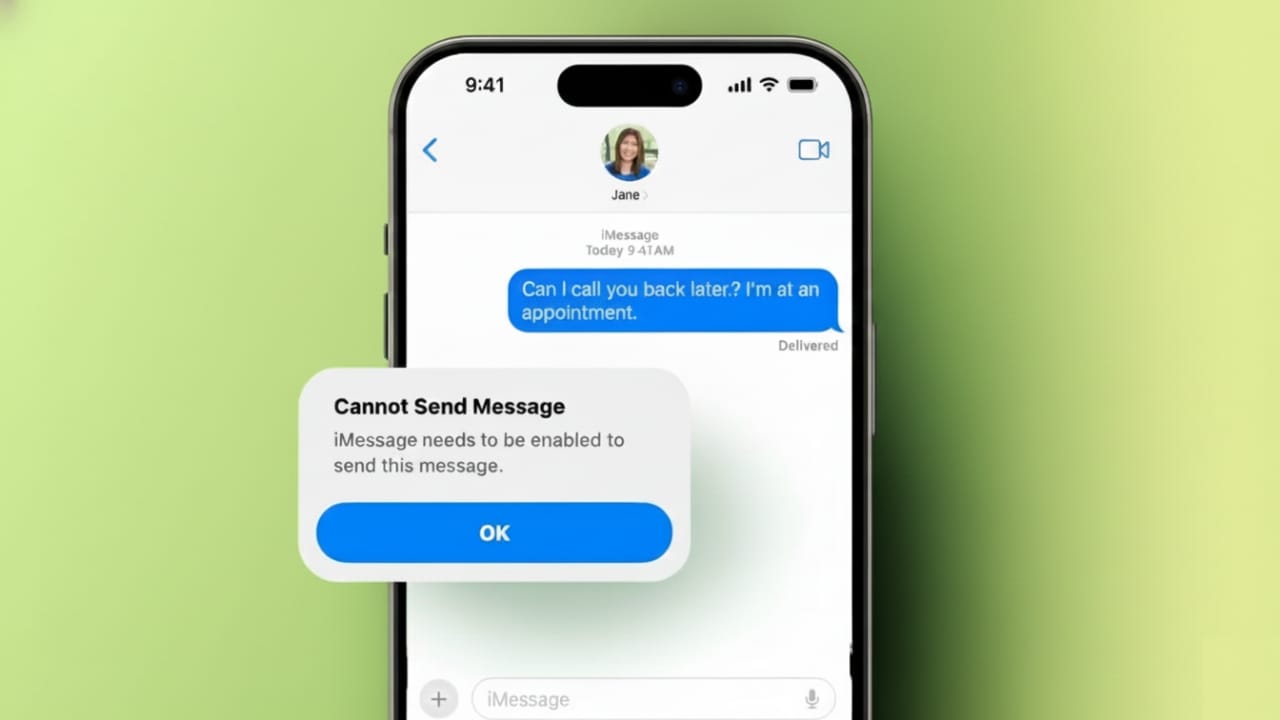
Seeing the message “iMessage Needs to Be Enabled” can be frustrating, especially when you are trying to send an important text. Even more confusing is when iMessage already appears to be turned on. This issue can show up on iPhone, iPad, or Mac and may stop messages from sending properly.
The good news is that this problem is usually easy to fix. Below is a clear, beginner-friendly guide that explains what the error means, why it happens, and how you can solve it step by step.
Also read: How to Hide Contacts on iPhone Without Removing Them
What This Error Actually Means
This warning appears when iMessage is not fully active in the background. Even if the switch looks enabled, your device may not be properly connected to Apple’s messaging service.
In many cases, your phone number or Apple ID is not verified correctly. Because of this, the system cannot send messages through iMessage. Network issues, account settings, or temporary server problems are common triggers.
Once you understand the cause, fixing the error becomes much simpler.
Common Reasons Behind the Problem
This issue can appear for several everyday reasons:
- Weak internet connection: Unstable Wi-Fi or mobile data can interrupt iMessage activation.
- VPN interference: Some VPN apps block Apple’s servers.
- Software glitches: Minor bugs in iOS or macOS can stop services from working properly.
- Outdated system version: Older software may not sync well with Apple services.
- Apple ID issues: Incorrect sign-in details or verification failures can break iMessage.
- Carrier setting conflicts: Network updates may temporarily affect messaging.
- Restrictions: Screen Time settings can block Messages without you noticing.
- Apple server downtime: Sometimes the issue is on Apple’s side, not yours.
Step-by-Step Ways to Fix the Error
Start with these simple solutions before moving to advanced ones.
1. Turn iMessage Off and On
Go to Settings → Messages and switch iMessage off. Wait a few seconds, then turn it back on. Give it a moment to activate.
2. Restart the Messages App
Close the Messages app completely from the app switcher. Reopen it after a few seconds and try again.
3. Restart Your Device
Power off your iPhone, iPad, or Mac. Wait about a minute, then turn it back on. This clears many temporary system issues.
4. Use Airplane Mode
Turn on Airplane Mode for 10 seconds, then turn it off. This refreshes your network connection.
5. Check Apple’s System Status
Sometimes iMessage is down for everyone. Check Apple’s system status page. If iMessage is unavailable, wait until the service is restored.
6. Delete the Failed Message
Remove the message that did not send or delete the entire conversation. Then try sending a new message.
7. Reset Network Settings
Go to Settings → General → Transfer or Reset iPhone → Reset → Reset Network Settings.
This will erase saved Wi-Fi and mobile settings but will not delete your data.
8. Re-set Up iMessage Account
Open Settings → Messages → Send & Receive.
Remove all listed numbers and email addresses. Sign out of your Apple ID, restart the device, then sign in again and re-enable iMessage.
9. Enable “Send as SMS”
Turn on Send as SMS in Messages settings. This allows messages to go as regular texts if iMessage fails.
How to Properly Enable iMessage on Apple Devices
- On iPhone or iPad:
Go to Settings → Messages, turn on iMessage, and sign in with your Apple ID. Enable Messages in iCloud for syncing. - On Mac:
Open the Messages app, sign in with the same Apple ID, and select your phone number or email for messaging.
Using the same Apple ID on all devices ensures smooth message syncing.
An Optional Way to Handle Messages on a Computer
Some users prefer managing messages from a computer instead of switching devices. Tools like AirDroid Personal allow you to view and reply to messages from a PC. Notifications, messages, and files stay organized in one place, making daily communication easier.
Also read: How to Make Your iPhone Flash for Calls, Messages, and Notifications
Final Thoughts
The “iMessage Needs to Be Enabled” error may look serious, but it is usually caused by simple setting or network issues. In most cases, restarting the device, refreshing iMessage, or resetting network settings solves the problem quickly.
If none of these steps work, contacting Apple Support is the safest option. With the right approach, iMessage can be restored without stress and without losing your data.

Jatin Rajput (Tech Golu) — Tech blogger & YouTuber with 6+ years of experience in WhatsApp, Instagram, Facebook, and mobile guides. Founder of TechGolu.in.