There are many situations where you need to use the same mobile data connection on more than one device. Whether you are working, studying, or just browsing the web, internet access has become essential. Instead of relying on weak or unsafe public Wi-Fi, you can use your own phone’s data to create a secure connection for multiple devices.
Modern smartphones and computers help you do this easily. Here’s how.
Sharing Mobile Data from a Smartphone
Most phones let you turn your mobile data into a mini wireless router. Both iPhones and Android phones include built-in hotspot options, making the process quick and easy.
Also read: How to Stop Spam Calls in India – Simple Tips for Android, iPhone, and Landline Users
Using an iPhone or iPad
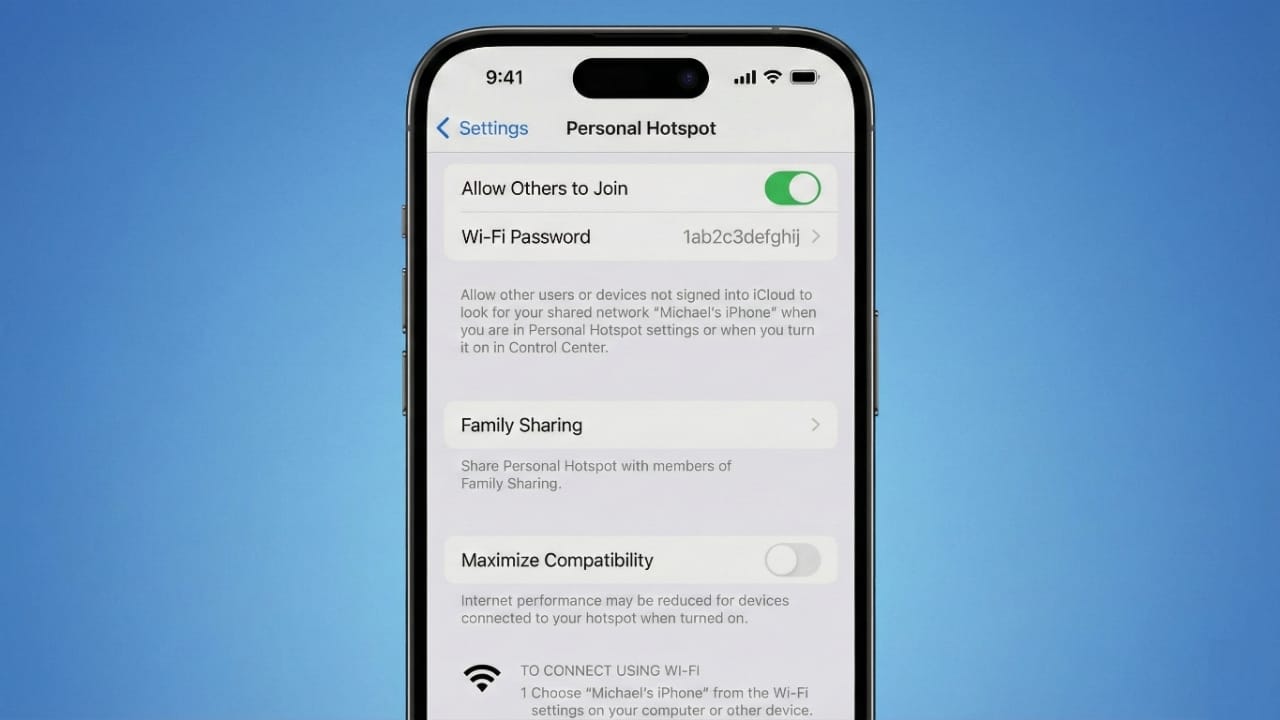
Apple devices offer a feature called Personal Hotspot.
To use it:
- Go to Settings and open Personal Hotspot.
If you don’t see it, check under Mobile Data. - Switch on Allow Others to Join.
- Set or update the Wi-Fi password to keep your connection secure.
Once enabled, other devices can connect by selecting your iPhone’s Wi-Fi name and typing the password.
Using an Android Smartphone
Android phones have a similar option called Mobile Hotspot.
Steps to turn it on:
- Open Settings → Connections → Mobile Hotspot and Tethering.
- Enable Mobile Hotspot.
- Change the default password so only trusted users can join.
On another device, just search for your phone’s hotspot name and enter the password.
What is Tethering?
Tethering means sharing your mobile data with another device. A hotspot uses Wi-Fi, but tethering can also work through:
- USB cable
- Bluetooth
- Wi-Fi
So even if wireless signals are weak, you still have other choices.
Advanced Sharing with Speedify Pair & Share
For users who share connections often, Speedify’s Pair & Share makes the setup stronger. Multiple devices combine their internet sources, creating one fast and stable network.
This helps with things like:
- Video calls
- Live streaming
- Downloading or uploading files
The connection remains encrypted, and you can manage who joins or disconnects at any time.
Sharing Mobile Data Using a Computer
You can also share internet from a PC or Mac. This is useful when your computer has a reliable connection and other devices don’t.
Sharing Data with a Windows PC
Windows 10 allows you to create a hotspot:
- Open Start Menu → Settings → Network & Internet → Mobile Hotspot.
- Select which connection you want to share.
- Click Edit to name the Wi-Fi network and set a password.
- Turn on Share my internet connection with other devices.
Now other devices can connect to your PC’s Wi-Fi.
Sharing Data with a Mac
Mac computers have a tool called Internet Sharing.
Steps:
- Open Apple Menu → System Settings → General → Sharing.
- Select Internet Sharing.
- Choose the connection you want to share.
- Pick how other devices will connect — usually Wi-Fi.
- Set the Wi-Fi name and password, then enable the sharing.
This is useful when the Mac is on wired internet and nearby phones need Wi-Fi.
When Sharing Data Becomes Useful
Sharing data comes in handy in many situations such as:
- While Travelling: Family or coworkers can remain connected on the go.
- Remote Work: If your home Wi-Fi fails, your laptop can use your phone’s data instantly.
- Events or Conferences: Internet in public venues often slows down; sharing creates a stable connection.
- Emergencies: When regular internet is down, hotspot connectivity keeps communication going.
Using secure settings helps protect your data, and you stay in control of who connects.
Also read: How Instagram’s Collaborative Posts Feature Helps Creators Grow
Final Thoughts
Sharing mobile data with multiple devices is a convenient option when regular Wi-Fi is unavailable or unreliable. Both smartphones and computers offer simple tools to get everyone connected. Whether you’re travelling, working, or handling emergencies, these methods help you stay online without complications.

Jatin Rajput (Tech Golu) — Tech blogger & YouTuber with 6+ years of experience in WhatsApp, Instagram, Facebook, and mobile guides. Founder of TechGolu.in.