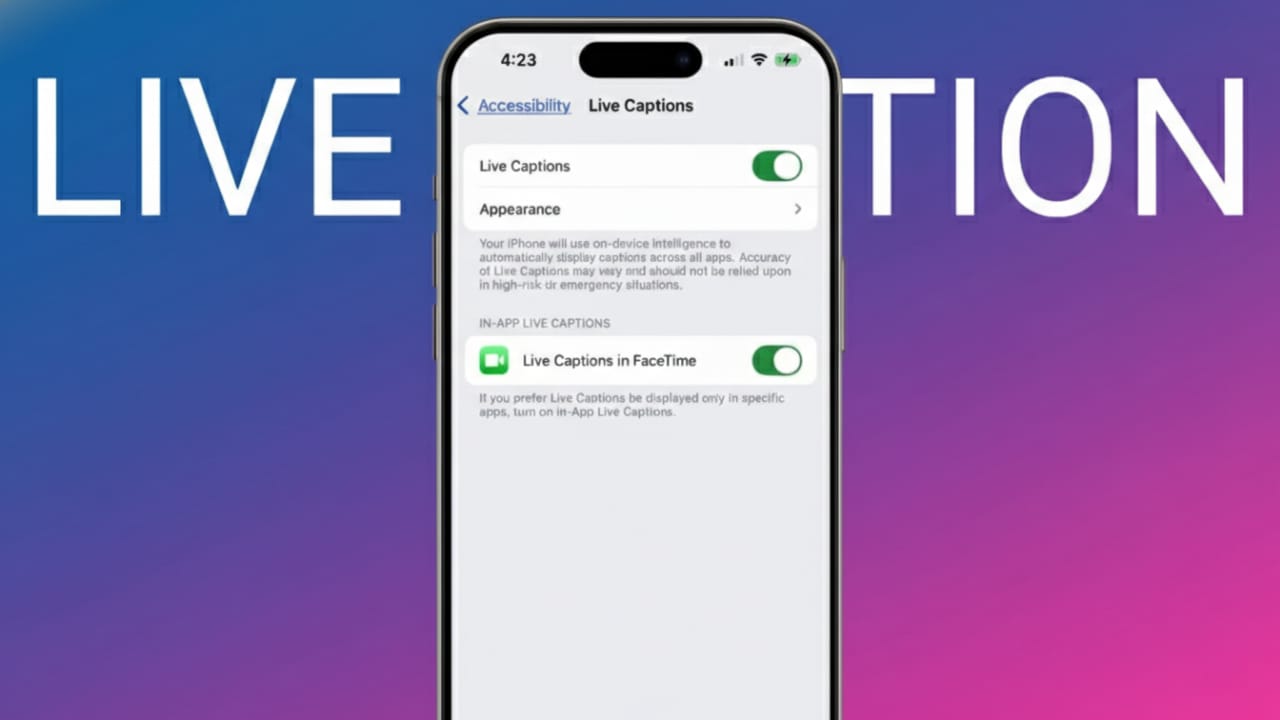
Live Captions on Apple devices convert spoken words into on-screen text in real time. This feature is useful during phone calls, online meetings, videos, and even face-to-face conversations. It helps when audio is unclear or when reading feels easier than listening.
Many people struggle to hear clearly in crowded or noisy places. Live Captions help solve that problem by showing what’s being said as text. The feature works across iPhone, iPad, and Mac, and setting it up takes only a few minutes.
Also read: Best Audiobook Apps for iPhone and Android to Use in 2026
What Live Captions Do and Why They’re Useful
Live Captions automatically turn speech into text as someone talks. Unlike traditional subtitles, which are written in advance, these captions are created instantly based on live audio.
They work with system audio and microphone input, which means you can use them for calls, videos, and nearby conversations.
You can use Live Captions for:
- Normal phone calls
- FaceTime audio and video calls
- Online meetings and video conferences
- Social media videos
- Movies and TV shows
- Podcasts and other audio content
- In-person conversations using the microphone
Captions appear in a small floating window near the top of the screen. The text updates continuously while people speak.
When possible, the system can recognize different speakers. If a speaker is saved in your contacts, their name and photo may appear with the captions.
Privacy and Accessibility
Live Captions are designed with privacy in mind. All speech processing happens directly on your device. Audio is not sent to external servers.
Apple built this feature mainly to support accessibility needs. It is especially helpful for people who are deaf or hard of hearing. It’s also useful in loud environments or situations where sound cannot be played out loud.
Live Captions were introduced with iOS 16 as part of Apple’s accessibility tools. At the moment, the feature mainly supports English, and availability may vary by region.
Device and Software Requirements
Before turning on Live Captions, make sure your device meets these requirements.
Software
- iOS 16 or later
- iPadOS 16 or later
- macOS Ventura or later
Hardware
- iPhone 11 or newer
- iPad with an A12 Bionic chip or newer
- Mac with Apple Silicon (M1 or later)
When enabling the feature for the first time, language files will download. An internet connection is needed only for this initial setup.
How to Enable Live Captions on iPhone
- Open Settings
- Tap Accessibility
- Scroll to the Hearing section
- Select Live Captions
- Turn on the toggle
Once enabled, captions will appear automatically whenever audio is detected.
How to Enable Live Captions on iPad
The steps on iPad are the same as on iPhone. The menus and layout look nearly identical, so you can follow the same instructions without changes.
Customize Caption Appearance
You can adjust how captions look to match your preference.
Options include:
- Changing text size
- Selecting font color
- Adjusting background color
- Modifying text transparency
Using larger text and higher contrast can make captions easier to read, especially outdoors or in bright lighting.
Using Live Captions During FaceTime Calls
You can turn on Live Captions during an active FaceTime call.
- Start a FaceTime call
- Tap the information button
- Enable Live Captions
Other participants will hear a brief sound to let them know captions are active. This keeps the process transparent for everyone.
System-Wide or App-Specific Use
Live Captions can be enabled for all device audio or limited to specific apps. You can choose which calling or media apps use captions, depending on your needs.
Quick Access with Accessibility Shortcuts
For faster access, you can assign Live Captions to an accessibility shortcut.
- Go to Accessibility settings
- Open Accessibility Shortcut
- Select Live Captions
After this, you can activate captions by triple-clicking the Side button (or the Top button on some iPads). You can also add it to the Control Center.
Call Caption Storage Options
You can control how long captions are saved after a call.
Delete After 1 Minute
- Captions disappear quickly
- Text cannot be copied
- Screenshots and screen recordings are blocked
Keep for 1 Hour
- Captions remain for one hour
- Text can be copied
- Screenshots and recordings are allowed
When captions are saved, participants hear an alert. If transcription stops and starts again, another alert plays.
Using the Caption Window
Tapping the floating caption window gives you several controls:
- Switch between microphone and device audio
- Pause or resume captions
- Copy caption text
- Clear old captions
- Expand the window to full screen
- Move the window anywhere on the screen
- Hide captions temporarily with a swipe
The window automatically disappears when no sound is detected.
Live Captions on Mac
On Mac, Live Captions work across the entire system, including calls, videos, and meeting apps.
How to Turn It On
- Click the Apple menu
- Open System Settings
- Select Accessibility
- Choose Live Captions
- Turn on the toggle
Language files will download the first time, so an internet connection is required.
Once enabled, captions appear in a floating window whenever audio plays.
Mac Caption Controls
The Mac version offers extra flexibility. You can:
- Pause and resume captions
- Switch between microphone and system audio
- Resize the caption window
- Move it anywhere on the screen
- Keep it visible at all times
- Reset it to the default position
- Use keyboard shortcuts for faster control
Type-to-Speak on Mac
Mac also includes a Type-to-Speak option within Live Captions.
Open the caption window, type your message, and press Return. The Mac will read the message aloud. This is helpful for users who cannot speak during calls or meetings.
Accuracy and Limitations
Live Captions are helpful but not perfect. Clear audio improves results, while background noise can reduce accuracy. Fast speech, strong accents, or overlapping voices may cause mistakes or delays.
Captions focus only on spoken words. They do not describe music, tones, or sound effects like traditional closed captions.
Language support is still limited, and the feature should not be used for emergencies or situations that require exact wording. It’s meant for everyday assistance, not professional transcription.
Also read: How to Properly Set Up a New iPad in 2026 (Beginner-Friendly Guide)
Final Thoughts
Live Captions on iPhone, iPad, and Mac make communication easier during calls, videos, and conversations. They are simple to set up, work across devices, and keep your data private by processing everything on-device.
While accuracy can vary, the feature is a reliable daily support tool. Used wisely, it can make listening and understanding much more comfortable in many situations.

Jatin Rajput (Tech Golu) — Tech blogger & YouTuber with 6+ years of experience in WhatsApp, Instagram, Facebook, and mobile guides. Founder of TechGolu.in.