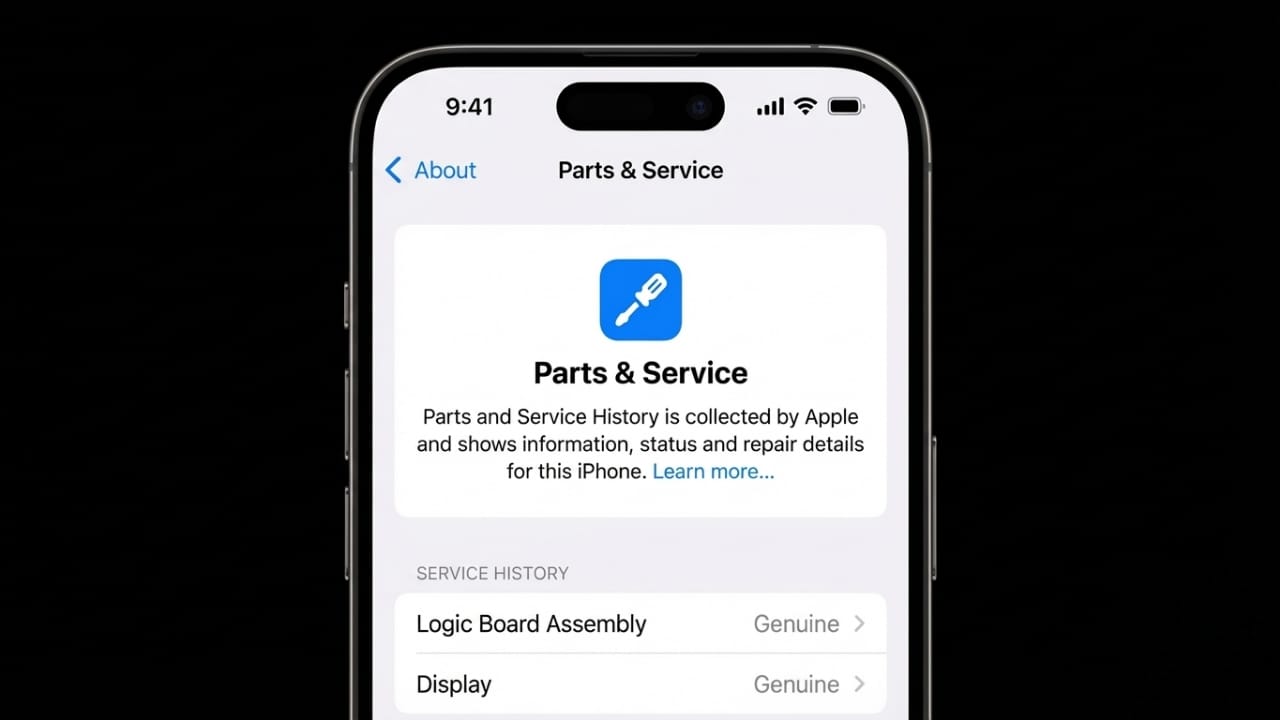
Apple offers a built-in way to view repair details on an iPhone. This feature is called Parts and Service History, and it appears directly in the phone’s settings. Many users overlook it, but it plays an important role in safety, trust, and resale value.
This guide explains what the feature does, how it works, when to check it, and why it matters in everyday use.
Also read: How to Fix an Unresponsive iPhone Touchscreen (Step-by-Step Guide)
What Parts and Service History Actually Shows
Parts and Service History is an official Apple feature that automatically records major hardware repairs. It works without any extra apps and updates itself whenever a supported component is replaced.
The section lists important parts such as the battery, display, cameras, and other system components. It also tells you whether those parts are genuine Apple components or something Apple cannot verify.
Apple introduced this feature with iOS 15.2. Older software versions do not support it. Most older devices, such as iPhone X and earlier models, also do not include this option.
The main goal is transparency. It helps users confirm repair claims, avoid scams, and understand what has been changed inside their phone.
Why This Feature Is Important
Knowing your phone’s repair history protects both buyers and owners.
- It confirms whether original Apple parts were used
- It warns about unknown or risky replacements
- It helps detect poor-quality repairs early
- It maintains device performance and stability
- It increases resale and trade-in value
Genuine Apple parts are designed to work smoothly with iOS. They last longer, perform better, and reduce the chance of unexpected issues.
How Parts and Service History Works
Apple uses both hardware and software checks to track repairs. Each major iPhone component has a unique identifier that pairs securely with the device’s logic board.
When a repair is done through Apple or an authorized provider, the replacement is logged in Apple’s system. iOS then checks this data against Apple’s database.
- Verified parts appear without warnings
- Unverified parts trigger alerts
- The process runs automatically in the background
For some repairs, calibration is required. This step must be completed through Apple’s systems. If calibration is skipped or incomplete, the phone may show warning messages later.
An internet connection is needed for verification. Without it, details may not load correctly.
When You Should Check Service History
You should review this section in several situations.
Before buying a used iPhone
- Confirm repair claims made by the seller
- Check for genuine Apple components
- Avoid hidden hardware problems
After repairing your iPhone
- Make sure the repair was completed properly
- Confirm calibration is finished
- Ensure no warning messages appear
While fixing performance issues
- Fast battery drain
- Face ID or Touch ID not working
- Camera or display problems
Before selling or trading your device
- Buyers often check repair history
- Genuine parts increase trust
- Clean history improves resale value
iPhone Models That Support This Feature
Apple added support gradually across different models.
- Battery history: iPhone XR and newer
- Display history: iPhone 11 series and newer
- Camera and rear system history: iPhone 12 and newer
- TrueDepth and Face ID tracking: newer models only
- Used genuine parts support: iPhone 15 and newer
For reused parts, the original device must not be Activation Locked.
How to View Parts and Service History
Follow these simple steps:
- Open Settings
- Tap General
- Select About
- Look for Parts and Service History
- Tap it to see replaced components
Each listed part may show additional details, including the service date.
Make sure your phone is connected to the internet. If you see a “Finish Repair” message, calibration is not complete and some features may remain disabled.
Understanding the Labels You See
Apple uses clear terms to describe part status.
Genuine Apple Part
- Installed by Apple or an authorized provider
- Properly paired and calibrated
- No feature limitations
- Best performance and safety
Used Apple Part
- Genuine Apple component reused from another device
- Appears on newer models
- Verified by Apple systems
- Officially supported
Unknown Part
- Apple cannot verify the component
- May be third-party or improperly installed
- Some features may not work
- Performance and safety risks possible
Finish Repair
- Setup or calibration not completed
- Certain features may be disabled
- Requires follow-up with service provider
Problems Linked to Unknown Parts
Unknown parts may seem fine at first, but issues can appear later.
Display issues
- Inconsistent brightness or colors
- True Tone not working
- Touch problems
- Screen staying active during calls
Battery issues
- Shorter usage time
- Fast charging not working
- Excessive heating
- Faster battery wear
Camera issues
- Face ID failure
- Lower photo quality
- Portrait mode problems
- App crashes or black screens
System Warnings and Repeated Alerts
When iOS detects an unknown part, it shows a warning after unlocking the device. Another alert appears a few days later. These messages highlight potential safety and performance risks.
Unresolved issues may also appear in service history. Problems with the TrueDepth system can disable Face ID entirely. In such cases, contacting a service provider is strongly recommended.
What to Do If You See Unknown Parts
You have a few practical options:
- Visit an Apple Authorized Service Provider
- Replace the component with a genuine Apple part
- Decide if the current performance meets your needs
If you recently bought the device, you can also negotiate the price or return it to avoid future problems.
Best Practices to Maintain a Clean Service Record
- Choose Apple or authorized repair centers
- Avoid cheap, unverified repair shops
- Complete calibration after every repair
- Check service history before accepting your phone
- Keep repair receipts
- Keep iOS updated
Also read: How to Transfer Songs from Your iPod to Your Computer (Simple Guide)
Final Thoughts
Parts and Service History is a small but powerful feature. It builds trust, improves safety, and protects your iPhone’s value. Buyers avoid scams, sellers gain credibility, and owners catch issues early.
By choosing proper repairs and checking this section regularly, you protect your device and your investment in the long run.

Jatin Rajput (Tech Golu) — Tech blogger & YouTuber with 6+ years of experience in WhatsApp, Instagram, Facebook, and mobile guides. Founder of TechGolu.in.