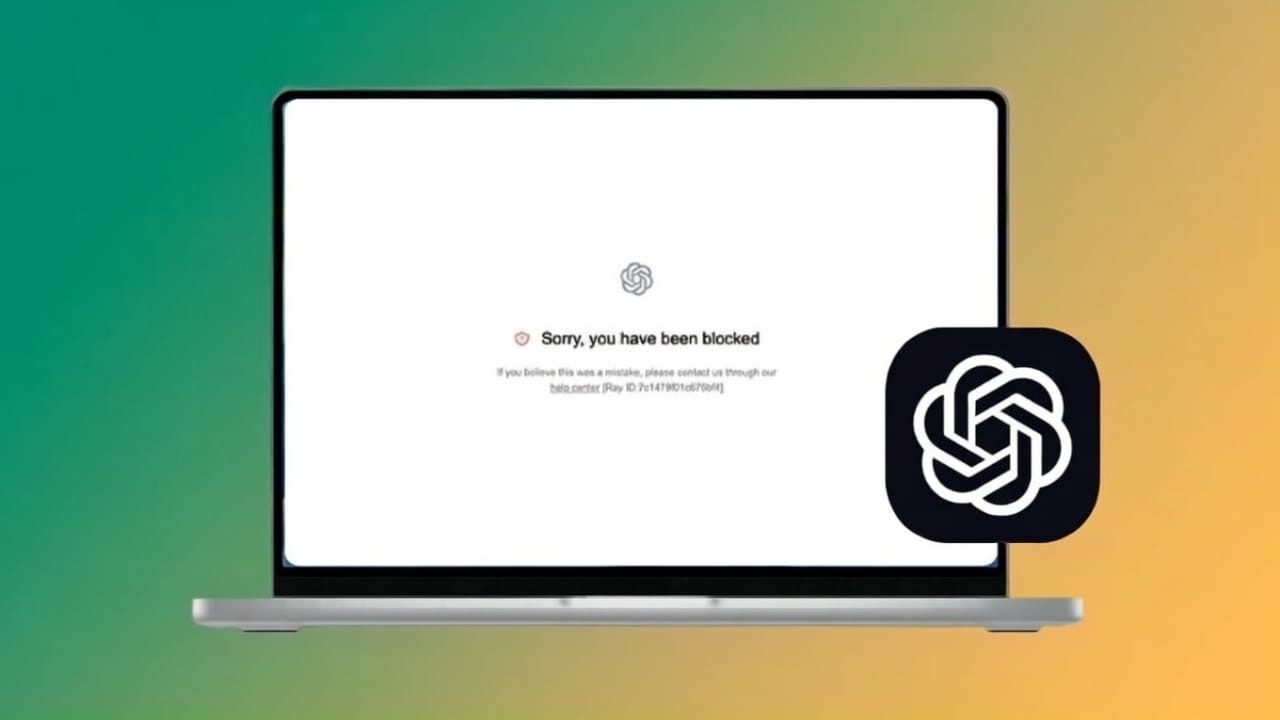
If ChatGPT suddenly stops working and shows a blocked message, it can be confusing. Many users see this error without any clear reason. The good news is that, in most cases, the problem is temporary and easy to fix. This guide explains why the block happens and how you can solve it step by step, using safe and AdSense-friendly methods.
Also read: How to Protect Your OpenAI Account Using Passkeys (Easy Security Guide)
Why the ChatGPT Blocked Error Appears
ChatGPT uses automatic systems to keep the platform secure and fair for everyone. Sometimes, these systems block access when they notice unusual activity. The block can be short-term or, in rare cases, last longer. Most users face this issue because of network or browser-related reasons, not because they did anything serious.
Common Causes of the ChatGPT Blocked Error
Below are the most frequent reasons explained in simple terms.
1. Using a VPN, Proxy, or Tor
VPNs and proxy tools hide your real IP address. This can look suspicious to security systems. Tor browsers increase this risk even more. Because of this, ChatGPT may block access.
2. Shared or Public Internet Connections
Public Wi-Fi in schools, offices, or cafes often uses one IP address for many people. If one person misuses the service, everyone on that network may get blocked.
3. Unusual Account Activity
Too many login attempts, repeated wrong passwords, or spam-like prompts can trigger security checks. These actions may lead to temporary restrictions.
4. Automated Scripts or Bots
ChatGPT is designed for human use. Tools that send requests automatically or too quickly can be detected and blocked right away.
5. Problematic Browser Extensions
Some extensions change how websites load. Ad blockers, privacy tools, or script modifiers can interfere with ChatGPT and cause access issues.
6. Network or Regional Restrictions
In some areas, internet routing problems or local filters can interrupt secure connections, which may result in a block message.
Step-by-Step Solutions That Usually Work
Try the following fixes one by one. Most users regain access after trying a few of these.
Step 1: Turn Off VPN or Proxy
Disable any VPN or proxy settings on your device. Avoid using Tor. Refresh the ChatGPT website after turning them off.
Step 2: Change Your Internet Network
Move away from public Wi-Fi. Use mobile data or a personal hotspot instead. Restart your router to get a new IP address if possible.
Step 3: Clear Browser Cache and Cookies
Old or corrupted data can cause problems.
How to clear browser data:
- Open your browser settings
- Go to Privacy or Security
- Choose “Clear browsing data”
- Select cookies and cached files
- Clear the data, then restart the browser
Step 4: Disable Browser Extensions
Temporarily turn off all extensions to see if one is causing the issue.
Steps:
- Open the extensions page in your browser
- Disable all active extensions
- Reload the ChatGPT site
- Turn extensions back on later, one by one
Step 5: Check Your Internet Stability
Slow or unstable connections can cause repeated disconnections. Switch to a stronger network or reconnect your Wi-Fi or mobile data.
Step 6: Update Your Browser
Older browser versions may fail security checks. Update your browser to the latest version and restart it.
Step 7: Use Private or Incognito Mode
Private mode runs without saved cookies or extensions. Open a new private window and visit the ChatGPT website directly.
Step 8: Try a Different Browser
Some issues are browser-specific. If one browser fails, test another like Chrome, Edge, Firefox, or Safari.
Advanced Tips to Prevent Future Blocks
These steps help reduce the chances of getting blocked again.
Follow Usage Rules Carefully
Use ChatGPT responsibly. Avoid spam, harmful content, or automated actions. Staying within usage limits is important.
Avoid Repeated Login Failures
If a login fails, wait before trying again. Double-check your password to avoid triggering security locks.
Create a New Account Only If Needed
This should be the last option. Use a new email and a clean network connection. Avoid repeating past mistakes.
Try a Different Device
Logging in from another phone or computer can help, as it provides a fresh system environment.
Contact Support If the Block Continues
Some cases need manual review.
How to contact support:
- Visit the official help center
- Submit a support request
- Include your account email and error details
Check Community Discussions
User forums often contain real-world solutions shared by others who faced the same issue.
Stay Away From Third-Party Automation Tools
Do not use bots or scripts that interact with ChatGPT automatically. Always use the service manually.
Secure Your Account
Use a strong, unique password. Enable extra security options if available and keep an eye on login activity.
Also read: How to Browse the Internet Using ChatGPT Atlas in 2026
Final Thoughts
The ChatGPT blocked error is usually not permanent. In most cases, simple changes like fixing your network, updating your browser, or disabling extensions solve the problem quickly. Avoid VPNs, unstable connections, and suspicious activity.
By following the platform rules and using a clean, stable setup, you can enjoy smooth and uninterrupted access to ChatGPT. If the issue doesn’t go away, reaching out to support is the best next step.

Jatin Rajput (Tech Golu) — Tech blogger & YouTuber with 6+ years of experience in WhatsApp, Instagram, Facebook, and mobile guides. Founder of TechGolu.in.