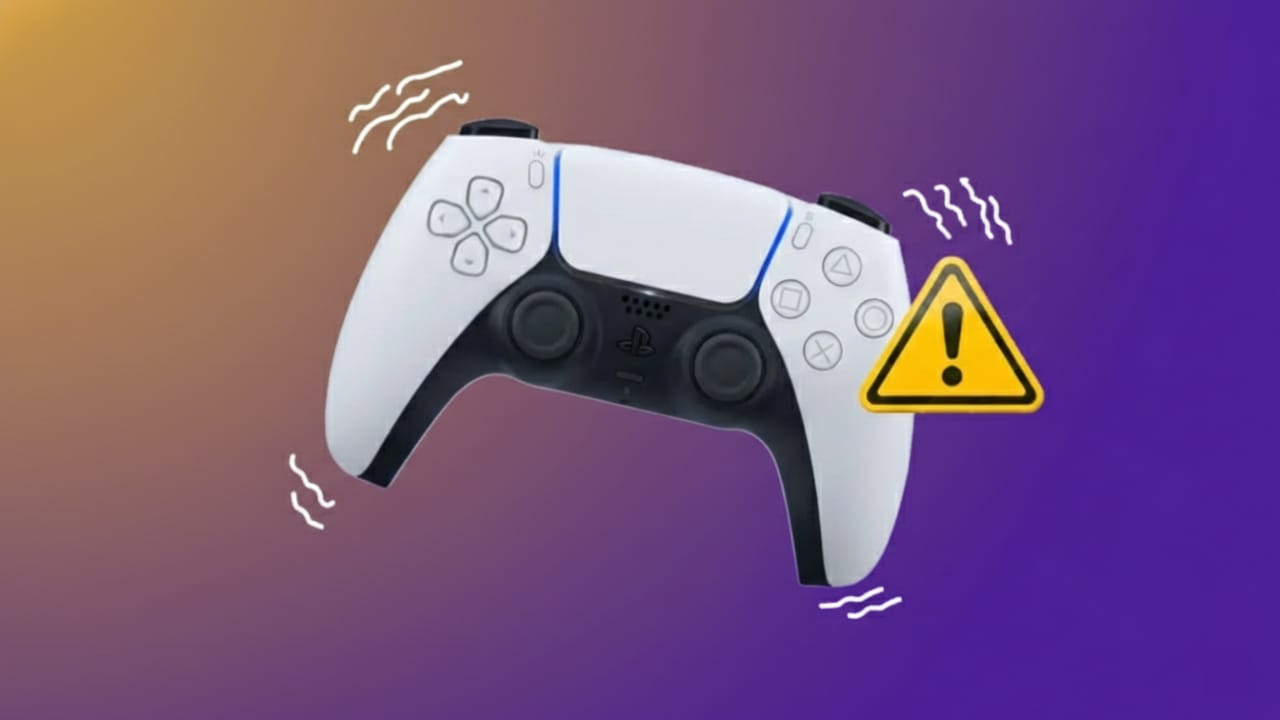
Vibration plays a big role in making games feel real. The PS5 DualSense controller is known for its strong haptic feedback, especially in action, racing, and shooting games. When that vibration stops working, gameplay can feel dull and incomplete.
If your PS5 controller is not vibrating, vibrating too lightly, or behaving strangely, don’t worry. Most vibration problems are easy to fix. They usually happen because of settings, software glitches, low battery, or connection issues. In rare cases, hardware damage may be the cause.
Let’s go through all the practical fixes step by step.
Also read: How to Edit and Annotate PDFs on a Mac Without Installing Extra Software
Common PS5 Controller Vibration Problems
Vibration issues can appear suddenly, even if the controller was working fine before. Players often notice problems like:
- No vibration at all in games
- Very weak or uneven vibration
- Vibration stopping after a system update
- Vibration working in some games but not others
- Controller vibrating randomly without any in-game action
When there is no vibration, the internal motors are not responding. Weak vibration reduces the overall gaming experience. Random vibration usually points to a software or firmware bug.
Check PS5 Controller Vibration Settings
Sometimes vibration is turned off by mistake in the system settings. Always check this first.
How to enable vibration on PS5
- Turn on your PS5
- Open Settings from the home screen
- Go to Accessories → Controllers
- Find Vibration Intensity
- Set it to Medium or Strong
Avoid keeping vibration set to Off. After changing the setting, test the controller in a game that supports vibration.
Check Battery Level and Connection
A low battery can weaken vibration performance. Always charge the controller fully before testing.
Bluetooth issues can also reduce vibration strength. If the connection feels unstable, connect the controller using a USB cable and test again.
Check Vibration Settings Inside the Game
Not every game uses DualSense features in the same way. Many games have their own vibration controls.
What to do inside the game
- Open the game with vibration issues
- Go to the game’s Settings menu
- Look for Controller, Gameplay, or Accessibility options
- Enable vibration or haptic feedback
- Restart the game
Some games allow vibration strength adjustments. Others may disable vibration after updates. Testing more than one game helps confirm whether the issue is with the controller or the game itself.
Restart the PS5 and Controller
A simple restart can fix temporary software bugs that block vibration signals.
Restart steps
- Turn off the PS5 completely
- Disconnect the controller
- Wait for about one minute
- Turn the PS5 back on
- Reconnect the controller and test vibration
This quick step fixes many minor problems and should always be tried early.
Reset the DualSense Controller
If vibration still doesn’t work, resetting the controller can help. This restores default settings.
How to reset the PS5 controller
- Turn off the PS5
- Unplug the controller
- Find the small reset hole on the back
- Use a pin to press the button inside
- Hold it for 5 seconds
After resetting, connect the controller to the PS5 using a USB cable. Turn on the console and pair the controller again. Test vibration in a supported game.
Update PS5 System and Controller Software
Outdated software can cause vibration problems. Sony releases updates to fix bugs and improve controller performance.
Update PS5 system software
- Open Settings
- Go to System
- Select System Software Update
- Install any available updates
Update controller firmware
- Connect the controller with a USB cable
- Go to Accessories → Controllers
- Select Wireless Controller Device Software
- Complete the update
Restart the PS5 after updating to ensure changes apply properly.
Test the Controller in Wired Mode
Bluetooth glitches can interfere with vibration feedback.
How to test wired mode
- Connect the controller using a USB cable
- Play a game that supports vibration
- Check if vibration works normally
If vibration works while wired, the issue is likely related to wireless connection or software.
Test the Controller on Another PS5
Trying the controller on a different PS5 helps identify the real cause.
What this tells you
- If vibration works on another console, your PS5 settings may be the issue
- If vibration still doesn’t work, the controller likely has a hardware problem
Possible Hardware Damage
Over time, vibration motors can wear out. Drops, moisture, or internal damage can also cause failure.
Signs of hardware issues
- No vibration in any game
- Buzzing sounds inside the controller
- Vibration stronger on one side only
Battery problems can also weaken vibration, so always test with a fully charged controller.
Clean the Controller Carefully
Dust and dirt can affect internal components.
Basic cleaning tips
- Use compressed air around buttons and triggers
- Clean external areas gently
- Avoid opening the controller if it’s under warranty
Advanced users may open the controller to check for loose wires, but this can void warranty and should only be done with proper knowledge.
Contact Professional Support
If none of the fixes work, professional help may be needed. PlayStation Support can guide you through repair or replacement options.
Controllers under warranty may qualify for free replacement. Third-party repair services are also available, but always compare repair costs with the price of a new controller.
Battery Saving Note
Vibration uses extra battery power. Turning it off can extend battery life.
How to disable vibration
- Open Settings
- Go to Accessories → Controllers
- Set Vibration Intensity to Off
This saves battery but reduces gameplay feedback.
Also read: How to Stop Autoplay Videos on Social Media, Browsers, and Apps
Final Thoughts
Fixing PS5 controller vibration issues usually doesn’t take much effort. Most problems come from settings, updates, or temporary software glitches. Restarting, resetting, and updating the system solve the majority of cases.
Game settings also matter more than many players realize. Hardware damage is less common but may require professional repair. Regular cleaning and keeping software updated can prevent vibration problems in the future.
With a little patience and testing, your DualSense vibration should be back to normal.

Jatin Rajput (Tech Golu) — Tech blogger & YouTuber with 6+ years of experience in WhatsApp, Instagram, Facebook, and mobile guides. Founder of TechGolu.in.