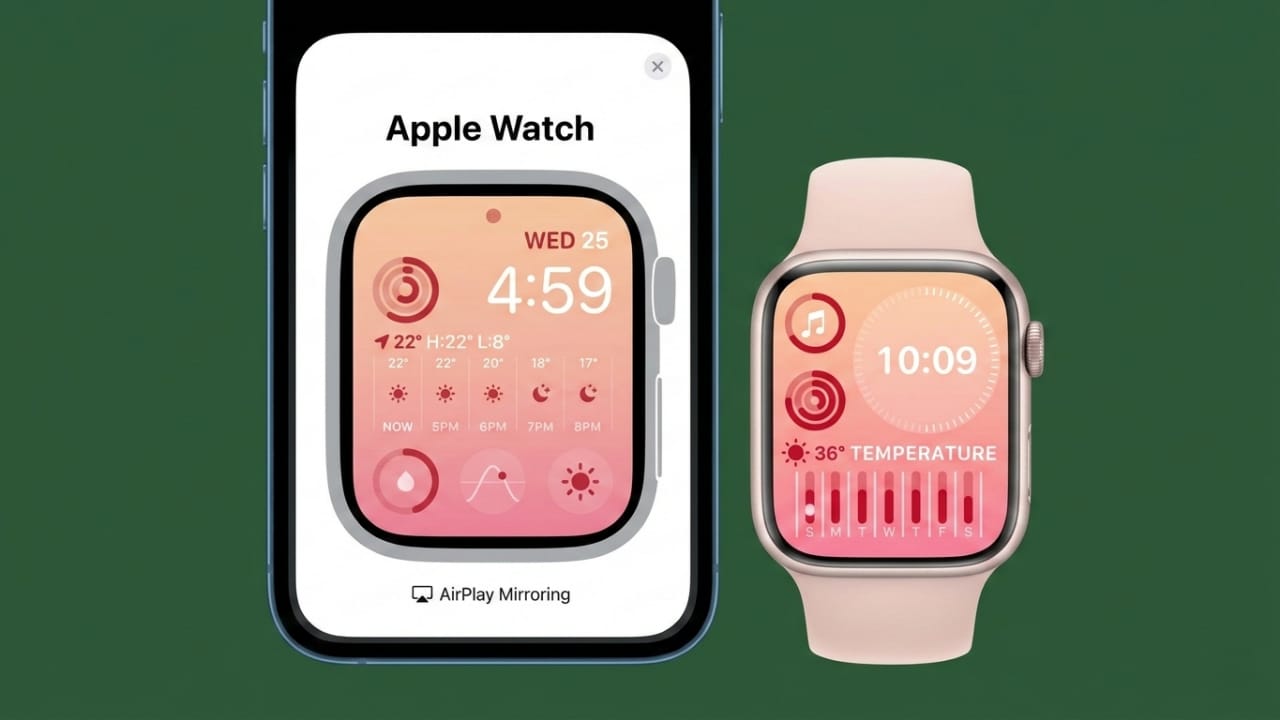
If you’ve ever felt that your watch screen is too small to tap comfortably, Apple Watch Mirroring can help. This feature shows your watch screen live on your iPhone. You can control everything directly from the larger iPhone display.
It’s especially useful for people who find tiny buttons difficult to press. It was first introduced with iOS 16 as an accessibility feature, but many users now rely on it for everyday convenience.
Let’s walk through everything you need to know.
Also read: Fix Snapchat Login Problems: 13 Simple Solutions That Work (2026 Guide)
What You Need Before You Start
Before turning on mirroring, make sure your devices meet these basic conditions:
Software Requirements
- Your iPhone must be running iOS 16 or later
- Your Apple Watch must be running watchOS 9 or later
Older versions may not support this feature properly.
Device Compatibility
Apple Watch Mirroring works with:
- Apple Watch Series 6 and newer models
- Apple Watch Ultra models
- Apple Watch SE
Earlier Apple Watch SE (1st generation) and older models are not supported.
Connection Requirements
- Both devices must stay paired
- Bluetooth must be turned on
- Wi-Fi should be enabled
- Both devices must use the same Apple ID
- Keep the iPhone and Apple Watch close to each other
Mirroring uses AirPlay technology to reflect your watch screen on your phone. You may notice a small delay at times, depending on connection strength. This is normal.
How to Turn On Apple Watch Mirroring
Follow these simple steps:
- Open Settings on your iPhone
- Tap Accessibility
- Select Apple Watch Mirroring
- Turn the toggle switch On
After a few seconds, your Apple Watch screen will appear on your iPhone. Sometimes it may take up to 30 seconds to connect, so give it a moment.
To Turn It Off
Go back to:
- Settings
- Accessibility
- Apple Watch Mirroring
- Switch the toggle Off
Add a Quick Shortcut (Optional)
If you plan to use mirroring often, adding a shortcut makes it faster.
Here’s how:
- Open Settings
- Tap Accessibility
- Scroll down to Accessibility Shortcut
- Select Apple Watch Mirroring
Now you can triple-click the iPhone’s Side button to start mirroring instantly.
How to Control Your Watch from iPhone
Once mirroring is active, your watch display appears on your iPhone screen. You can use normal touch gestures to control it.
Here’s what you can do:
- Swipe up or down to scroll
- Swipe left or right to switch screens
- Tap the Digital Crown icon to open apps or go to the Home Screen
- Tap the Side button icon to open Control Center
- Press and hold the Side button icon for emergency options
- On Ultra models, tap the Action button icon to open workouts
- Touch and hold the Digital Crown icon to activate Siri
- Open apps, reply to messages, and adjust settings
- Enter your watch passcode from your iPhone
Everything works just like using the watch directly — just on a bigger display. This makes daily tasks easier and more comfortable.
Accessibility Features That Work with Mirroring
Apple Watch Mirroring supports several helpful accessibility tools, including:
- Voice Control
- Switch Control
- Sound Actions
- Head tracking
- Made for iPhone external switches
These tools reduce the need for precise tapping and make the watch easier to operate for users with physical limitations.
Tips for a Better Experience
To keep everything running smoothly, try these simple tips:
✔ Turn On Always-On Display
- Open the Watch app on your iPhone
- Tap Display & Brightness
- Enable Always On
This keeps the watch screen active for longer.
✔ Increase iPhone Auto-Lock Time
This prevents mirroring from stopping unexpectedly.
✔ Keep Devices Close
Short distance improves connection stability.
✔ Close Unused Apps
Too many apps running in the background may slow performance.
A small delay can still happen because mirroring uses wireless technology. That’s normal.
How to Fix Common Problems
If mirroring doesn’t work, check these first:
- Is Bluetooth turned on?
- Is Wi-Fi enabled?
- Are both devices signed in with the same Apple ID?
- Are the devices still paired?
If the screen doesn’t appear:
Turn mirroring off and back on.
If it still doesn’t work:
- Restart your iPhone
- Restart your Apple Watch
- Update both devices to the latest iOS and watchOS versions
Software updates often improve stability and fix minor bugs.
Last Option
Unpair your Apple Watch and pair it again. This can solve deeper connection issues.
If problems continue, contact Apple Support for further assistance.
Also read: How to Enable Whisper Mode on Alexa for Quiet Voice Control
Final Thoughts
Apple Watch Mirroring is a simple but powerful feature. It makes controlling your watch easier by using a larger screen. It’s helpful for accessibility and convenient for daily use.
Setup takes only a few minutes. Most issues can be fixed with basic troubleshooting. Keep your devices updated, stay connected, and enjoy smoother control of your Apple Watch from your iPhone.

Jatin Rajput (Tech Golu) — Tech blogger & YouTuber with 6+ years of experience in WhatsApp, Instagram, Facebook, and mobile guides. Founder of TechGolu.in.