Keeping your iPhone contact list organized makes everyday communication easier. Over time, many people end up with the same contact saved more than once. This usually happens when numbers are added from different sources. Duplicate contacts can slow down searches and create confusion while calling or messaging.
Apple has added helpful tools in recent iOS versions to manage this problem. With the right steps, you can quickly combine or remove repeated contacts. This guide explains every method in simple language, so even beginners can follow it easily.
Also read: How to Set Up and Use Tap to Pay on iPhone for Quick and Safe Payments
Why Duplicate Contacts Appear on iPhone
Duplicate contacts do not appear by accident. They build up slowly due to common habits and syncing issues. Saving the same number more than once is a major reason. Syncing contacts from Gmail, Outlook, or other email accounts can also create repeats.
Some apps automatically access and save contacts without clear permission alerts. Backup or restore problems may copy contacts again. iCloud syncing errors sometimes add extra entries too.
Another common cause is name changes. Saving the same person with different spellings or formats can prevent iOS from recognizing duplicates. Over time, these small issues clutter the contact list and make it harder to manage.
Cleaning up duplicates improves speed, organization, and overall phone usability.
Merge Duplicate Contacts on iPhone Using iOS Tools
Apple introduced automatic duplicate detection starting with iOS 16. Before using this feature, make sure your iPhone is updated.
Go to Settings, open General, and tap Software Update. Install any available updates to ensure all contact features work properly.
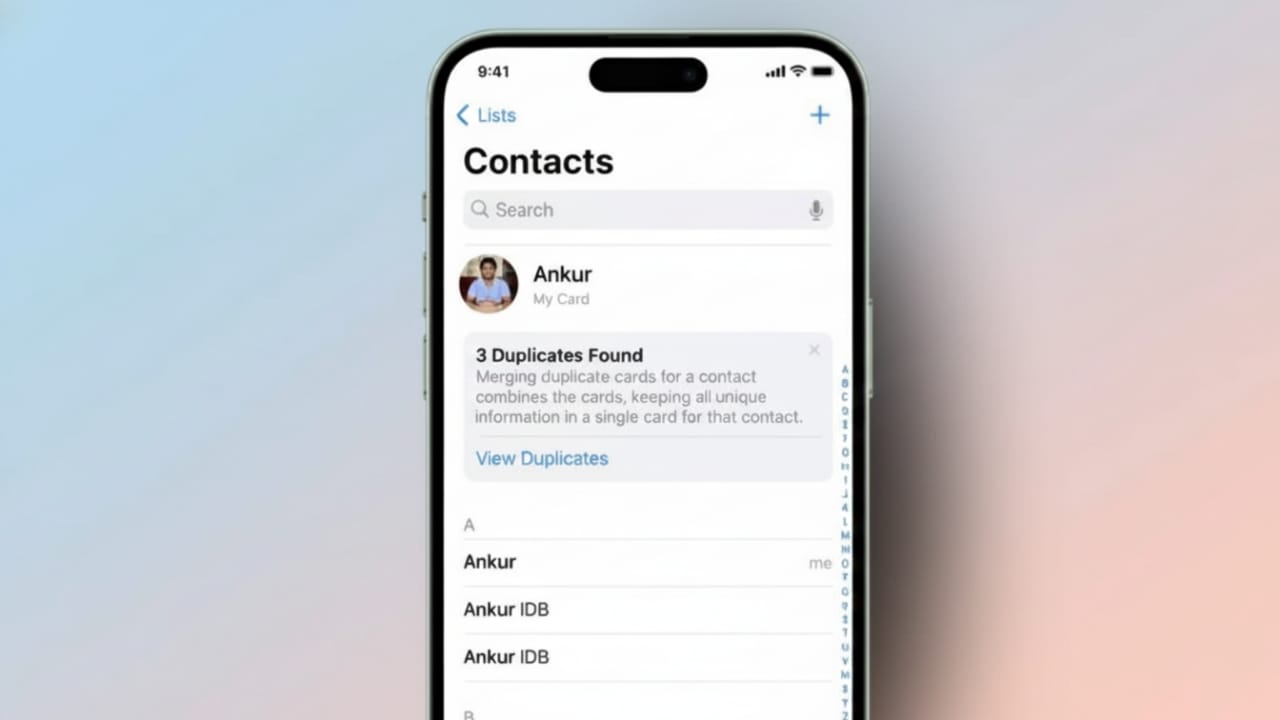
After updating, open the Contacts app from the Phone app. If duplicates are found, you may see a message at the top saying Duplicates Found. Tap View Duplicates to review the suggestions. You can choose Merge All to combine matching contacts at once.
This automatic merge works best when contact details are exactly the same. If names or numbers differ slightly, you may need to merge them manually.
To do this, open one of the duplicate contacts and tap Edit. Scroll down and select Link Contacts. Tap the plus icon and choose the matching contact. Confirm by tapping Link. Both entries will now appear as one contact.
If needed, linked contacts can be separated later. Open the contact, tap Edit, scroll to Linked Contacts, tap the red minus icon, and choose Unlink.
Removing Duplicate Contacts Instead of Merging
Some users prefer deleting extra contacts instead of combining them. iOS does not offer a clear multi-delete button, but there are simple ways to remove multiple contacts.
Open the Contacts app. Place two fingers on a contact name and drag downward to select more contacts. Once selected, long-press any highlighted contact and choose Delete X Contacts. Confirm the deletion when prompted.
This method works well for small cleanups and becomes easier with practice.
Delete Duplicate Contacts Using iCloud or Mac
For faster bulk cleanup, iCloud is a useful option. Visit iCloud.com from any browser and sign in with your Apple ID. Open Contacts from the menu.
On a Mac, hold the Command key. On Windows, hold the Control key. Click all contacts you want to delete, then select Delete Contacts. The changes will sync automatically with your iPhone.
Make sure iCloud contact syncing is enabled. Open Settings, tap your Apple ID, go to iCloud, and turn on Contacts.
Mac users can also delete contacts directly from the Contacts app on macOS. Select multiple contacts using the Command key and press Delete. The updates sync instantly with the iPhone.
Managing Synced Accounts to Prevent Future Duplicates
Many duplicate contacts come from email accounts that sync contacts automatically. Gmail, Outlook, and Exchange are common examples.
To manage this, open Settings, go to Apps, then tap Mail and select Mail Accounts. Choose the email account and turn off the Contacts toggle. Tap Delete from iPhone to confirm.
This removes the contacts only from your device. The data remains safe in the email account. Restart your iPhone to refresh syncing services.
Some third-party contact management apps are also available. These apps can help merge or delete contacts in bulk. Before using them, always check reviews and privacy policies. Use such tools only if you trust the app and feel comfortable with its permissions.
Also read: How to Organize iMessage Apps on iPhone and iPad
Final Thoughts
Merging duplicate contacts on iPhone helps keep your phone clean and easy to use. Apple’s built-in tools make contact management simple and safe. iOS duplicate detection saves time, while iCloud and Mac options allow faster bulk changes.
Managing synced accounts reduces future duplication. Regular cleanup prevents confusion and keeps your contact list organized. A well-maintained contact list improves the overall iPhone experience and saves time every day.

Jatin Rajput (Tech Golu) — Tech blogger & YouTuber with 6+ years of experience in WhatsApp, Instagram, Facebook, and mobile guides. Founder of TechGolu.in.